Connecting to WordPress
Machined lets you connect to unlimited WordPress sites to publish content directly.
Connections are configured at the project level — go to Project Settings → Integrations and click Add Connection next to WordPress.
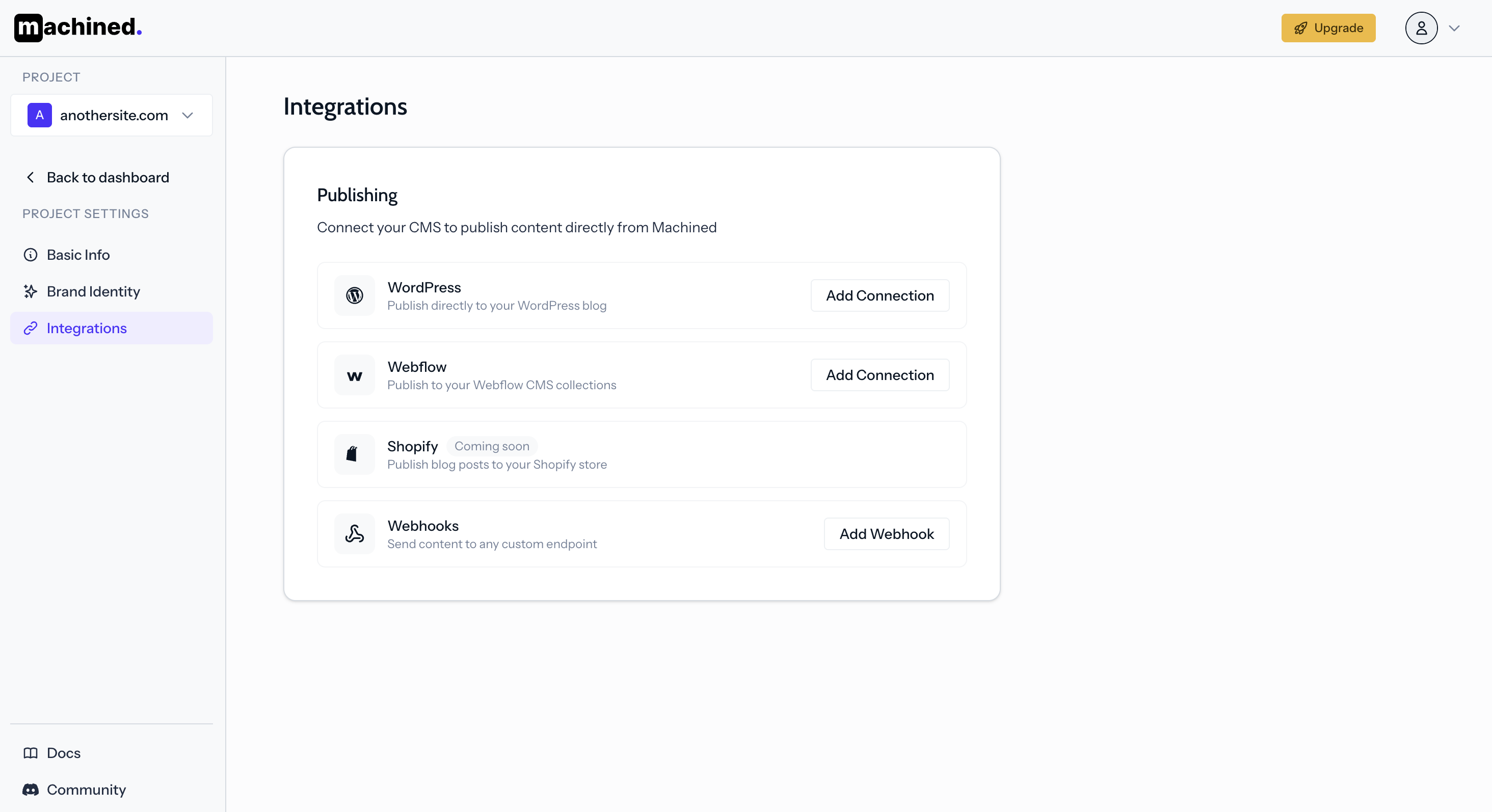
Connection methods
There are two ways to connect:
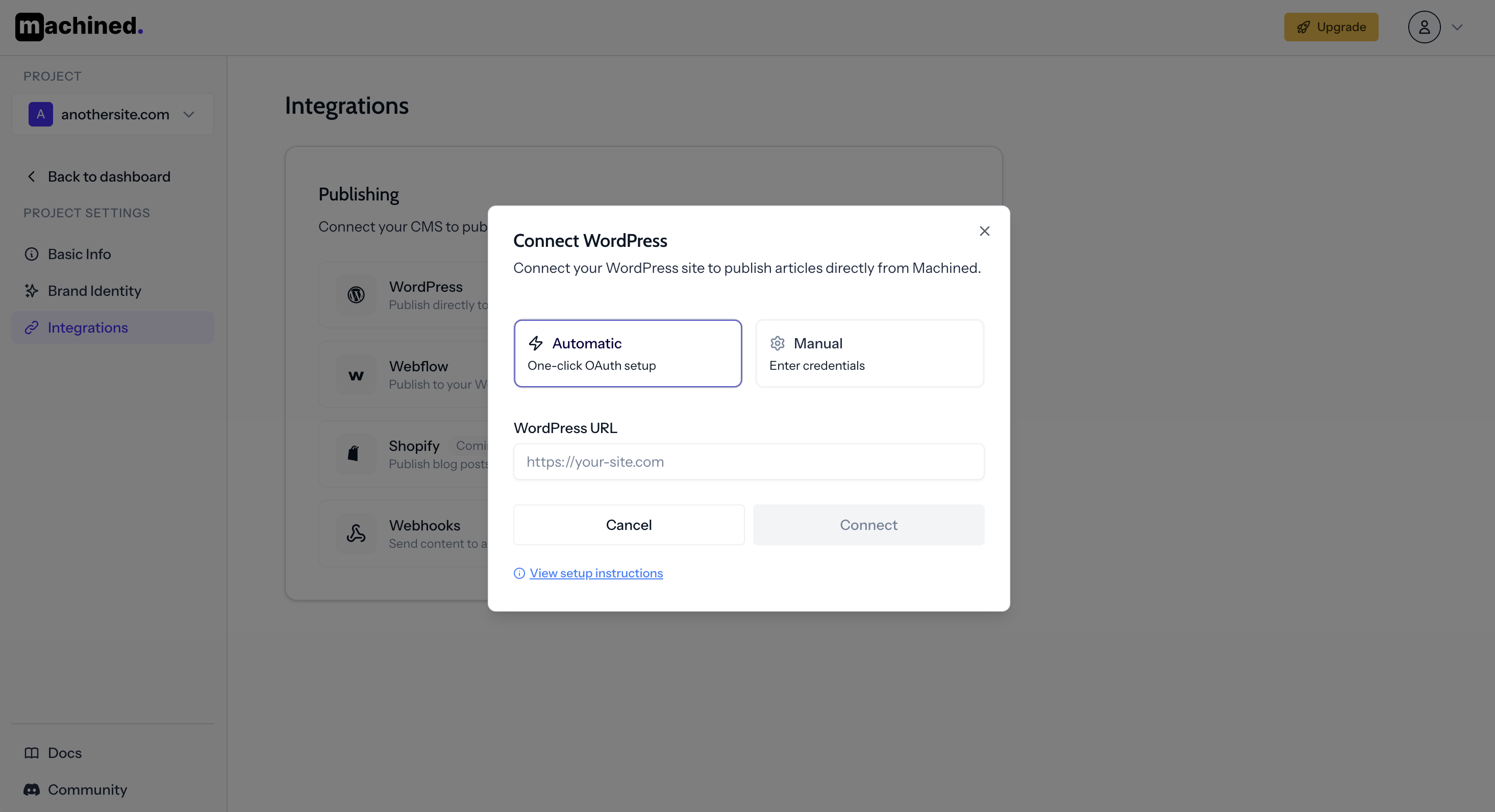
Connecting Automatically
Select Automatic and enter your WordPress site URL. This opens a browser window to your WordPress site where you approve the connection — no credentials needed.
Connecting Manually
Select Manual and enter your credentials.
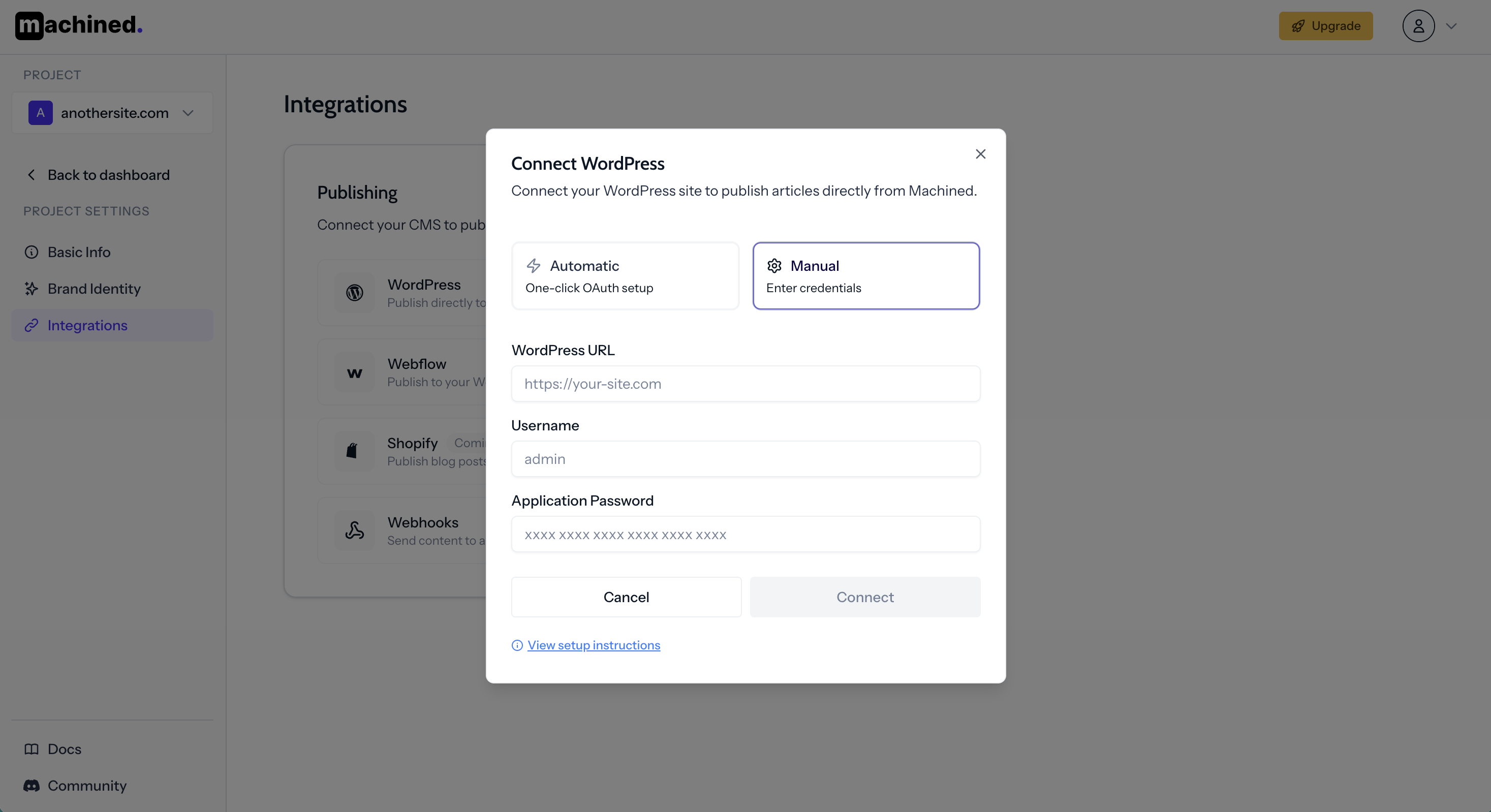
- WordPress URL — your site's domain (e.g.
https://your-site.com) - Username — your WordPress username (not the application password name)
- Application Password — generated in the next step
Create an Application Password
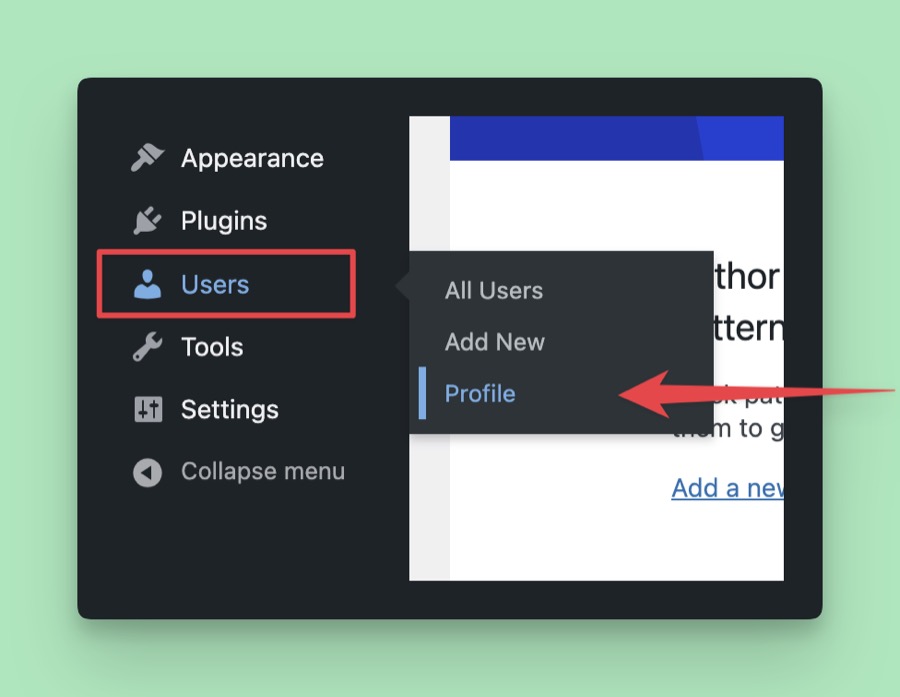
- Log into WordPress as an admin
- Go to Users → Profile
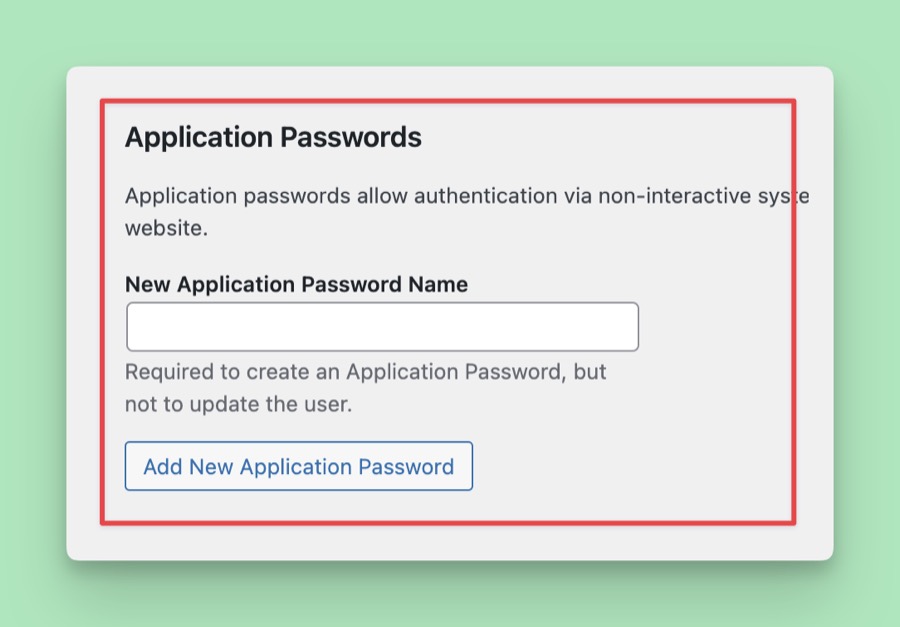
- Scroll down to the Application Passwords section
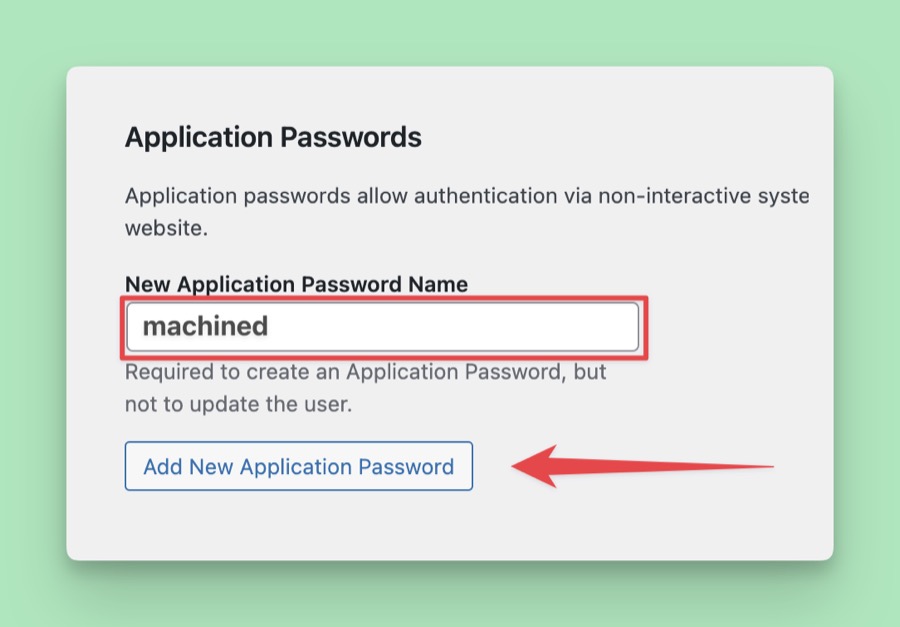
- Enter "machined" as the name and click Add New Application Password
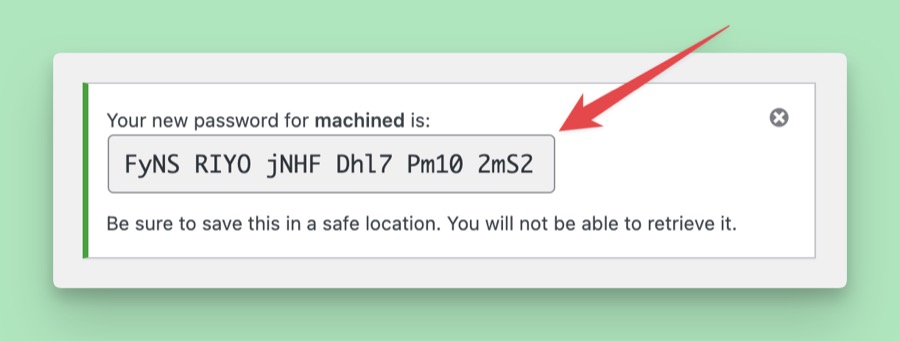
- Copy the generated password immediately — it won't be shown again
Paste the password into Machined and click Connect.
Troubleshooting
WordFence users
If you have WordFence installed, disable these two settings:
Disable WordPress application passwordsBlock IPs who send POST requests with blank User-Agent and Referer
WP REST API returns 401
A 401 error indicates an authentication problem.
- Check your credentials are correct
- The username must be your WordPress username, not the application password name
- The application password may have been revoked — check in WordPress
- If WordFence is enabled, configure it as above
WP REST API returns 404
A 404 error means the REST API endpoint can't be found.
- Change permalink settings to Post name — see this Stack Overflow thread
- If you're on Hostinger, disable the Hostinger AI and Hostinger Easy Onboarding plugins
WP REST API returns 403
A 403 error means access is forbidden. The cause is almost always a security layer in front of your site blocking our connection, not your WordPress account or password.
Many hosts and security plugins (for example Wordfence, iThemes Security, or a Cloudflare firewall) block requests to the WordPress REST API by default. Machined uses that API to connect and publish, so when it's blocked, the connection fails.
How to fix it
Ask your hosting provider or whoever manages your site's security to allow access to the WordPress REST API from external services. The most reliable way is to add this path to their allow-list:
/wp-json/wp/v2/users/
(More broadly, allowing /wp-json/ will cover publishing too.)
You can also ask them to allow our requests by name. They'll see the identifier MachinedAI in their logs.
Before you contact your host, double-check:
- Enter just your site address, like
https://yoursite.com, not a link that includes/wp-adminor any other path. - For the one-click connection, make sure you're already logged in to your WordPress admin in the same browser.
- Confirm
https://yoursite.com/wp-jsonopens in a browser and shows code (not a login screen or error page). If it doesn't, a plugin may be disabling the REST API.
Specific causes
Cloudflare: If the error includes rayId or challenge, Cloudflare is blocking the request.
- Disable bot challenge mode. See these tips
JWT Authentication: If the error includes jwt_auth_bad_auth_header, you have JWT authentication installed.
- Remove the JWT Authentication plugin
WPEngine: This can be caused by their legacy network configuration.
- Contact WPEngine support. See this thread for more info