Quick start
When you sign up, Machined.ai asks for your website and your name, then sets up your workspace and first project for you. While it does, it scans your website to fill in what your business does and who you write for.
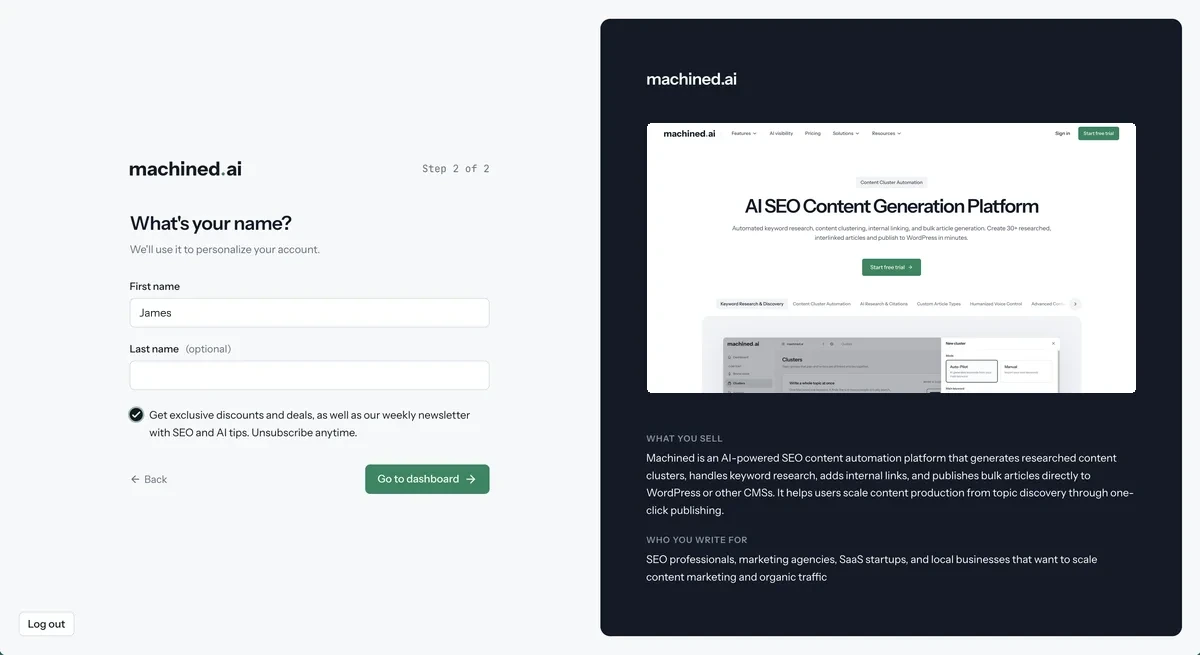
You start on a 7-day free trial of the Launch plan. No card or API key is needed.
Your project's Dashboard shows a setup checklist. This guide follows the same four steps.
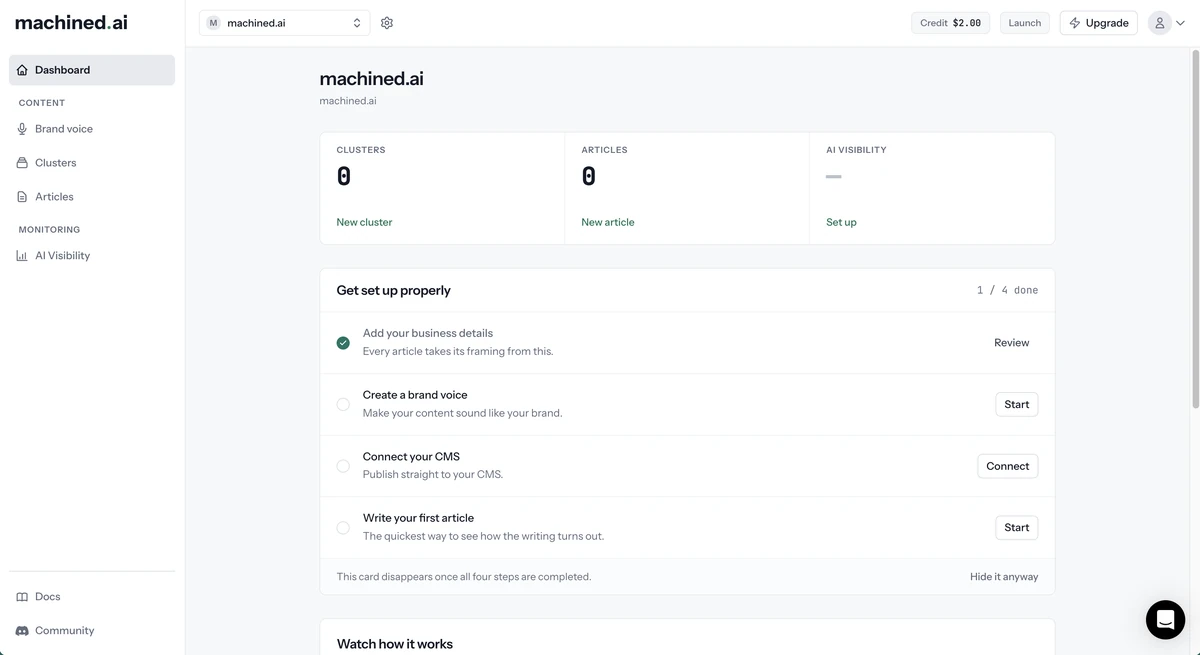
Step 1: Add your business details
Every article takes its framing from your business details, so check them before you write anything.
- Open Project settings (the gear icon next to the project switcher). You'll land on Basic info.
- Check the details from your onboarding scan:
- What does your business do?
- Target audience
- Set your Country and Language. These are used for keyword data, research and SERP analysis. Writing for a global audience? Choose the United States.
- Click Save changes.
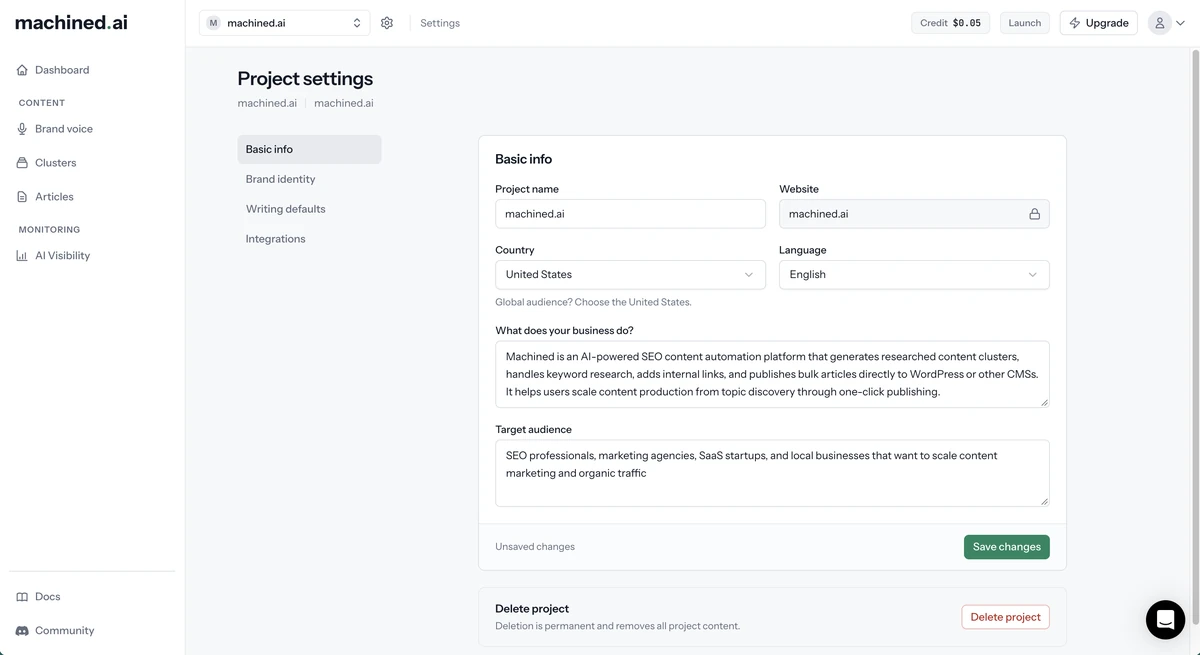
Your country, language and target audience are filled in automatically on every new article and cluster. You can still change them each time.
Step 2: Create a brand voice
A brand voice teaches Machined your writing style, so everything it writes sounds like you.
- Click Brand voice in the sidebar.
- On the Analyze my writing card, click Start from my content.
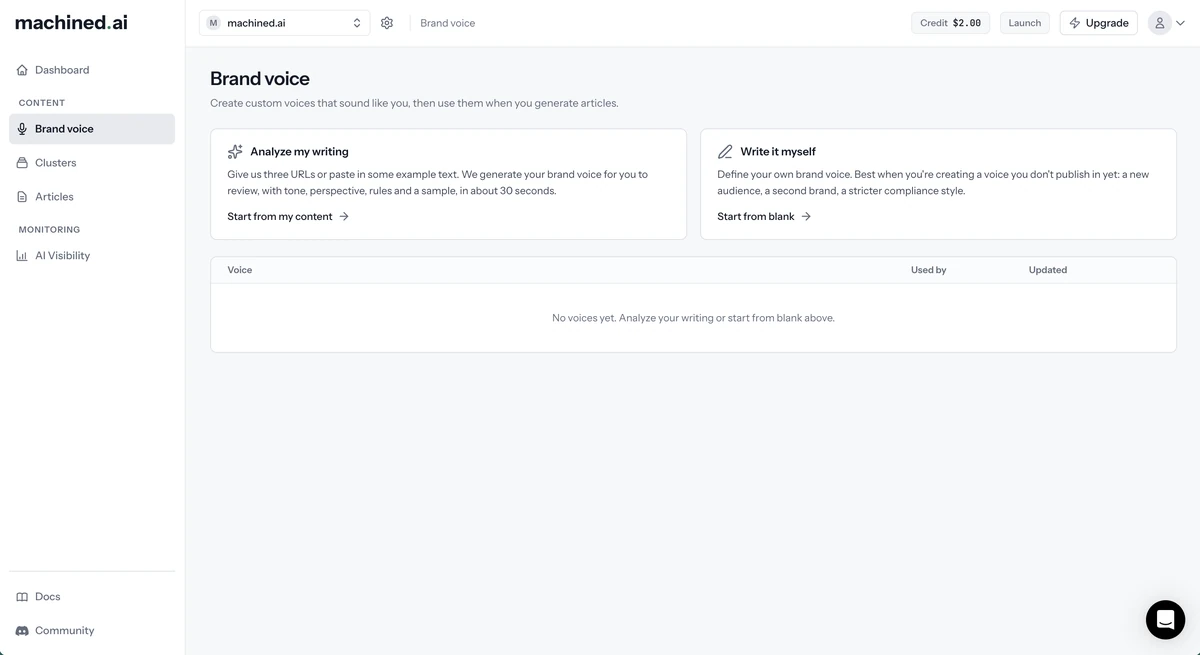
- On the From my site tab, enter up to three pages that represent your writing style. Click Add another page for each extra page. Alternatively, use the Paste text tab to paste in at least 200 characters of example writing.
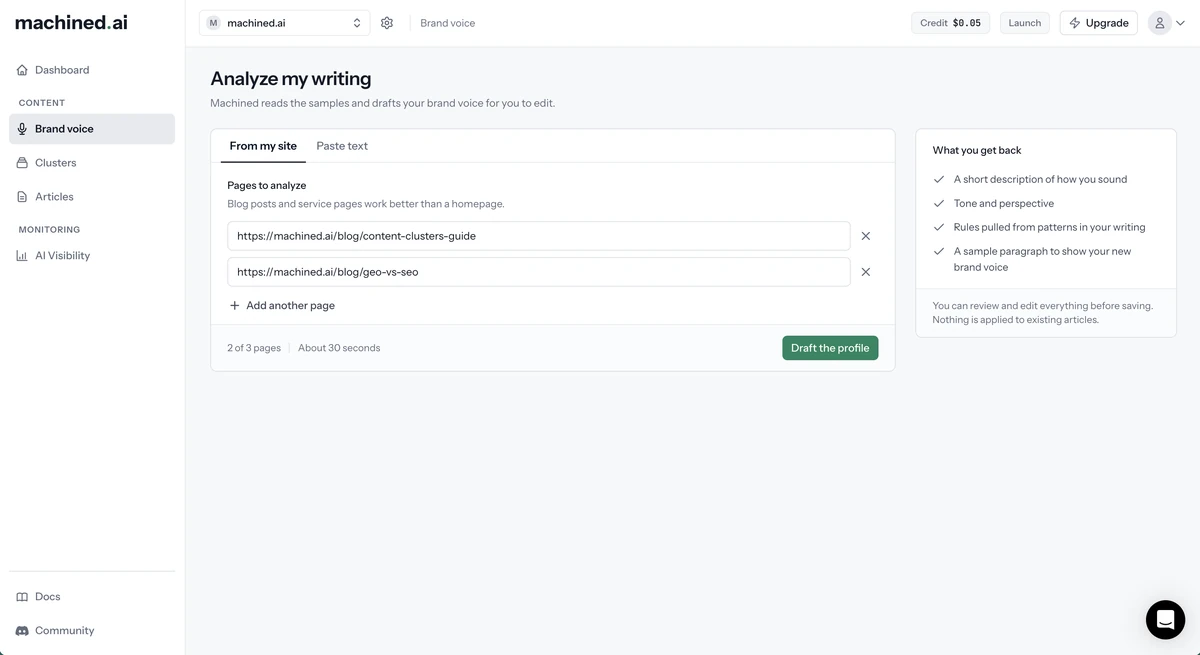
- Click Draft the profile. This takes about 30 seconds.
- Review your New voice profile: a short description of how you sound, your tone and perspective, rules drawn from your writing, and a sample paragraph. Edit anything that doesn't look right.
- Give the voice a name and click Save voice.
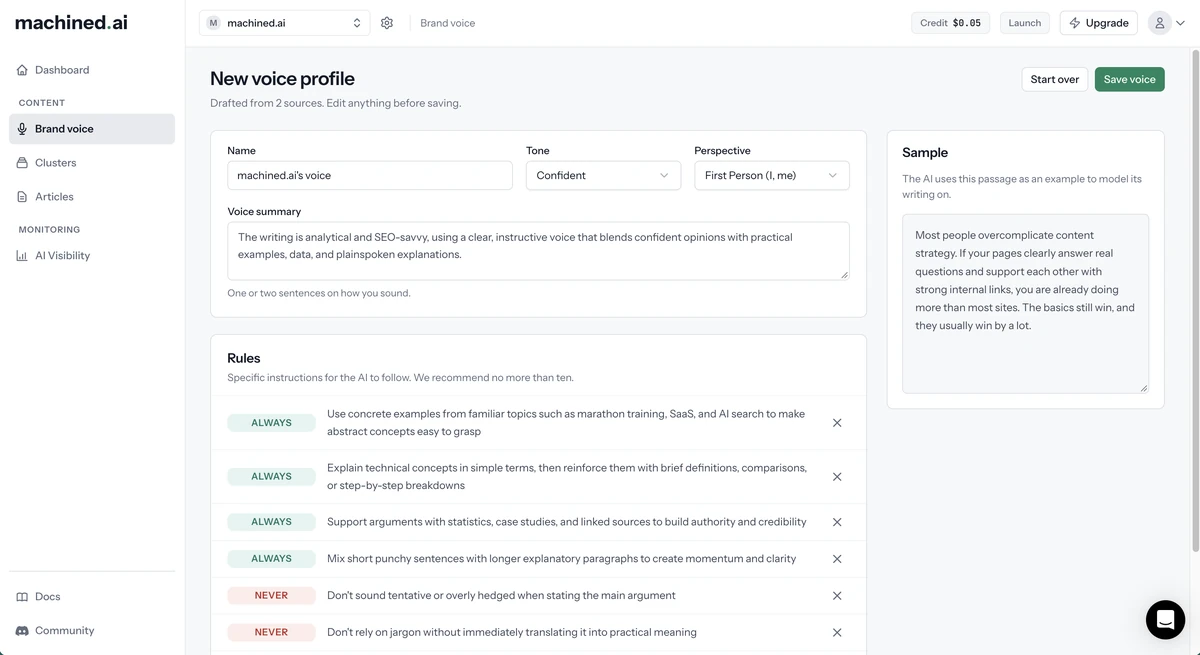
To use the voice on every new article and cluster, set it as your Brand voice in Writing defaults. You can also choose it on individual articles. See Custom voices for more.
Step 3: Connect your CMS
Connect your WordPress, Webflow, Framer, Ghost, HubSpot, Shopify or Wix site so you can publish articles straight from Machined. You can skip this step and export your articles instead, but you won't be able to publish.
- Connect to WordPress
- Connect to Webflow
- Connect to Framer
- Connect to Ghost
- Connect to HubSpot
- Connect to Shopify
- Connect to Wix
Publishing somewhere else? You can also publish via webhooks.
Step 4: Write your first article
Machined gives you two ways to create content:
- Single articles: one article at a time. The quickest way to see how the writing turns out.
- Clusters: a group of related articles covering different angles of one topic. Best for building topical authority.
Write a single article
- Click Articles in the sidebar, then New article.
- Enter your Target keyword, for example
how to grow tomatoes. - Check the Target audience, Country and Language, which are filled in from your project.
- Enter a Title, or click Generate with AI.
- Click Write article.
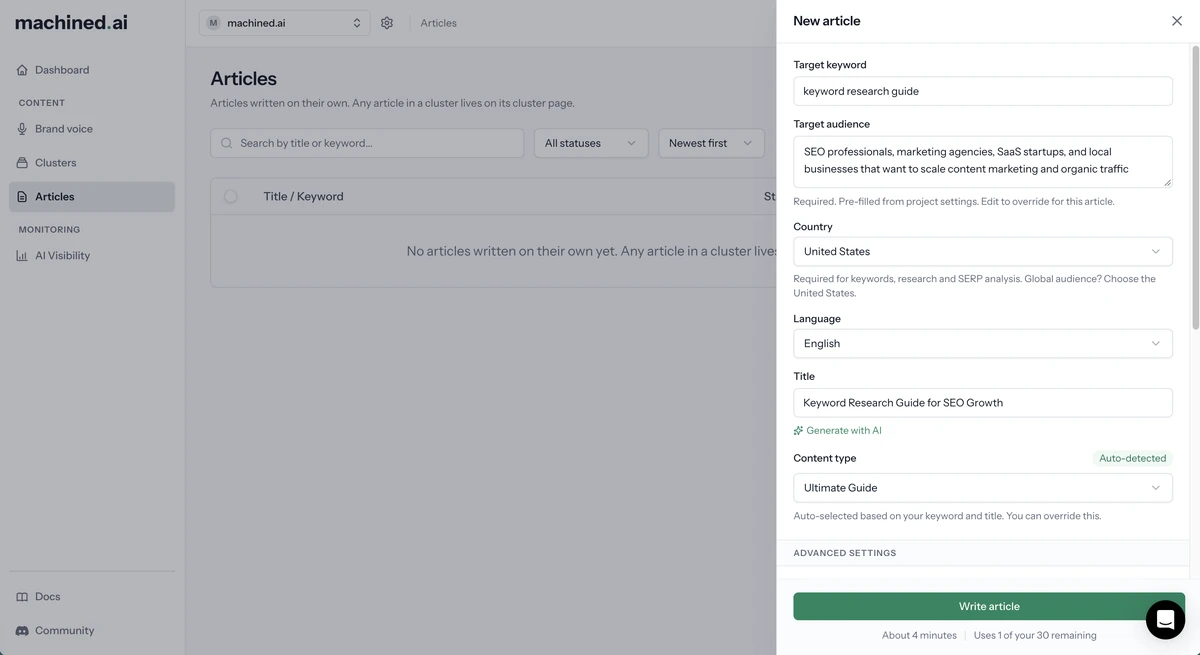
Writing takes about four minutes. You don't need to wait on the page.
Create a cluster
- Click Clusters in the sidebar, then New cluster.
- Choose Auto-Pilot.
- Enter your Main keyword, for example
how to grow tomatoes. - Check the Target audience, Country and Language, and choose a Cluster size.
- Click Create cluster.
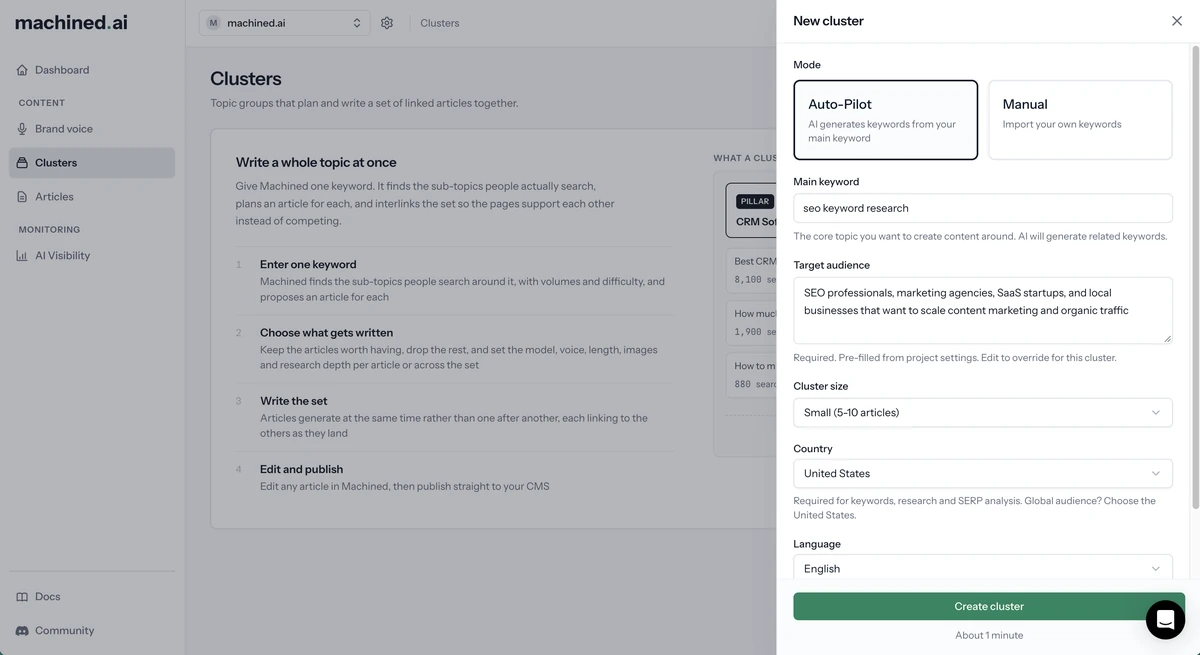
After about a minute, Machined proposes a set of keywords and article titles and takes you to the cluster. Nothing is written yet: select the articles you want and click Write. See Creating clusters for the full walkthrough.
Optional: set your writing defaults
If you'd like every new article to start with the same model, length, voice, research or image settings, set them once in Project settings → Writing defaults. See Writing defaults.
When your trial ends
When the trial ends, your workspace becomes read-only until you choose a plan. You keep full access to everything you've already created, but writing and publishing new content needs an active plan. See Billing and plans.
Next steps
- How Machined is organized: where everything lives
- Custom voices: create and manage brand voices
- AI models: the models you can write with
- AI Visibility: track whether AI assistants recommend your brand
- Plans & Pricing: what's included on each plan