How Machined.ai is organized
Everything in Machined.ai lives in one of two places: your workspace, or one of the projects inside it. Knowing which is which tells you where to find any setting.
Workspace                    ← your account, team, billing and API keys
├── Project: example.com     ← one website
│   ├── Brand voice
│   ├── Clusters
│   ├── Articles
│   ├── AI Visibility
│   └── Project settings
└── Project: another-site.com
    └── …
- Workspace: the top level. It holds your team, your plan and billing, and your API keys. Everything in it is shared with every member. When you sign up, a workspace is created for you.
- Projects: one project per website. Each project has its own content, voices, settings and publishing connections.
- Content: brand voices, clusters, articles and AI Visibility reports all belong to a single project.
Workspace settings
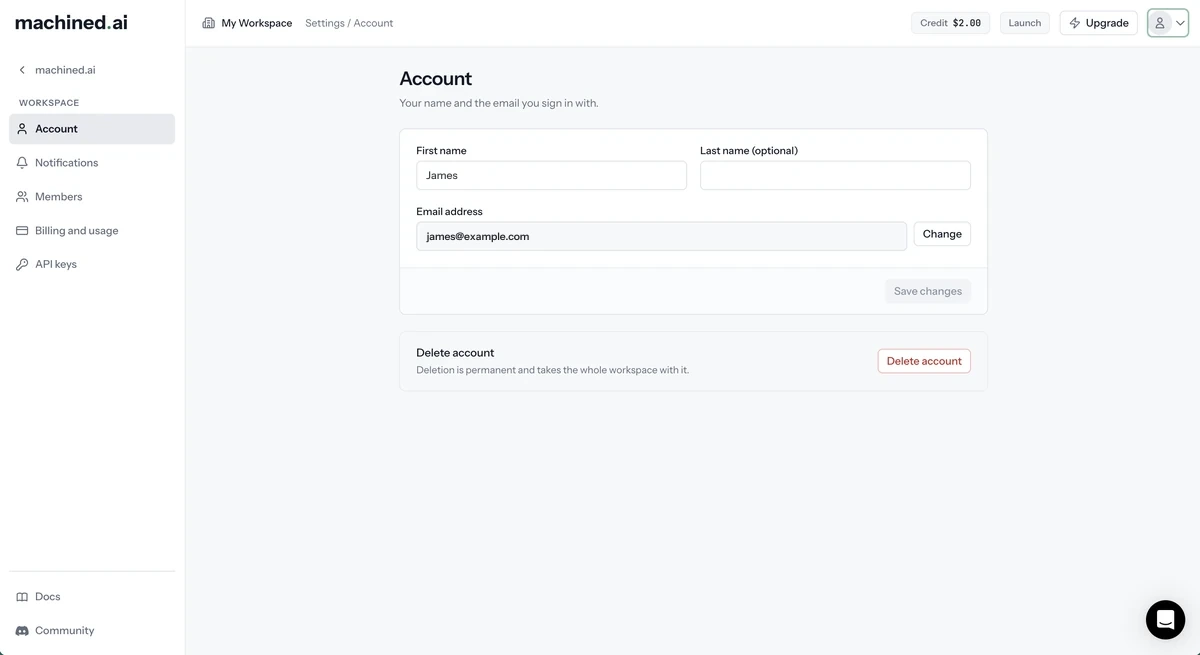
Open the account menu (your avatar, top right) and choose any item. While you're in workspace settings, the left-hand navigation switches to the workspace list.
| Item | What's there | Who can change it |
|---|---|---|
| Account | Your first and last name, your email address, and deleting your account | You |
| Notifications | The emails you receive (see below) | You |
| Members | The workspace name, your team, pending invites and seats. See Members and roles | Owner and Admins (Editors can view) |
| Billing and usage | Your plan, usage this period, AI Visibility credit, payment method and invoices. See Billing and plans | Owner (everyone can view) |
| API keys | Your own provider keys, if you're on the BYOK plan. See API modes | Owner and Admins |
Account
Your own name and the email address you sign in with. You can also delete your account here, which deletes the whole workspace if you're the owner.
Notifications
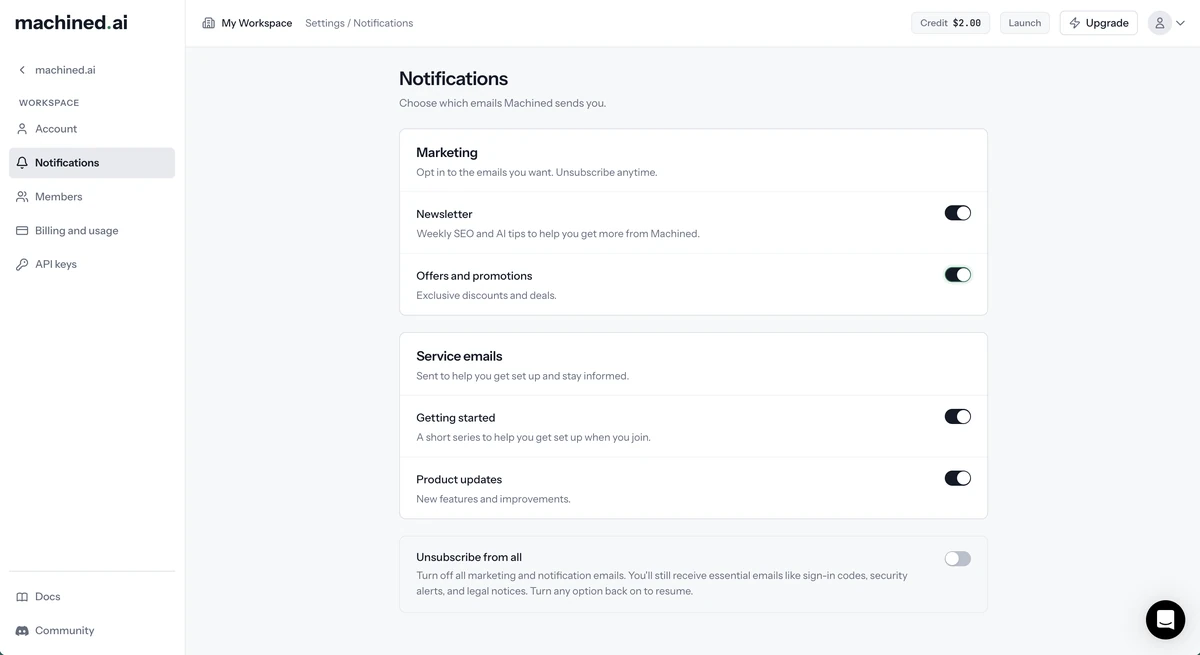
Notifications controls which emails Machined sends you:
-
Marketing
- Newsletter: weekly SEO and AI tips
- Offers and promotions: discounts and deals
-
Service emails
- Getting started: a short series to help you get set up
- Product updates: new features and improvements
- Unsubscribe from all: turns off all marketing and notification emails. You'll still receive essential emails such as sign-in codes, security alerts and legal notices.
These preferences are personal: each member chooses their own.
Members
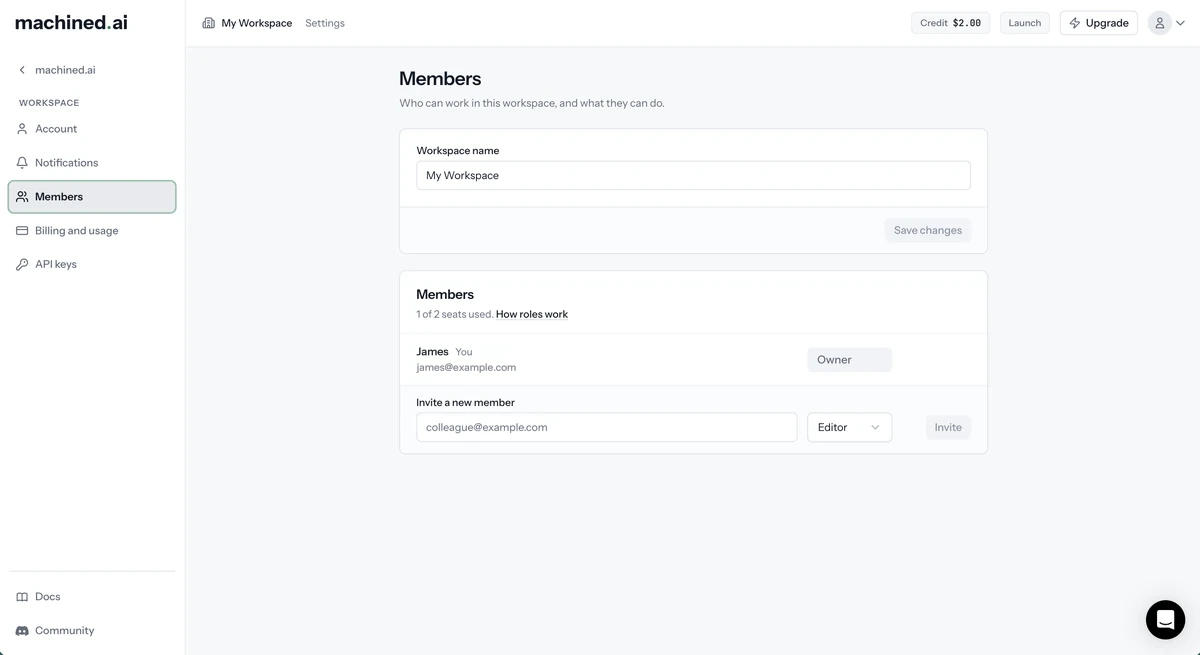
The workspace name, everyone in the workspace and their role, pending invites, and how many seats you've used. Invite new members from the bottom of the list. See Members and roles.
Billing and usage
Your plan, how many articles you've used this period, seats and projects, and your AI Visibility credit. The owner can change plan, buy credit and manage payment from here. See Billing and plans.
API keys
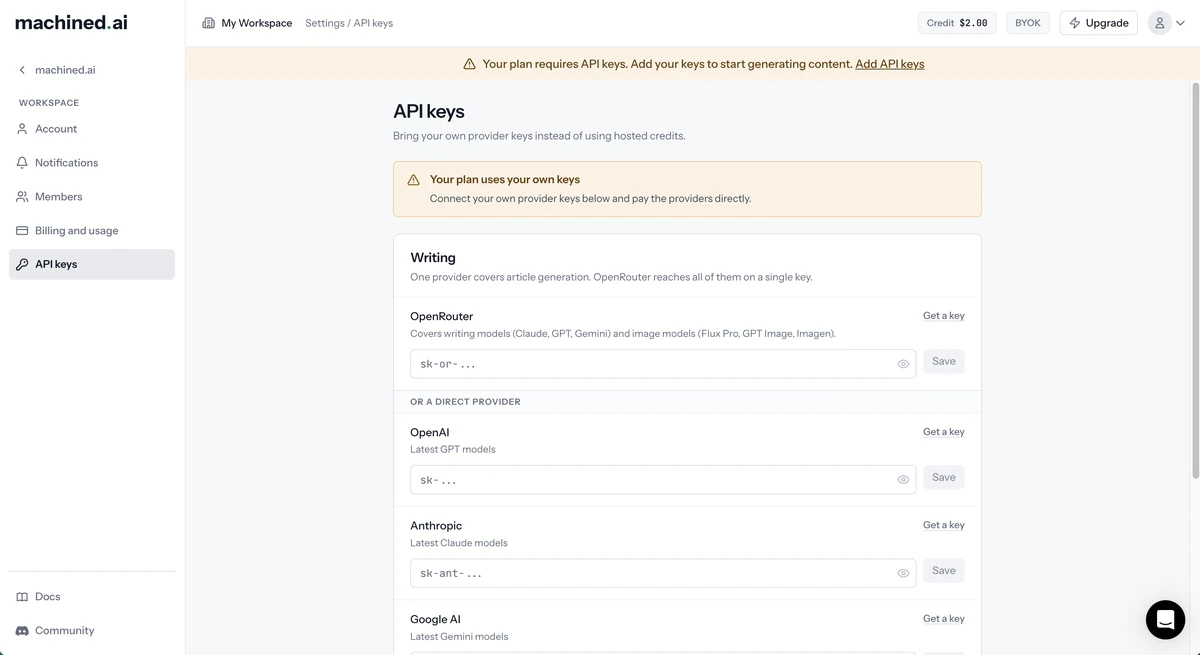
On hosted plans, Machined pays the AI providers, so there's nothing to set up here. On the BYOK plan, this is where you add your own provider keys. See API modes.
Projects
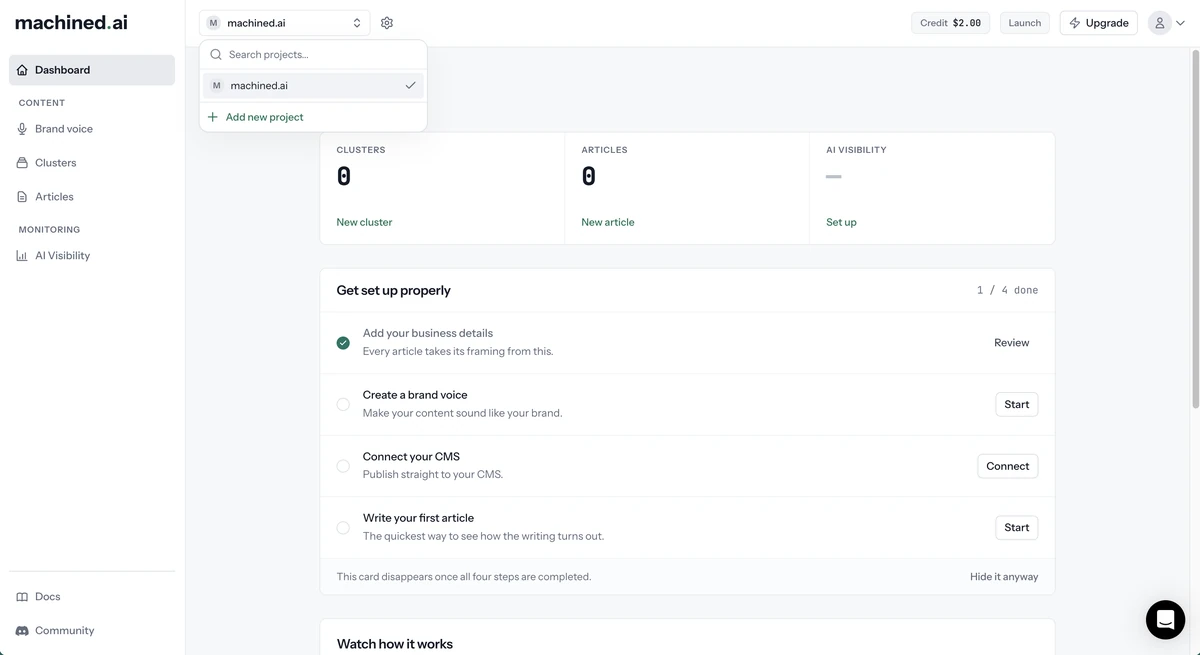
A project is a single website. Switch between projects, or add a new one, with the project switcher at the top left.
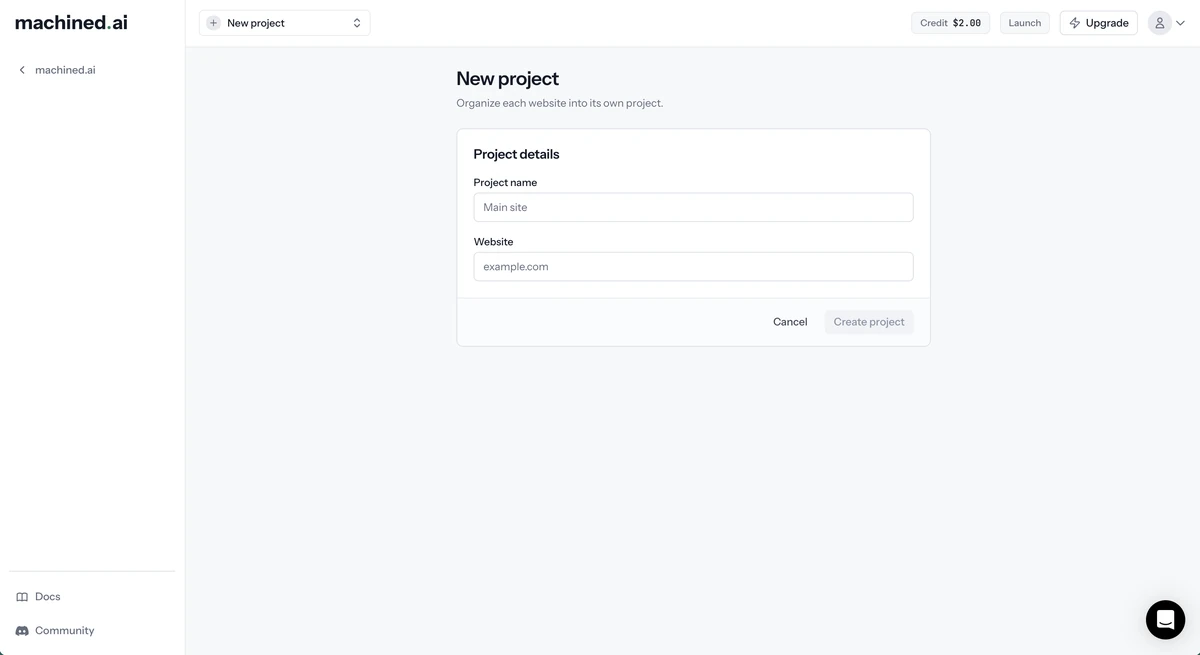
Add new project asks for a project name and the website's address.
Each project has its own:
- Business details, country and language
- Brand voices
- Clusters and articles
- Writing defaults
- CMS connections and webhooks
- AI Visibility tracking
Nothing is shared between projects automatically, though you can copy a brand voice to another project and move articles between projects.
Inside a project
The left-hand navigation shows everything in the current project:
| Item | What it's for |
|---|---|
| Dashboard | An overview of the project: clusters, articles written and published, your AI visibility score, and a setup checklist for new projects |
| Brand voice | Create and manage the voices your articles are written in. See Custom voices |
| Clusters | Groups of related articles built around one topic. See Creating clusters |
| Articles | Standalone articles, and the article editor. See Creating single articles |
| AI Visibility | Track whether AI assistants mention and recommend your brand. See AI Visibility |
Project settings
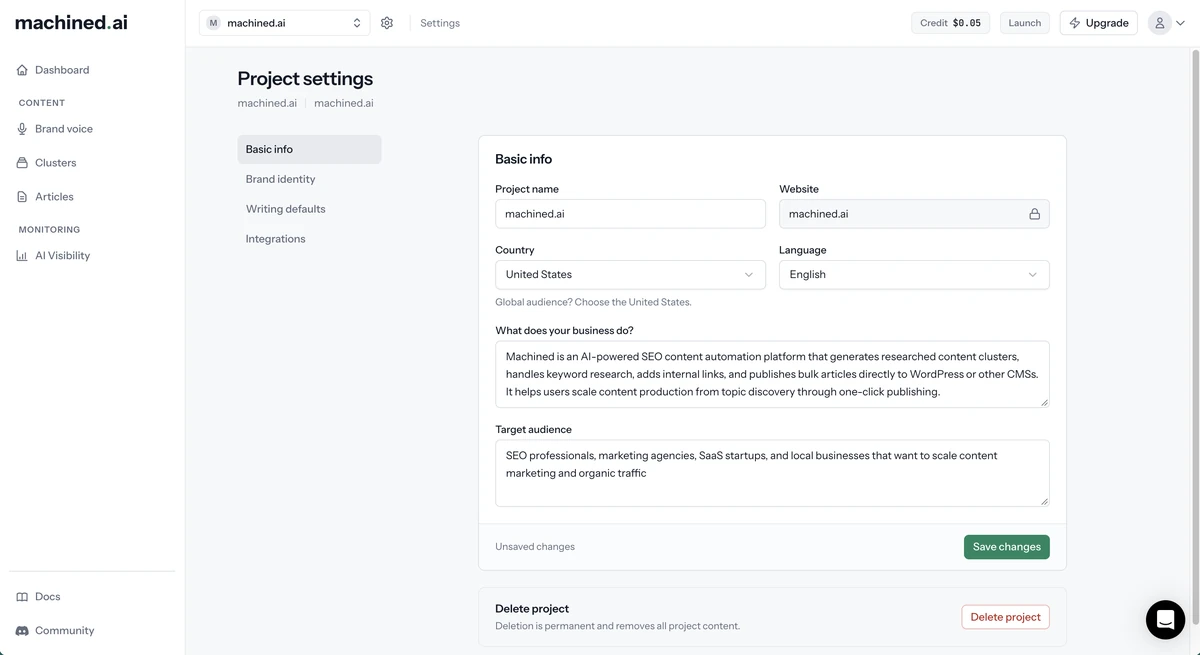
Open project settings with the gear icon next to the project switcher. There are four tabs:
| Tab | What's there |
|---|---|
| Basic info | Project name, website, country, language, what your business does, and your target audience. These fill in the defaults for every new article and cluster. You can also delete the project here. |
| Brand identity | Your unique insight: the expertise and views that set your business apart. See Unique insights |
| Writing defaults | The settings every new article and cluster starts from: model, length, voice, research, images and more. See Writing defaults |
| Integrations | Your publishing connections: WordPress, Webflow, Framer, Ghost, HubSpot, Shopify, Wix and webhooks. See Publishing |
A project's website can't be changed once it has been set.
Who can do what
Every member can see every project in the workspace. What they can change depends on their role:
| Owner | Admin | Editor | |
|---|---|---|---|
| Write, edit and publish content | ✓ | ✓ | ✓ |
| Create and edit brand voices | ✓ | ✓ | ✓ |
| Edit project settings and writing defaults | ✓ | ✓ | ✓ |
| Connect CMSs and set up webhooks | ✓ | ✓ | |
| Set up and run AI Visibility | ✓ | ✓ | |
| Delete projects | ✓ | ✓ | |
| Invite and remove members | ✓ | ✓ | |
| Manage API keys | ✓ | ✓ | |
| Change roles and rename the workspace | ✓ | ||
| Manage billing and buy credit | ✓ |
See Members and roles for the details.