Custom Voices
Custom voices let you train Machined on your own writing style, so generated content sounds consistent and on-brand. You can have up to 3 custom voices per project.
Creating a custom voice
Custom voices are created using the Brand Voice Generator, found under Brand Voice in the project sidebar.
Using the Voice Generator
- Click Brand Voice in the sidebar
- Enter up to 3 URLs of articles or blog posts that represent your writing style — or use the Paste Content tab to paste text directly
- Click Analyze Voice
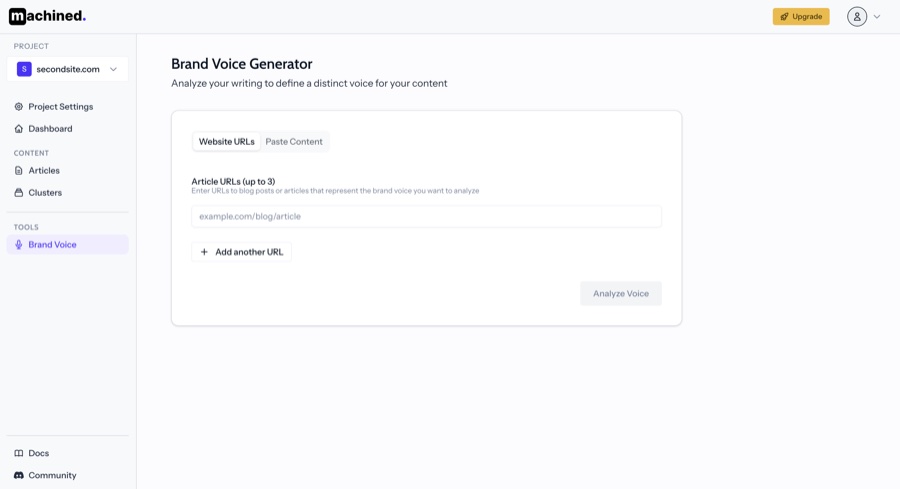
Machined will analyse your content and generate a Brand Voice Profile — including a summary of your style, tone, perspective, and a set of do's and don'ts.
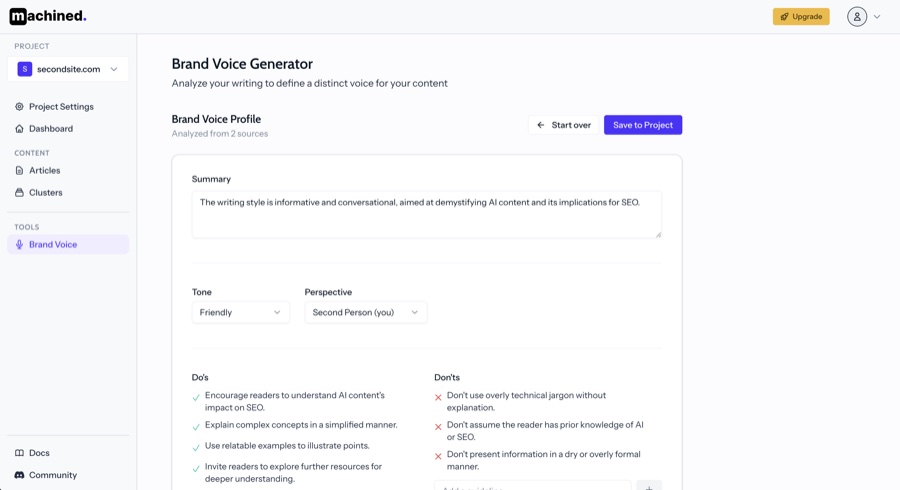
- Review the profile and edit anything that doesn't look right
- Click Save to Project, give your voice a name, and click Save
Your voice is now saved and available to select when writing articles.
Managing voices
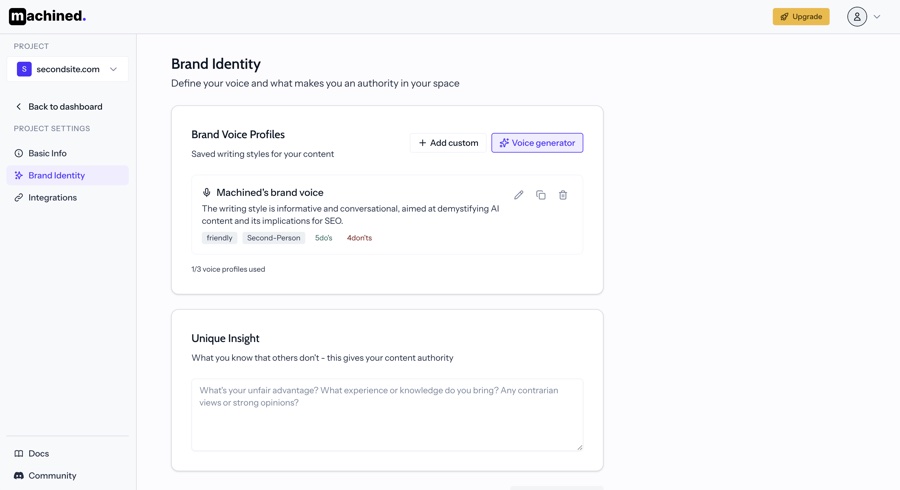
Saved voices appear in Project Settings → Brand Identity. From there you can:
- Edit a voice's summary, tone, perspective, and guidelines
- Delete a voice
- Create additional voices (up to 3 per project)
Using a voice when writing
When configuring a cluster or article, select your custom voice from the Voice dropdown. The voice will be applied when articles are written.
Built-in voices
If you haven't created a custom voice yet, you can use one of Machined's built-in voices. See Built-in Voices for the full list.