Creating Single Articles
Single articles let you generate one article at a time, without creating a cluster. They're a good choice when you need a one-off piece or want to test a keyword before committing to a full cluster.
When to use single articles vs clusters
| Single article | Cluster |
|---|---|
| One-off pieces | Building topical authority |
| Testing a keyword | Comprehensive topic coverage |
| Standalone content that doesn't fit a cluster | Content that benefits from internal linking |
For most SEO strategies, clusters will produce better results over time. But single articles are a fast way to publish targeted content when you need it.
Creating a single article
- From your project, click Articles in the sidebar
- Click New Article
- Fill in your settings and click Write Article
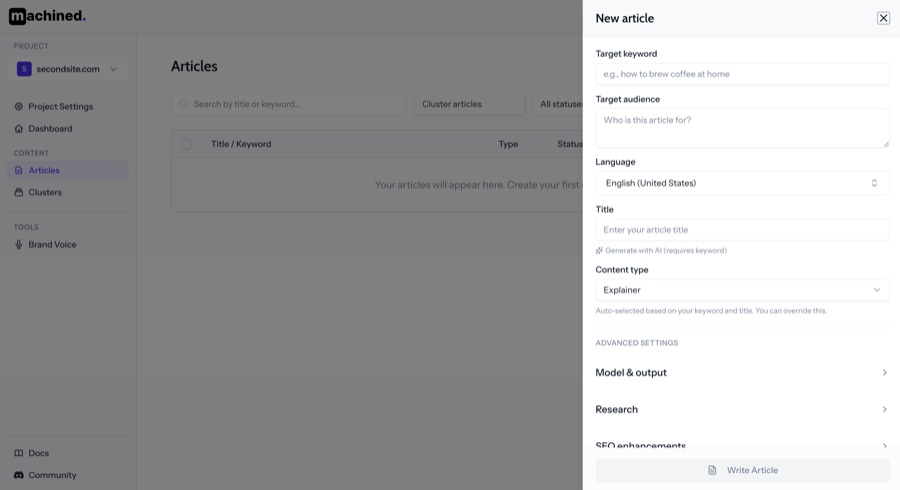
Article settings
Machined gives you a lot of options to control what goes into the AI writing process. The basic settings are the only ones required — everything else is optional and lets you fine-tune the output to your needs.
Basic settings
Target keyword — the main keyword you want the article to rank for.
Target audience — who you're writing for. The more specific, the better. See Audience.
Language — the language the article will be written in. See Language.
Title — write your own or click Generate with AI to have Machined suggest one based on your keyword.
Content type — Machined auto-selects the most appropriate type based on your keyword and title. You can override this if needed. See Content Types.
Advanced settings
Model — choose your AI provider and model. See AI Model.
Length — short, medium, or long. See Length.
Heading case — choose between title case and sentence case for all headings in the article.
Research — enable web research to ground the article in current, accurate information. See Research.
FAQ — appends a frequently asked questions section to the end of the article.
Unique insights — adds original data points and expert perspectives to help differentiate your content.
Voice — apply a brand voice to match your writing style. See Voices.
Secondary keywords — additional keywords to weave into the article alongside the primary keyword.
Media — add images and YouTube videos to the article. See Images.
Custom instructions — provide specific instructions to guide how the article is written.
Write the article
Once you've configured your settings, click Write Article. The article will be written in the background — writing typically takes around five minutes.
Next steps
Once written: