Adding Images
There are two ways to add images to your articles — during article creation or afterwards in the editor.
During article creation
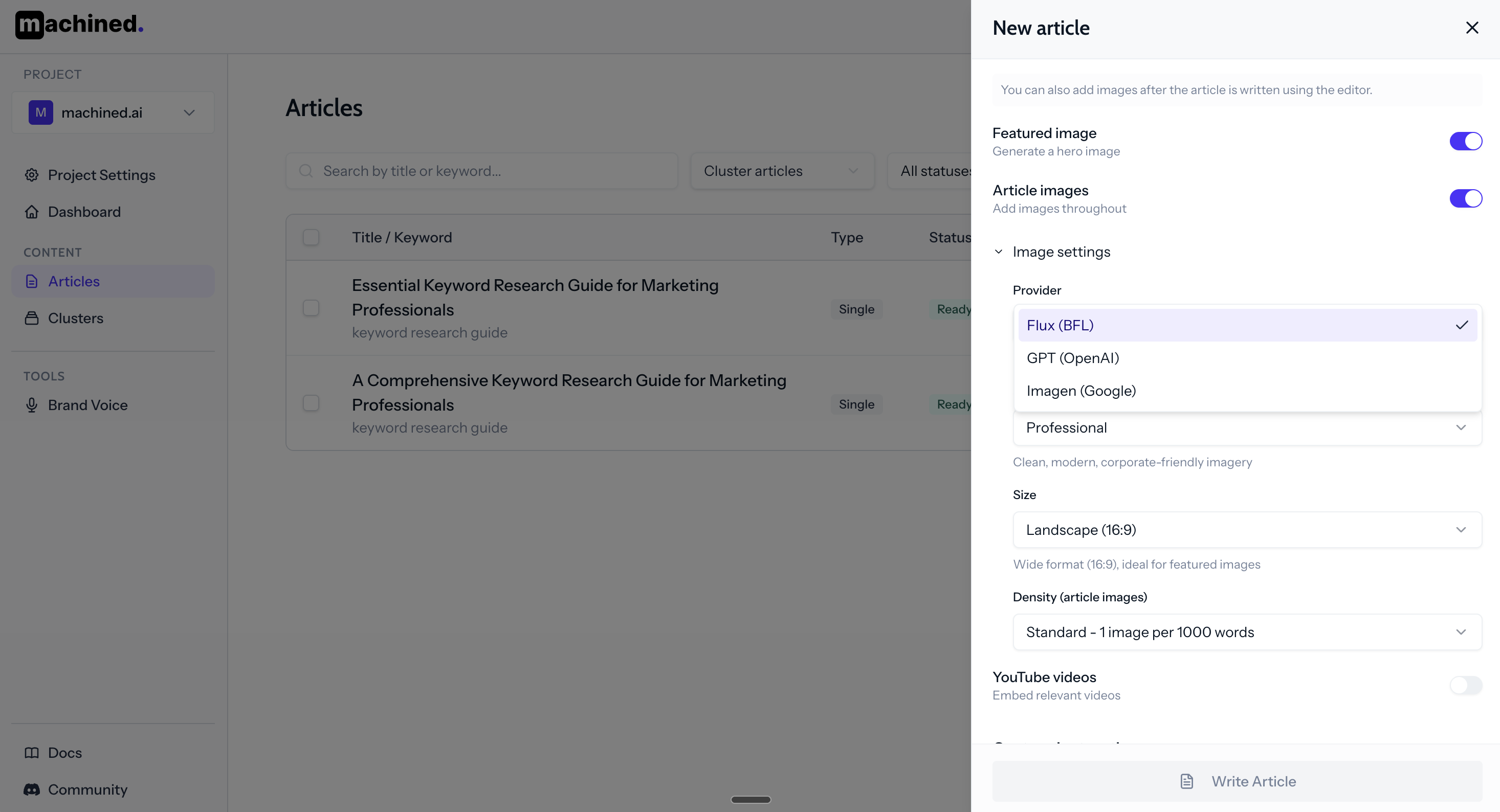
When configuring a cluster or single article, you can enable Featured Image and Body Images before writing.
Select your preferred provider and, for AI providers, choose an image style. When each article is written, Machined will automatically generate or source the images and insert them.
- Featured image — added as the article's main thumbnail
- Body images — inserted throughout the article body at relevant points
Auto-generation only runs on articles that don't already have an image in that slot.
In the editor
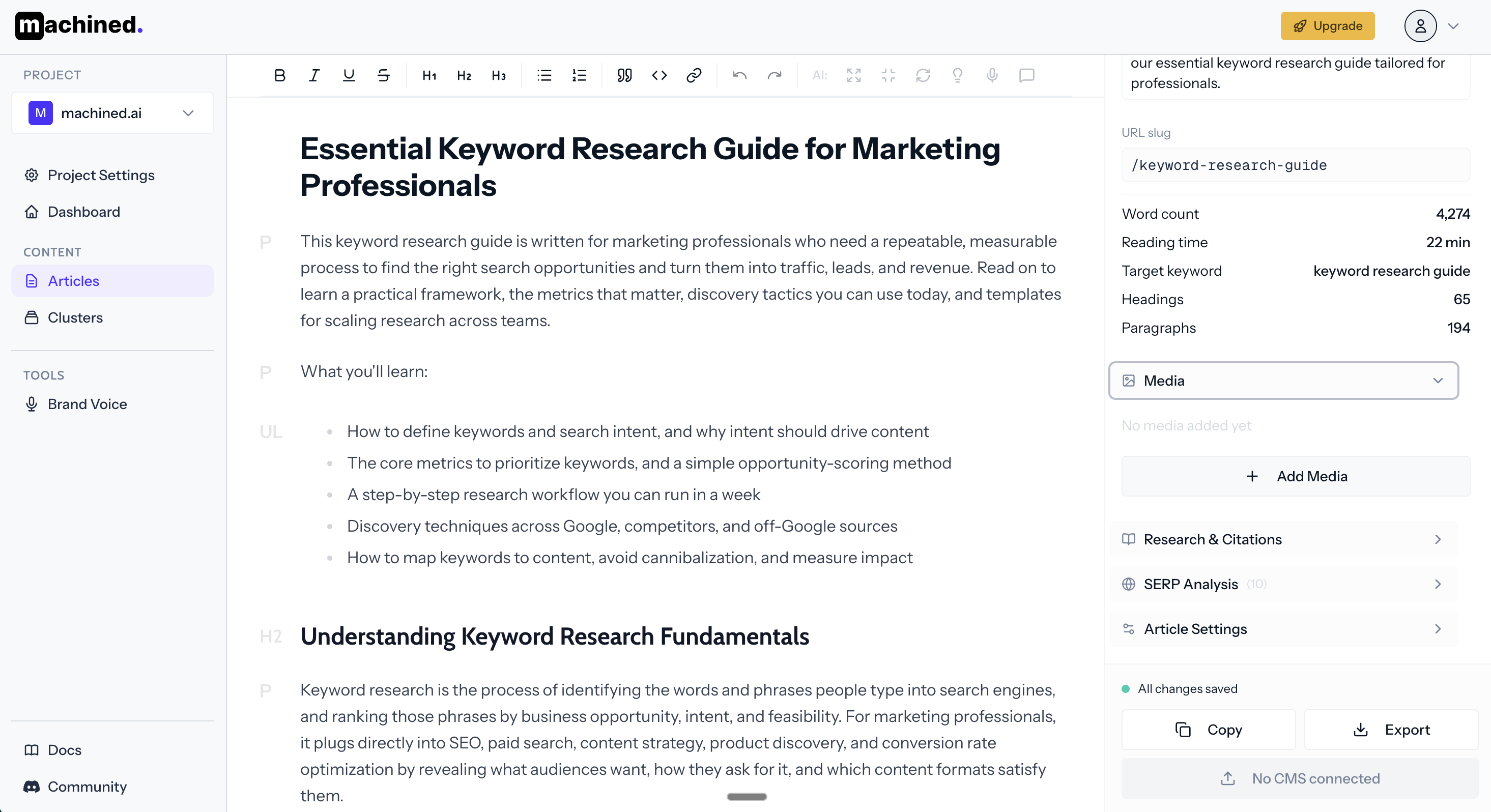
After an article is written you can create and manage images from within the editor. Open the Media panel on the right side of the editor.
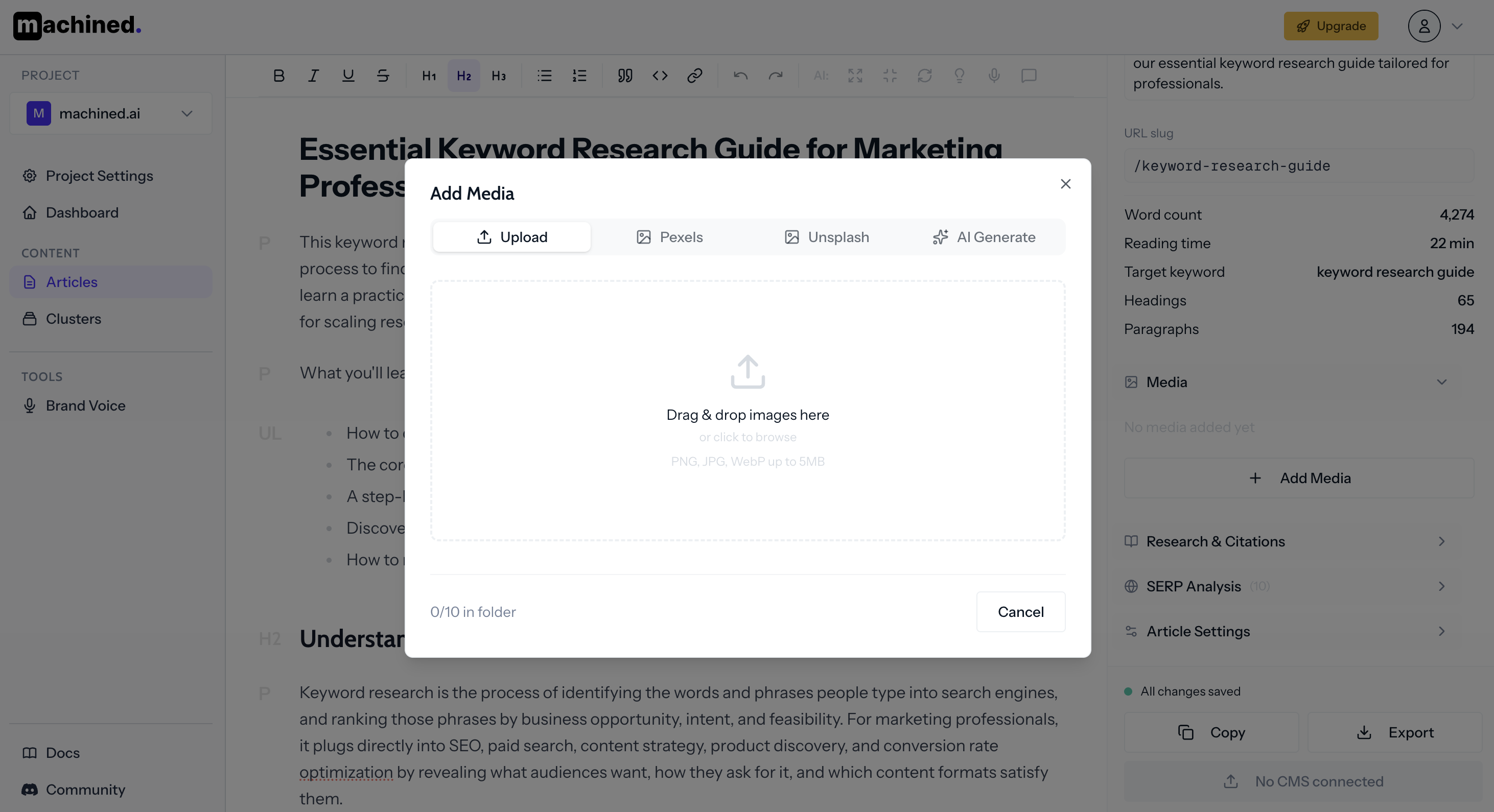
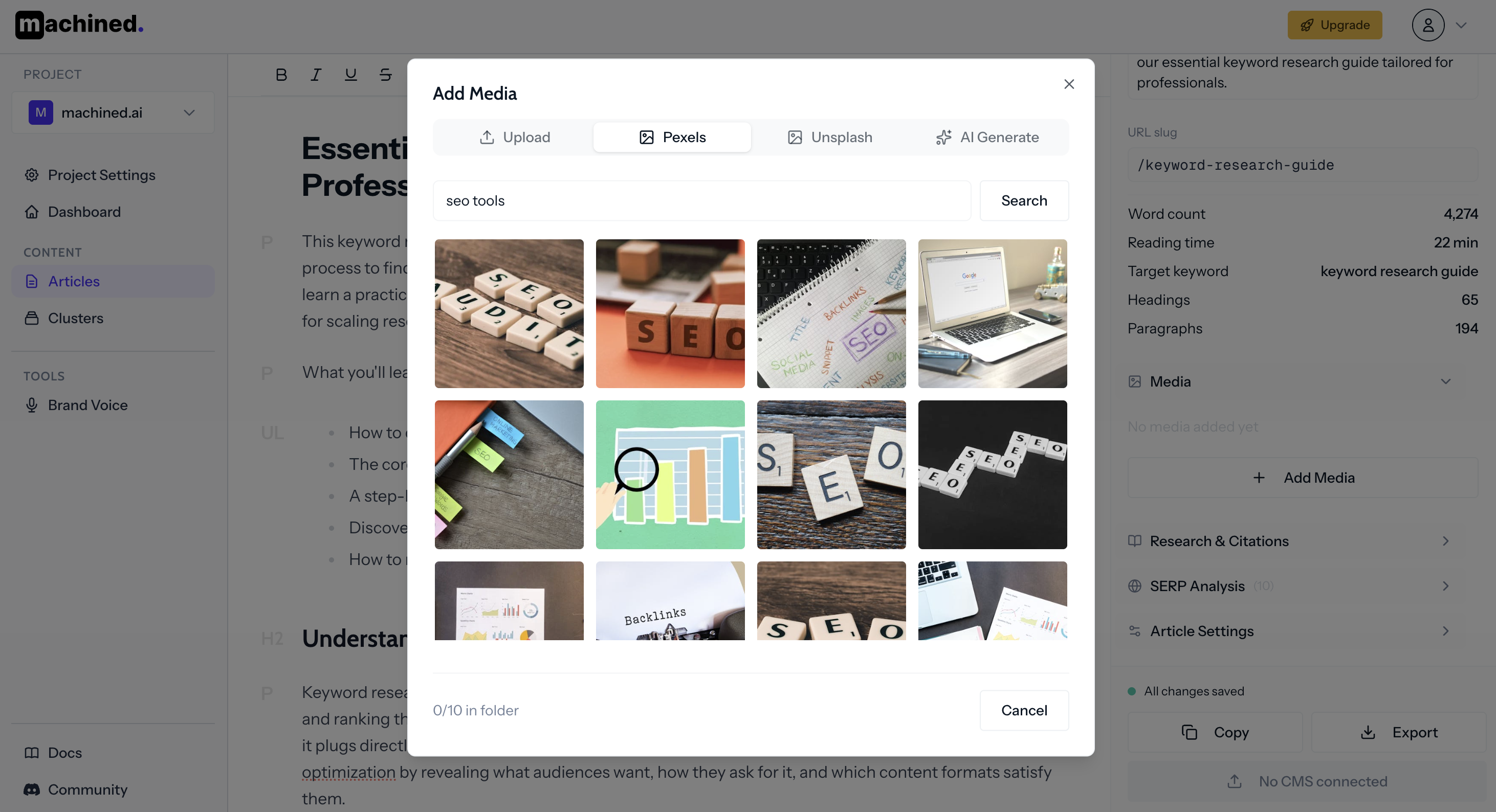
Click Add Media to open the media picker, which has three tabs:
Upload — drag and drop or browse to upload your own images.
Pexels — search for free stock photos.
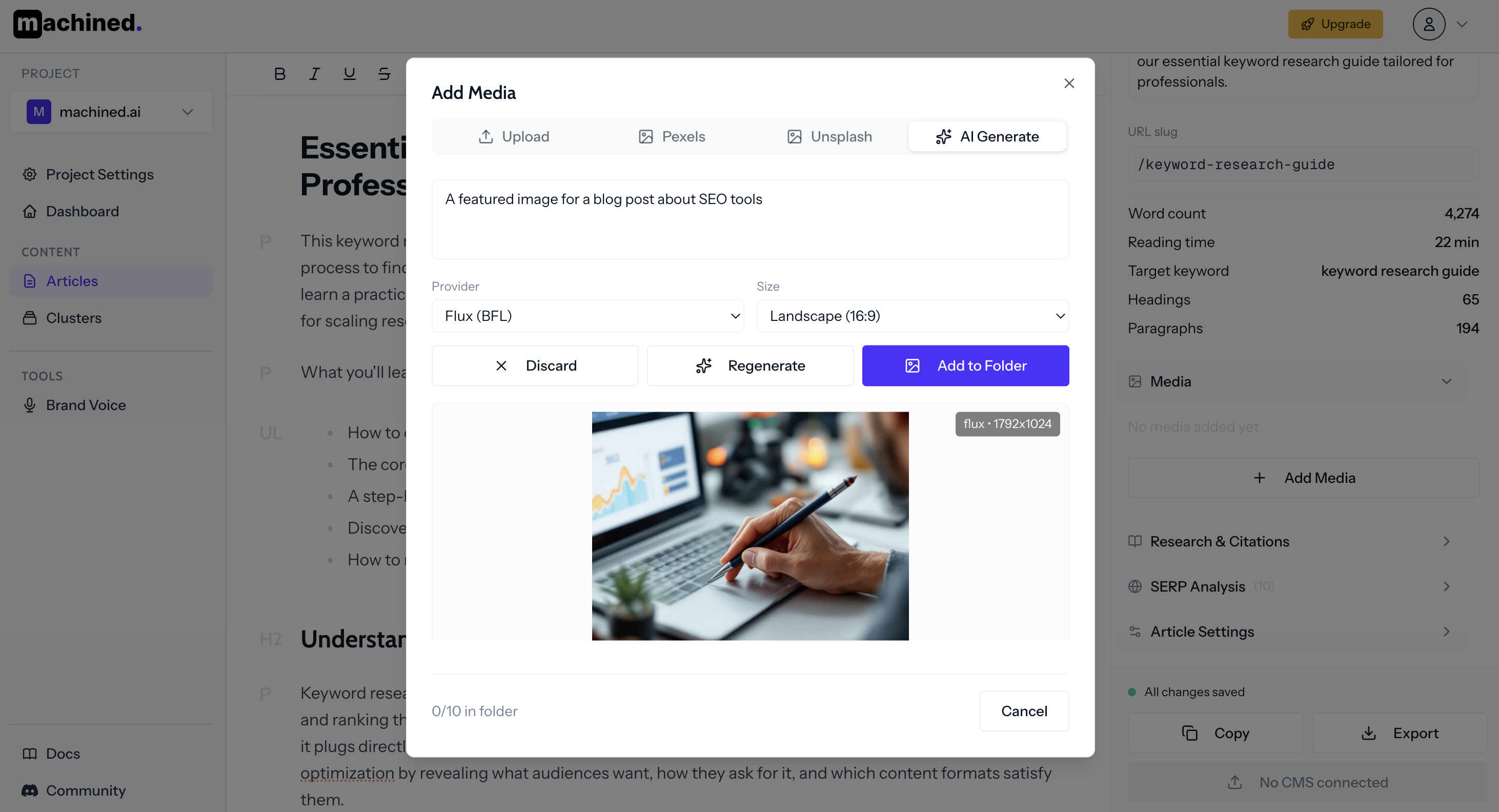
AI Generate — generate an image using an AI provider. Enter a prompt or use the article context, choose a provider, and click generate.
Images you create or select are added to the article's media bank — a collection of all images associated with that article. From the media bank you can:
- Set an image as the featured image
- Insert an image into the article body at any position
- Generate new images and keep previous ones for comparison
Image storage
Images are stored for up to 3 months, after which they are permanently deleted. Export or download any images you want to keep before then.