Setting up AI Visibility
This guide walks you through your first AI Visibility run: choosing your brand, market, engines and prompts. For an overview of the feature and how it's priced, see AI Visibility.
You'll need to be a workspace Owner or Admin to set up AI Visibility.
Before you start
Add your website to the project. Machined reads your homepage to suggest your first prompts.
Go to Project settings → Basic info and make sure the Website field is filled in. While you're there, check the Country and Language, which are used as the starting point for your first run.
Step 1: Open AI Visibility
Select your project, then click AI Visibility under Monitoring in the sidebar.
The first time you open it, you'll see a short introduction and a See what it would cost calculator. Use it to estimate the cost of different combinations of prompts, engines and frequency. Your current credit balance is shown below the button.
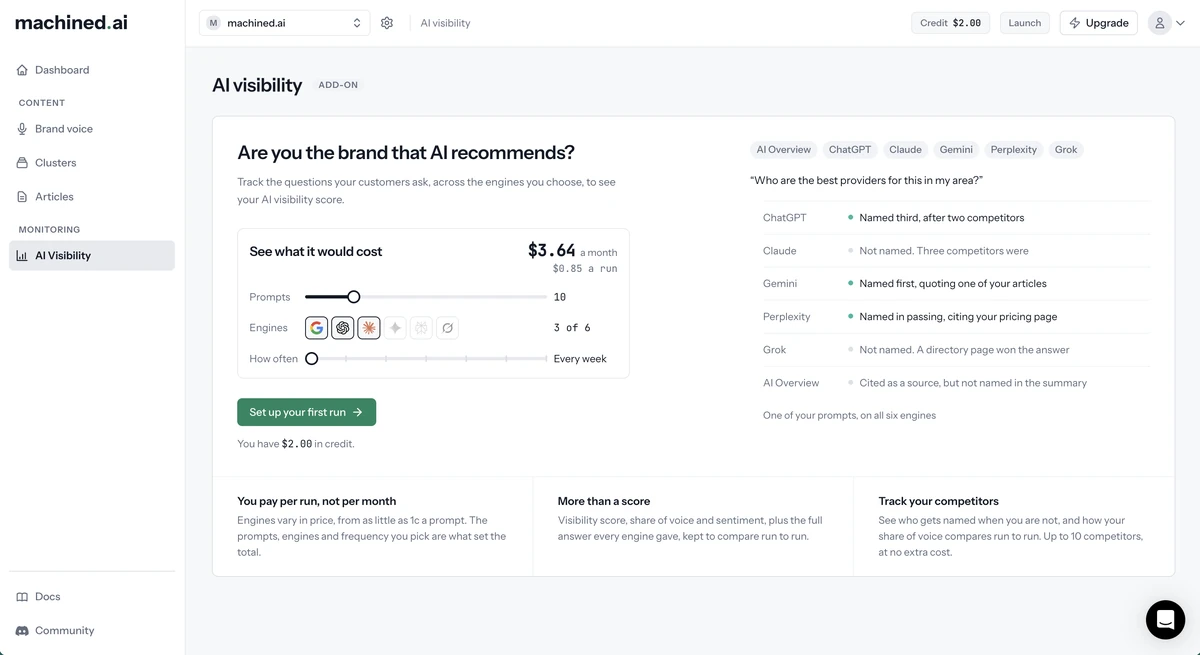
Click Set up your first run.
Step 2: Choose your brand, region and engines
The first step of the dialog sets up what to check for. You can change any of these later.
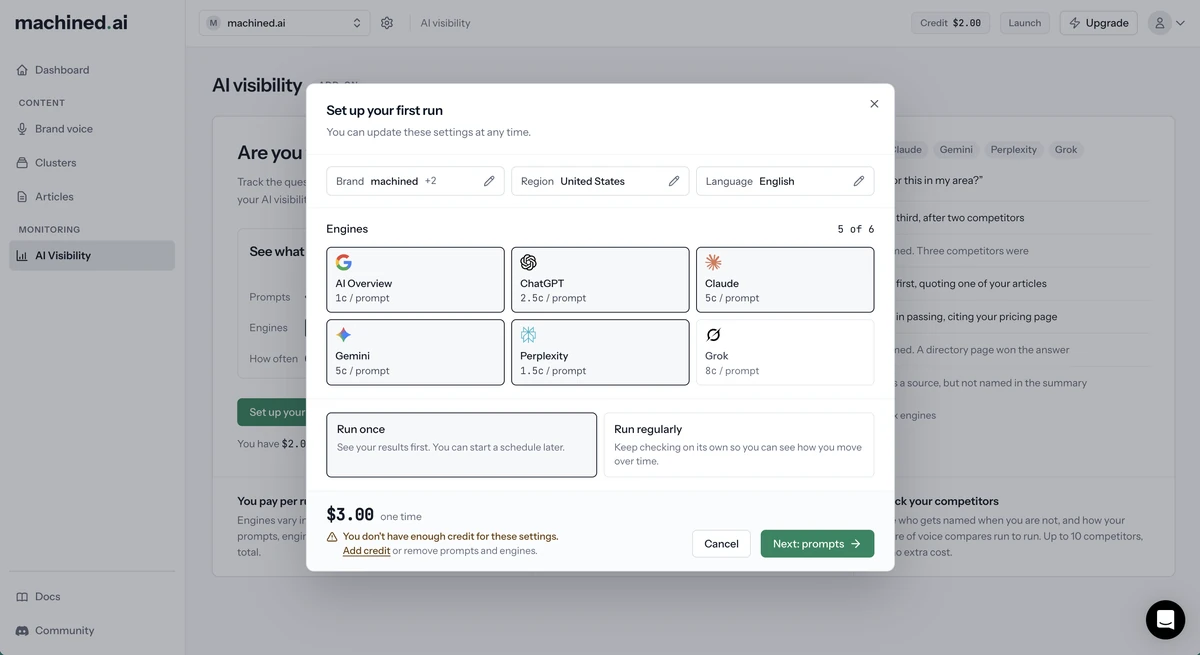
- Brand: the names you're known by. Your project name is added for you. Add any other names, abbreviations or product names customers use, so mentions of them count as yours.
- Region: the country to ask from. This is sent to every engine, and results can differ a lot by country. If you sell worldwide, choose the United States.
- Language: applies to Google AI Overview, which answers differently in each language.
- Engines: choose which AI engines to ask. Each one shows its price per prompt. AI Overview, ChatGPT and Claude are selected by default.
- How often to run:
- Run once: see your results first. You can start a schedule later.
- Run regularly: keep checking on its own so you can see how you move over time. Use the slider to choose anything from every day to every week.
The footer shows what a run will cost, plus an estimated monthly cost if you're running regularly.
Click Next: prompts.
Step 3: Choose your prompts
Machined reads your homepage and suggests a set of prompts: the questions your customers might ask an AI engine. You can track up to 50 prompts.
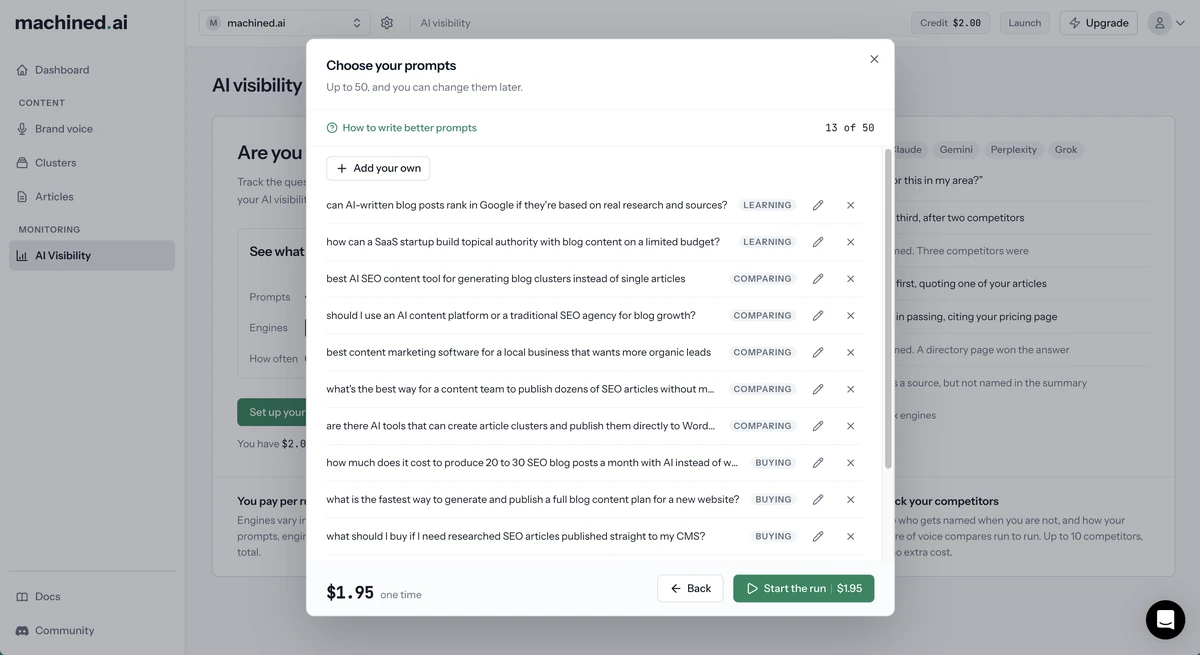
- Edit any prompt by clicking it, or remove the ones that don't fit.
- Click Add your own to write a new prompt.
- Each prompt is tagged with the buying stage it represents: Learning, Comparing or Buying. Click a tag to change it.
Writing good prompts
Click How to write better prompts for guidance before you spend credit on a run.
- Start from a keyword, then build it into a question. People ask AI engines natural questions, so use your keyword as a starting point rather than as the prompt. Instead of "crm for small business", try "what is the best CRM for a small sales team?"
- Say where, don't say near me. The engines don't know where your customer is, so "near me" gets answered for nowhere in particular. If you serve a particular area, name it: "who are the best HubSpot consultants in Manchester?" If you sell nationwide or online, leave the place out.
- Your own name will almost always find you. A question containing your brand name tends to get an answer naming your brand, so it scores near perfect and tells you very little. Track brand prompts to see what's said about you, not to measure whether you get found.
- Cover the whole journey, not just the buying end. You can be invisible to someone still working out what they need and prominent with someone ready to buy. Mix Learning, Comparing and Buying prompts to see the full picture.
- Look for adjacent content. Your buyers have neighboring problems too. A CRM company's buyers are also choosing email tools, so consider tracking those questions once you've covered your core market.
Step 4: Start the run
Check the cost in the footer, then click Start the run.
If you don't have enough credit, the footer shows "You don't have enough credit for these settings." Either click Add credit (workspace owners only) or remove some prompts or engines to bring the cost down.
Once the run starts, you'll see Your first run is starting. Most runs finish in a few minutes; a large set of prompts across every engine can take longer. The run happens in the background, so you can close the dialog and come back.
Click View dashboard to go to your results.
What next
- Reading your AI Visibility dashboard: what each score and card means, and how to change your settings, add competitors or start a schedule
- AI Visibility: pricing, credit and refunds