Reading your AI Visibility dashboard
Once your first run finishes, the AI Visibility dashboard shows how AI engines answered your prompts and where your brand appeared. This page explains each part of the dashboard and the settings behind it.
If you haven't run AI Visibility yet, start with Setting up AI Visibility.
The dashboard header
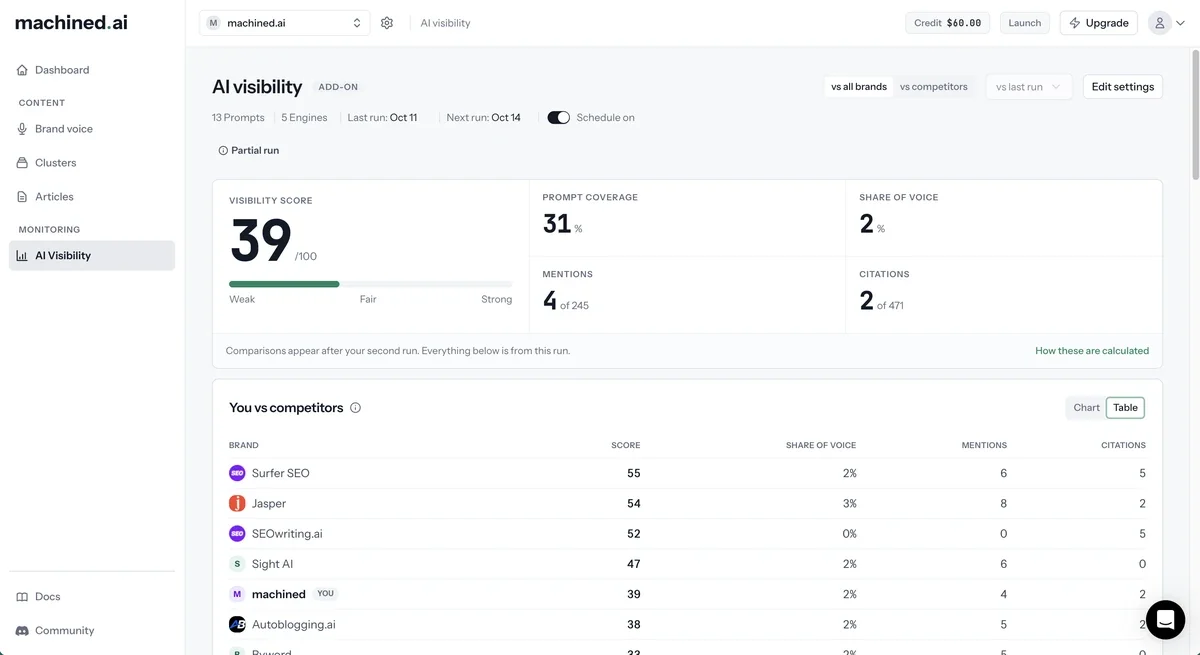
- vs all brands / vs competitors: compare yourself with every brand the engines named, or only with the competitors you track. vs competitors becomes available once you've added competitors in settings.
- Comparison range: choose what changes are measured against: vs last run, week over week, month over month or vs 90 days ago. Comparisons appear after your second run.
- Edit settings: opens AI Visibility settings.
Below the title you'll see how many prompts and engines you're tracking, when the last run was, and when the next one is due. The switch turns your schedule on or off. It shows Schedule on, Schedule off or Schedule paused (see When credit runs out).
Your scores
Five cards summarize the latest run. Click How these are calculated for the definitions in the app.
- Visibility score: your overall visibility, scored 0 to 100. It blends how often you appear, your share of voice against the leading brand, how often AI cites your site, and the sentiment of what's said about you. A scale beneath it runs from Weak through Fair to Strong.
- Prompt coverage: the share of your prompts where your brand appeared in at least one engine's answer. A prompt counts once, however many engines named you.
- Share of voice: your share of all brand mentions across the answers. Being named twice out of ten brand mentions is 20%. In vs competitors mode, only you and your tracked competitors are counted.
- Mentions: how many answers named your brand.
- Citations: how many of the sources the engines cited point to your own website.
Each card shows the change for your chosen comparison range and a trend line across your recent runs.
Every figure comes from the answers in runs you've paid for. Nothing is estimated.
The dashboard cards
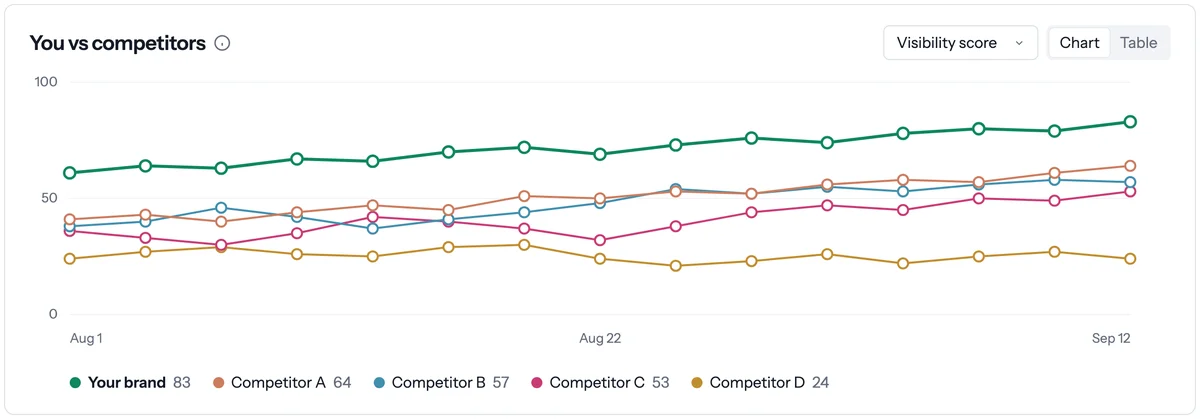
You vs competitors
Compares your brand with your tracked competitors. The chart shows one metric over past runs (up to 90 days). Choose Visibility score, Share of voice, Mentions or Citations. The table shows every metric for the latest run.
Sentiment is only measured for your own brand, so competitors' visibility scores are approximate.
Sentiment
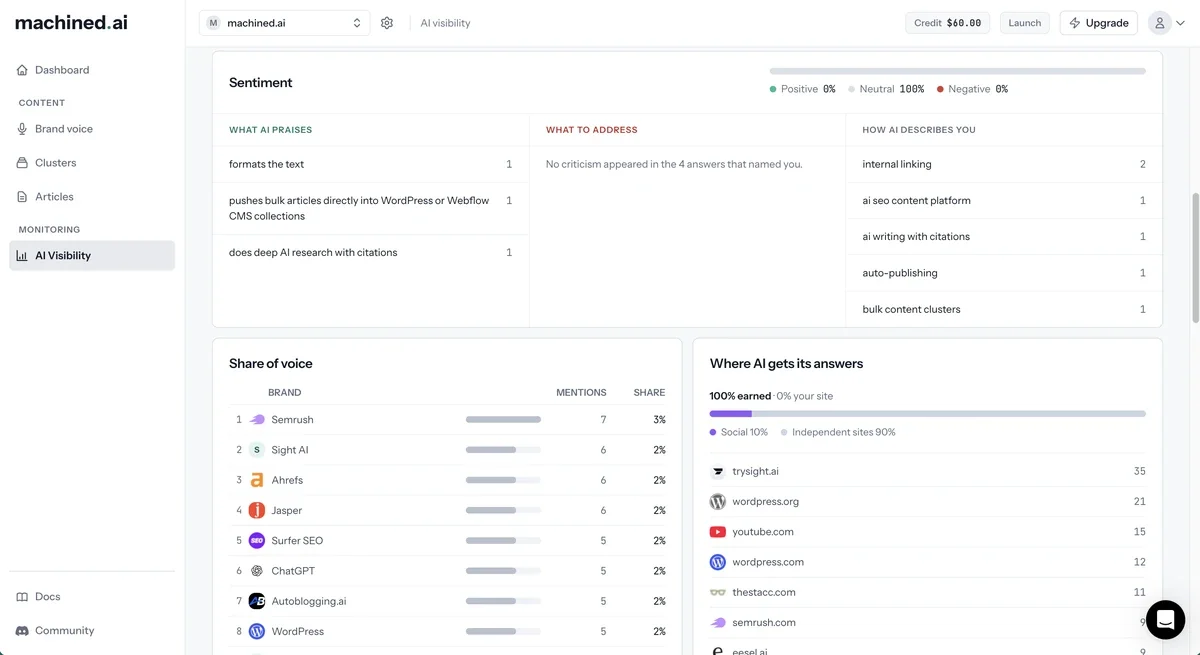
How positively the engines talk about you, split into Positive, Neutral and Negative, plus:
- What AI praises: strengths the engines mention
- What to address: criticisms that appeared in answers
- How AI describes you: phrases the engines use about you repeatedly
Share of voice
A leaderboard of the brands named most often, with each brand's mentions and share. Use it to see who gets recommended when you don't.
Where AI gets its answers
The mix of sources the engines cited: Your site, Government, Reviews, Social, Retail, Reference and Independent sites.
Your top pages in AI answers
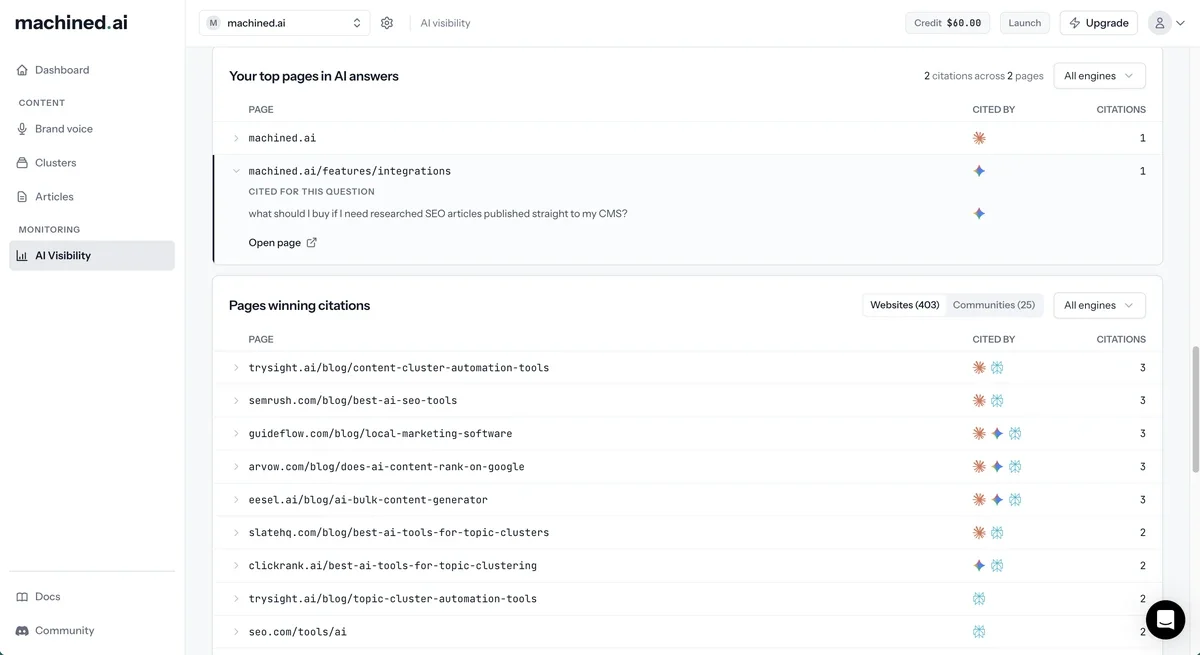
Pages on your website that the engines cited, how many prompts they were cited for, and how many times. Filter by engine to see what each one relies on.
Pages winning citations
Pages on other sites that the engines cited for your prompts, split into two tabs:
- Websites: articles and pages on other companies' and publishers' sites
- Communities: forums and social sources
These show you which content is winning the answers you want to appear in, which is useful input for your own content plan.
Prompt breakdown
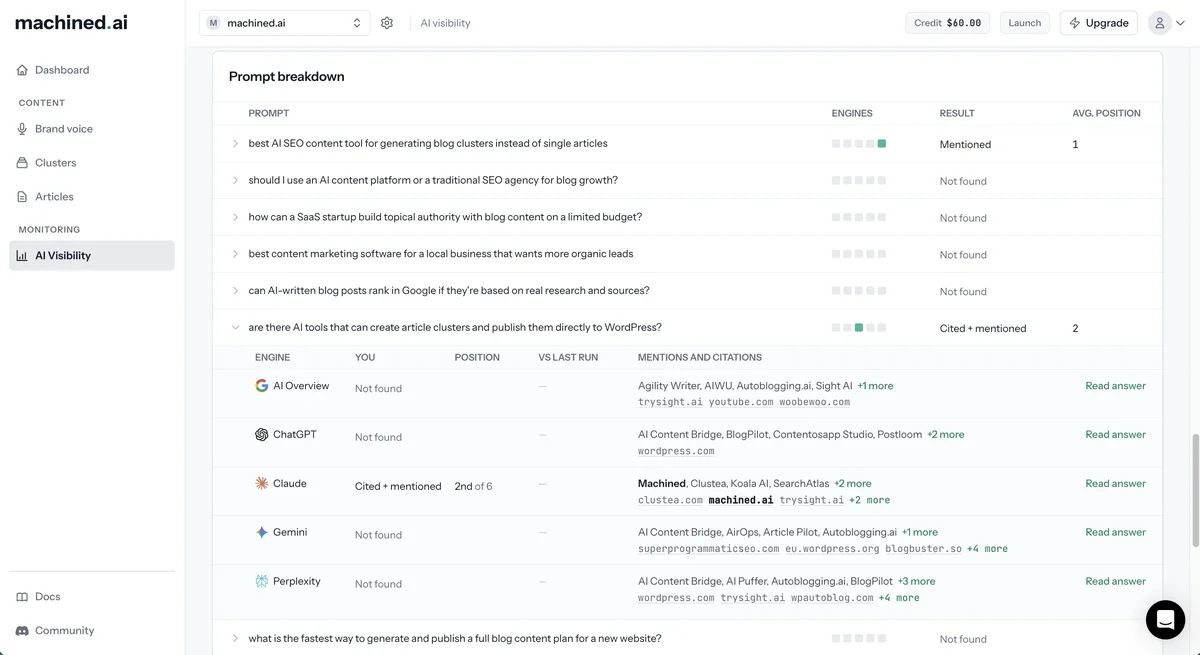
Every prompt you track, which engines it ran on, and the result: Cited + mentioned, Mentioned, Cited or Not found. Where you were named, you'll see your average position in the answer.
Click a prompt to see each engine's result, the brands and sources it named, and Read answer to read the full response.
By engine
Your mentions and citations on each engine, along with the brand and source that led on that engine.
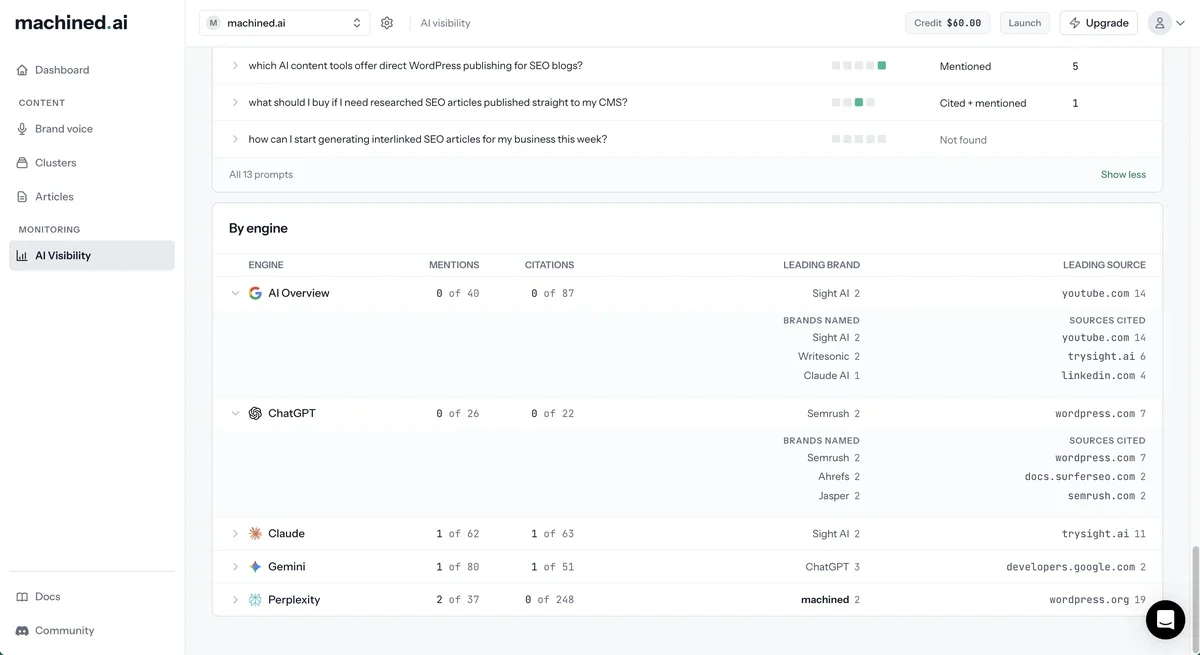
Incomplete and failed runs
- If some checks in a run didn't return results, a Partial run notice explains which engines were affected. The figures are slightly incomplete, and you're refunded for the checks that didn't run.
- If your latest run didn't finish, you'll see Your last run didn't finish, and the dashboard keeps showing your previous results. Failed runs are refunded in full.
AI Visibility settings
Click Edit settings on the dashboard to open AI visibility settings. Only workspace Owners and Admins can change settings.
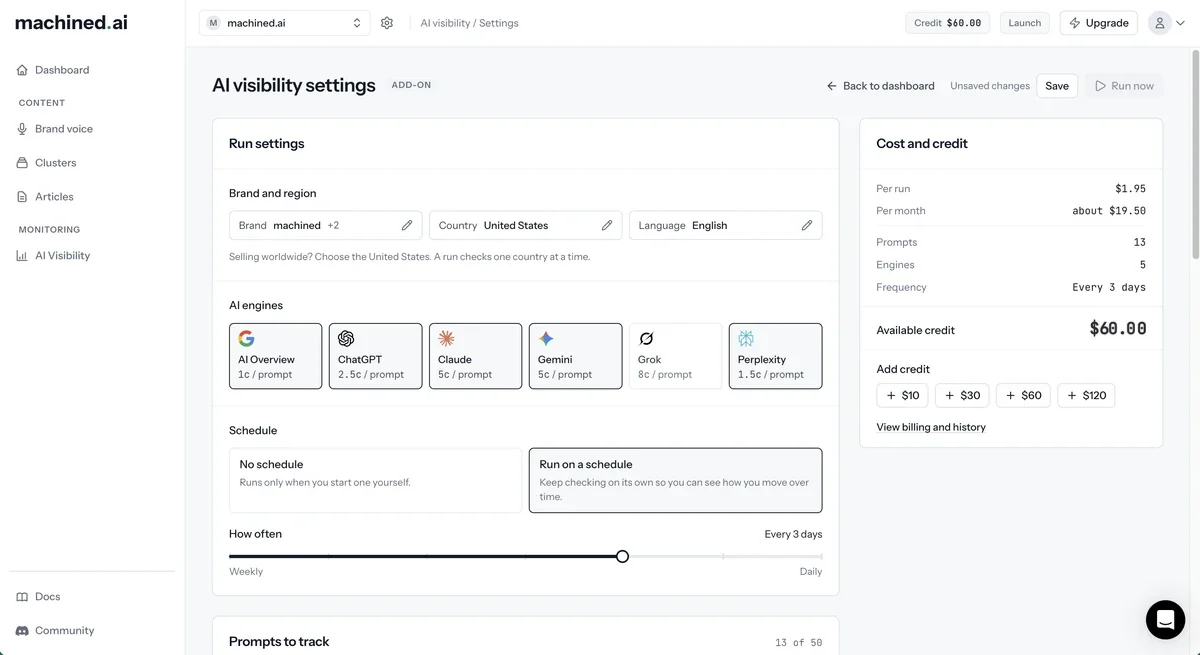
Run settings
-
Brand and region
- Brand: every name you're known by. Mentions of any of them count as yours.
- Country: sent to every engine. A run checks one country at a time. Selling worldwide? Choose the United States.
- Language: applies to Google AI Overview.
- AI engines: which engines to ask, with the price of each.
-
Schedule
- No schedule: runs only when you start one yourself.
- Run on a schedule: runs automatically, from every day to every week.
Prompts to track
You can track up to 50 prompts. Click Add prompts to add more in three ways:
- Write your own: type a single prompt
- Paste a list: one prompt per line; duplicates and blank lines are dropped
- Suggest from my site: click Find suggestions and Machined suggests prompts from your website for you to review
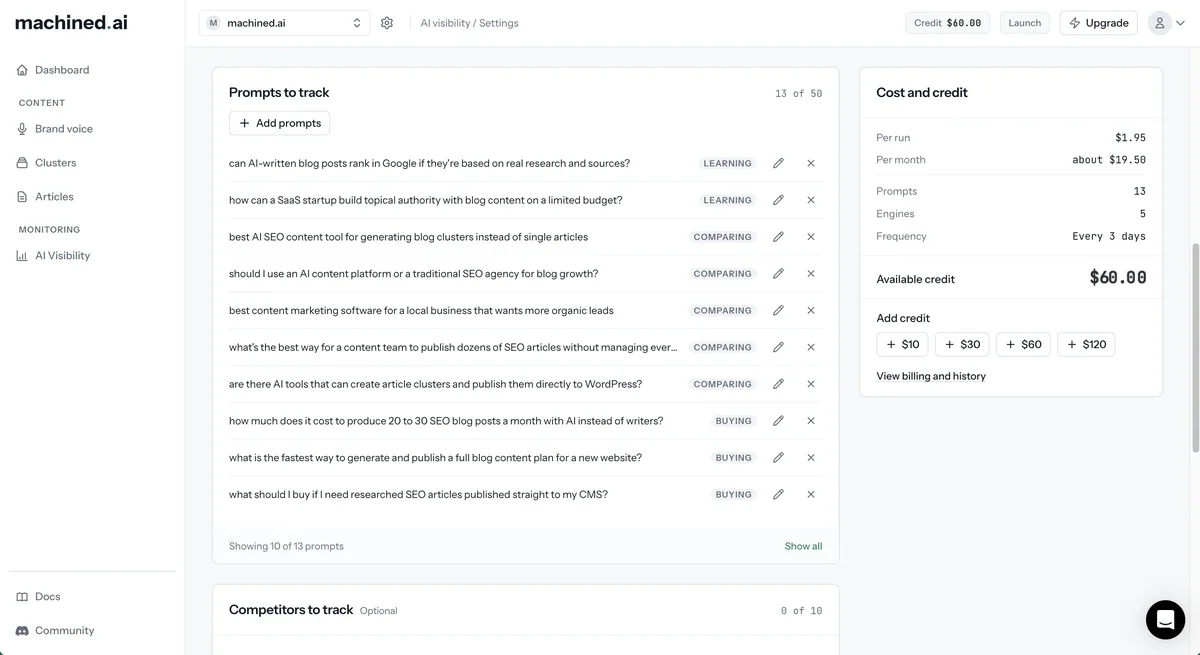
You can edit any prompt and change its stage tag (Learning, Comparing or Buying) from the list. See Writing good prompts for tips.
Competitors to track
Optional. Track up to 10 competitors at no extra cost, because competitors are found in answers you've already paid for.
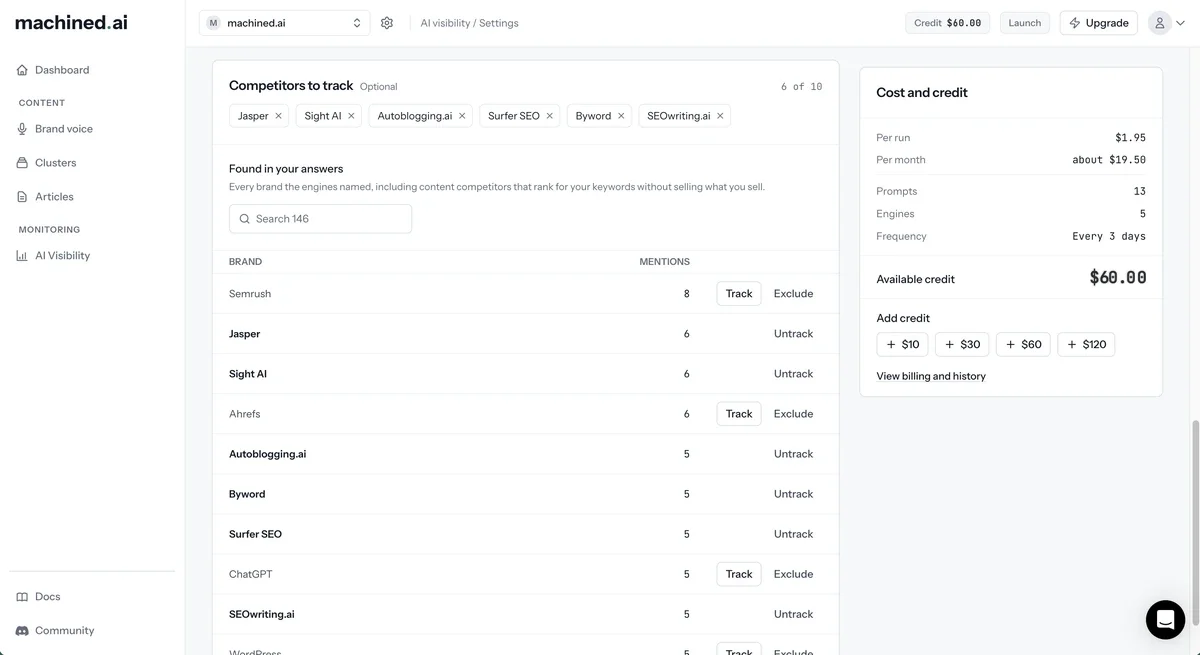
- Found in your answers lists the brands the engines have named. Click Track to add one to your competitors, or Exclude to hide it.
- Click Untrack to stop tracking a competitor.
- Excluded from your dashboard lists brands you've hidden. They're removed from every chart and leaderboard. Restore them at any time.
Tracking competitors unlocks the vs competitors view on the dashboard.
Cost and credit
The Cost and credit card shows the cost Per run, an estimate Per month if you're on a schedule, and the number of prompts and engines. It updates as you change your settings.
If your schedule has been paused because credit ran out, a Schedule paused notice appears here. Add credit and the schedule restarts automatically.
Saving and running
Changes show as Unsaved changes until you click Save. Saved settings apply from your next run.
To start a run straight away, use the run button. Its label depends on your setup:
- Run once: no runs yet and no schedule: starts a single run now
- Start tracking: no runs yet, schedule on: starts a run now and schedules the next one from today
- Run now: after your first run: starts a run now. If you're on a schedule, the next scheduled run is counted from today.
Each run is charged when it starts. See Pricing and credit.