Billing and plans
Billing is handled at the workspace level: one plan covers every project in your workspace. To see it, open the account menu (top right) and choose Billing and usage.
Machined has two separate things you can pay for:
- Your plan: a monthly or yearly subscription for writing and publishing articles.
- AI Visibility credit: pay-as-you-go credit for AI Visibility runs. It's separate from your plan.
For current plans and prices, see Plans & Pricing.
What's on the page
Your plan and usage
The plan card shows your current plan, when it renews (or how many trial days are left), and your usage this period:
- Articles generated: how many of your monthly articles you've used
- Workspace members: seats used out of your plan's limit
- Projects
Your monthly article allowance resets each billing period and doesn't roll over. AI Visibility credit does: it never expires.
AI visibility credit
The AI visibility credit card shows your available credit, your scheduled AI Visibility runs and recent credit activity. The owner can add credit from here. See AI Visibility for how credit and pricing work.
Manage
The Manage card has:
- Payment method: update the card you pay with
- Invoices: view and download past invoices
- Change plan: compare plans and switch (see below)
- Cancel subscription
Who can see and change billing
Every member can see Billing and usage: the plan, usage and AI Visibility credit. Only the workspace owner can change the plan, update the payment method, view invoices, buy credit or cancel.
Other members see a note in place of the Manage options asking them to contact the owner.
Changing plan
- On Billing and usage, click Change plan.
- Choose Monthly or Yearly billing.
- Click Choose on the plan you want, then complete checkout.
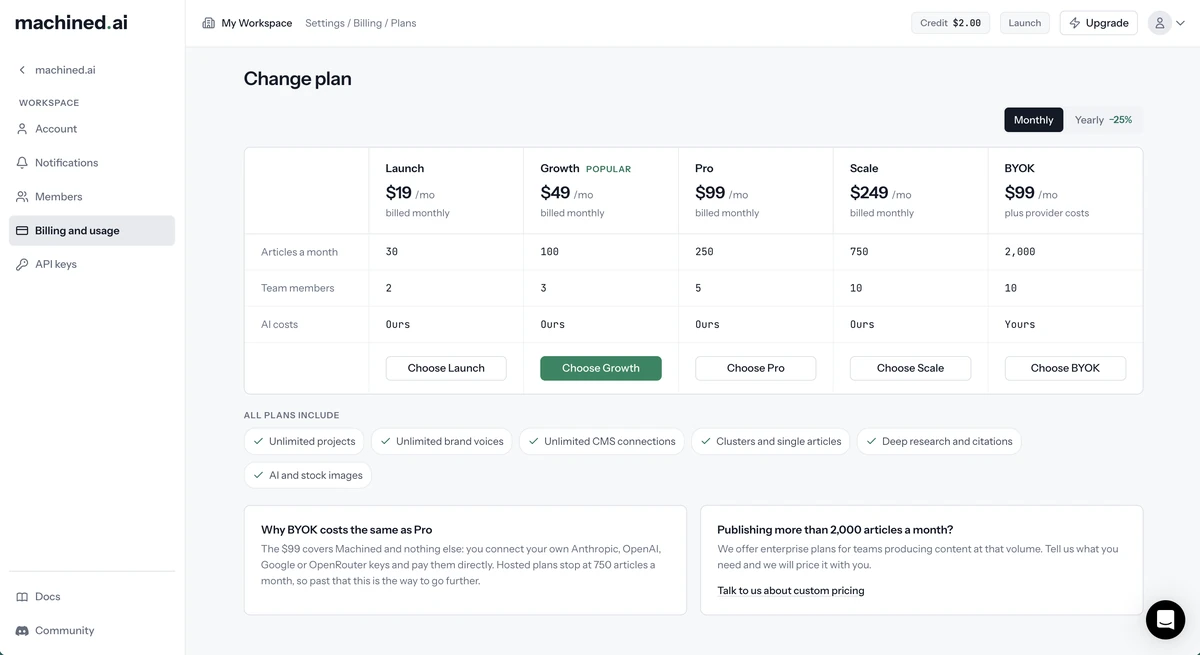
Members who aren't the owner can view the plans page, but they see Contact owner in place of the buy buttons.
If you want to use your own AI provider keys rather than having usage included, choose the BYOK plan. See API modes.
Canceling your subscription
- On Billing and usage, click Cancel subscription.
- Tell us why you're leaving, then confirm.
You keep full access until the end of your current billing period. Until then, Billing and usage shows that your plan won't renew, and you can click Resume subscription to carry on as normal.
If your subscription is paused, Billing and usage shows when billing resumes. You keep full access while it's paused, and can click Resume now at any time.
Free trial
New workspaces start with a 7-day free trial of the Launch plan. No card is needed. The sidebar shows how many days you have left.
Read-only workspaces
When a trial ends without a plan being chosen, or a subscription ends, the workspace becomes read-only:
- You keep full access to everything you've already created: you can still open and export your articles
- Creating, writing, editing and publishing content needs an active plan
- Trying to do any of these opens a prompt to choose a plan
Choosing a plan restores full access straight away. Nothing you created is lost.
You can still buy and use AI Visibility credit while the workspace is read-only.