Creating clusters
A content cluster is a group of related articles, each targeting a different keyword, that can link to each other with internal linking. Clusters help build topical authority by giving search engines a clear signal of your expertise on a subject.
You can create clusters using Auto-Pilot mode (Machined finds the keywords for you) or Manual mode (you provide your own keywords).
Create a cluster
From your project, click Clusters in the sidebar, then click New cluster.
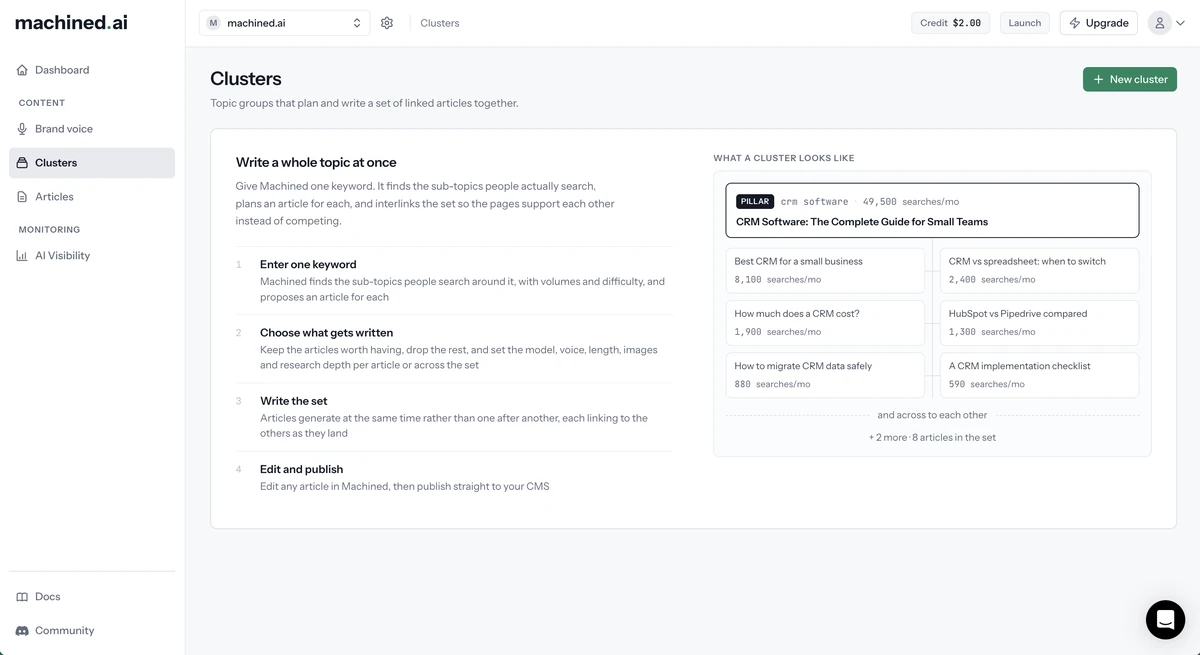
The New cluster panel opens. Choose a Mode first (Auto-Pilot or Manual), then fill in the fields for that mode.
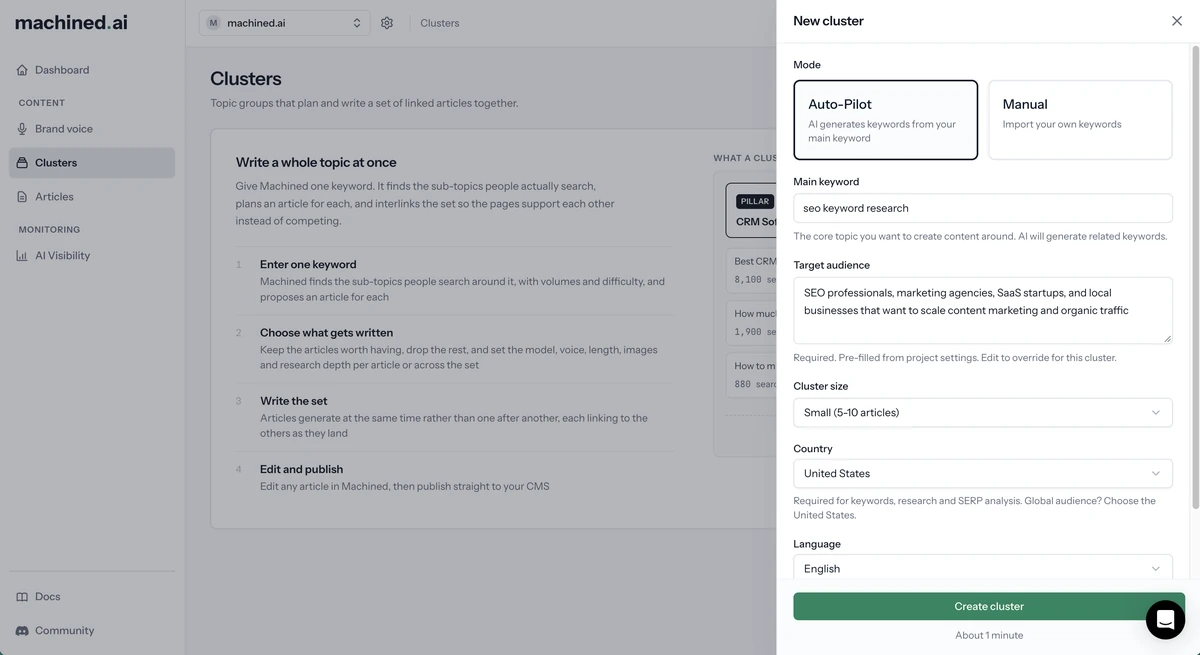
Both modes ask for:
Target audience (required): a description of who you're writing for. It's pre-filled from your project's Basic info settings, and you can edit it for this cluster. The more specific, the better: "busy parents who want to batch-cook healthy meals on a budget" rather than just "parents". See Audience.
Country (required): the market you're writing for. Machined uses it for keyword data, research and SERP analysis. If your audience is global, choose the United States.
Language: the language your content will be written in. Choose a country first; the list then shows the languages available for that country. See Language.
Country, language and audience are pre-filled from your project settings. The cluster's market is fixed once it's created, and every article in the cluster uses it.
Auto-Pilot mode
Auto-Pilot finds a set of related keywords for your topic, one per article.
Select Auto-Pilot and fill in:
Main keyword: the core topic you want to create content around, for example "crm software" or "meal prep". Machined uses it to generate related keywords for each article in the cluster.
Cluster size: how many articles to include. If you're unsure, start small.
Exclude branded keywords: filters out keywords containing competitor brand names. This is on by default.
Then click Create cluster.
Cluster sizes
| Size | Articles |
|---|---|
| Small | 5–10 |
| Medium | 10–20 |
| Large | 20–30 |
The right size depends on how broad your main keyword is. A broad keyword like "content marketing" warrants a larger cluster than a specific one like "how to write a meta description". If you're unsure, start with Small. You can always create additional clusters to expand coverage.
Manual mode
Manual mode lets you provide your own keywords, giving you full control over the cluster's composition. This is useful if you have an SEO strategy and are selecting keywords with tools like Ahrefs, Semrush, or similar.
Each keyword becomes one article. Make sure your keywords are closely related and share the same topic. Using unrelated keywords in a single cluster will produce poor results.
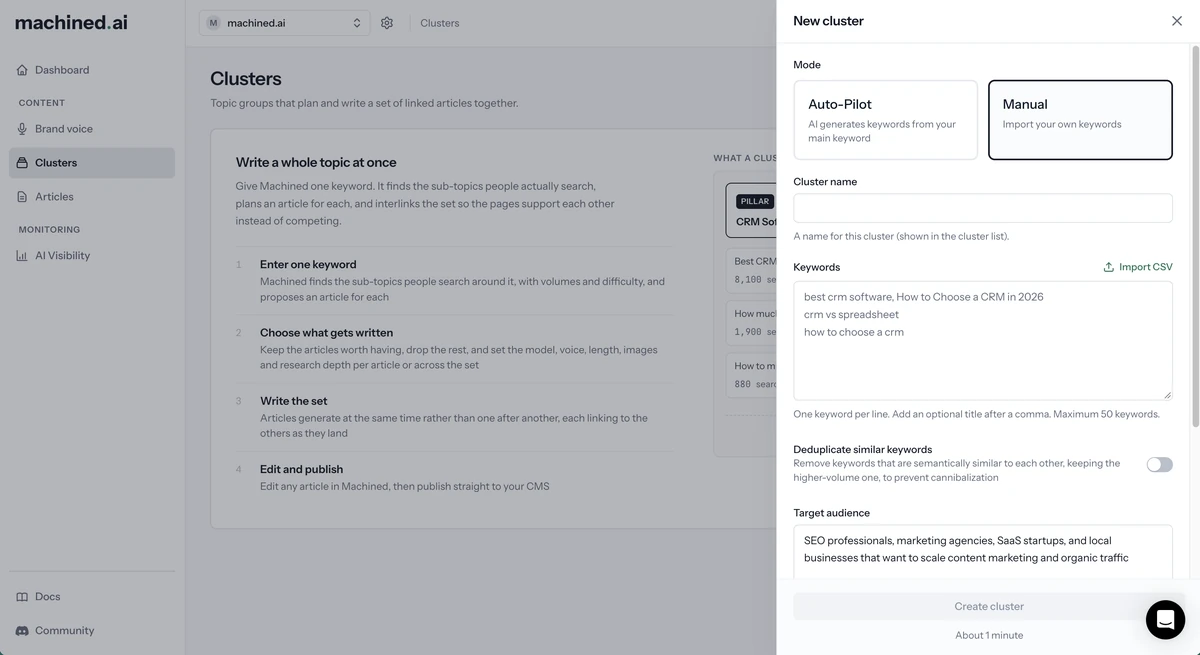
Select Manual and fill in:
Cluster name: a name for the cluster.
Keywords: one keyword per line, up to 50. You can optionally give an article a custom title by adding it after the keyword, separated by a comma:
how to grow tomatoes
best tomato varieties, The Best Tomato Varieties for Home Gardeners
tomato plant care tips
To bring in a list you already have, click Import CSV and choose a .csv or .txt file.
Deduplicate similar keywords: removes keywords that mean almost the same thing as each other, keeping the one with the higher search volume, to prevent cannibalization. This is off by default.
Then click Create cluster.
Tips for good manual clusters
- Stick to one topic. Every keyword should belong to the same subject, so the articles can link to each other naturally.
- Give each article its own keyword. Near-duplicates, such as "how to grow tomatoes" and "growing tomatoes", compete for the same searches. Deduplicate similar keywords can catch these for you.
- Mix broad and specific keywords for better topical coverage.
- Mix search intents. Include informational keywords, such as "how to grow tomatoes", alongside commercial ones, such as "best tomato seeds to buy", so the cluster covers your topic from first research through to buying.
What happens next
Creating a cluster usually takes about a minute. Machined proposes an article for each keyword, with a title and a content type, and takes you to the cluster page, where you choose which articles to write.
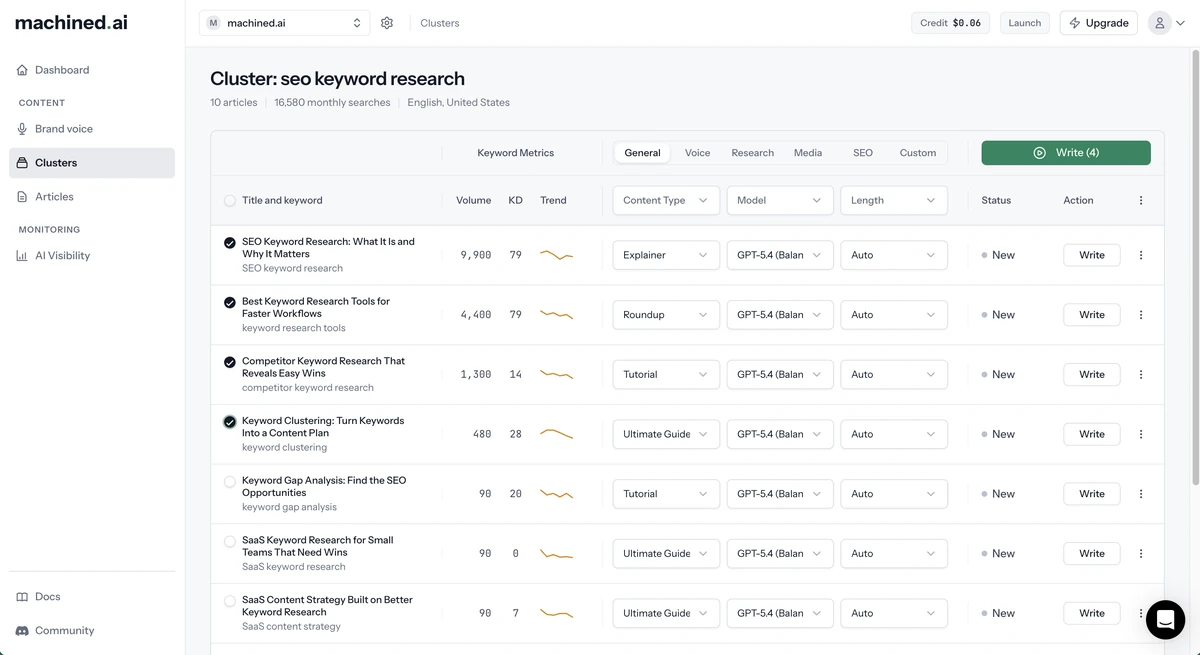
The top of the page shows the number of articles, their total monthly searches, and the cluster's language and market (for example "English, United Kingdom"). Each article shows its keyword metrics: Volume, KD (keyword difficulty) and Trend. See Keyword metrics.
Review the articles before writing. You can edit the title or keyword of any article directly in the table, and remove any that don't fit using Remove from cluster in the article's menu.
Configure article settings
Every article starts from your project's writing defaults (model, length, voice, research, images, internal links, FAQ and custom instructions), and Machined proposes a content type for each keyword. So you can create a cluster and click Write straight away without touching any settings.
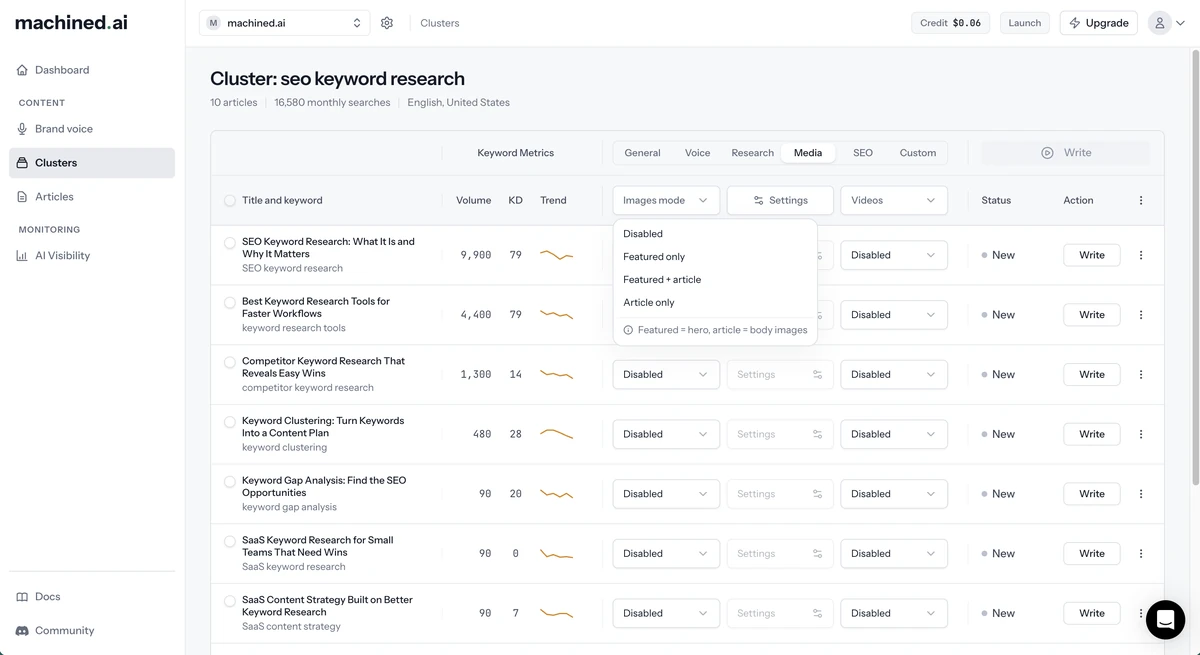
If you want to customize before writing, settings are grouped into six tabs on the cluster page: General, Voice, Research, Media, SEO, and Custom. Every setting can be changed in two ways:
- For every article: use the dropdown in the column header to apply a value to every article you can still edit
- For one article: change the setting on that article's row
Once you change any setting on an article's row, that article keeps its own settings. Later changes to your writing defaults won't affect it. Articles you haven't touched pick up new defaults the next time you open the cluster.
General
Content Type: proposed per article, but you can change it. See Content types.
Model: choose the AI model. See AI model.
Length: from Auto (matches the top-ranking results) to Comprehensive. See Length.
Voice
Voice: select a built-in voice or one of your brand voices. See Voices.
Tone and Perspective: set automatically by a built-in voice, and you can override either. A custom brand voice keeps its own tone and perspective.
Research
Research: how much research to do before writing. See Research.
Citations: how sources are cited in the article. Only applies when research is on.
Media
Images mode: Disabled, Featured only, Featured + article, or Article only. Open Settings in the dropdown to choose the image Provider and Style. See Images.
Videos: embed relevant YouTube videos in articles. See YouTube videos.
SEO
Internal Links: None or Cluster Only (links to other articles in this cluster). See Internal linking.
FAQ: appends a frequently asked questions section to each article. See FAQ section.
Custom
Insights: adds your own unique insights to help differentiate your content. See Unique Insights.
Instructions: specific instructions to guide how articles are written. See Custom instructions.
Heading Style: sentence case or title case for all headings.
Write your articles
Select the articles you want to write and click Write (n), where n is the number of articles that will be written. You can also click Write on a single article's row.
Articles are written in the background, so you don't need to wait on the page. While an article is waiting it shows Queued, then Writing..., and once it's done the row's button changes to Edit.
Managing articles in a cluster
Select articles using the checkboxes, then open the ⋮ menu next to the settings bar for bulk actions:
- Publish (n): publish ready articles to a connected destination. See Publishing.
- Export (n): download ready or published articles. See Exporting.
- Rewrite (n): write the articles again with their current settings.
- Reset (n): clear the written content and the articles' own settings, so they go back to New and start from your writing defaults again. The title and keyword are kept.
- Unpublish (n): only shown when the selection includes published articles.
- Delete (n): delete the selected articles. This reads Remove from cluster (n) when none of them have been written.
Actions that don't apply to anything in your selection are greyed out rather than hidden, and the count tells you how many articles each one will affect.
Each article's own menu offers the actions that fit its status, for example Publish article, Export article, Rewrite article, Reset article, Stop writing or Delete article.
Cluster articles only appear on their cluster page, not on the Articles page.
Review and edit
Once written, click Edit on an article to open it in the editor:
- Check the content for accuracy
- Review internal links between articles in the cluster
- Edit titles, headings, or body content directly in the editor
- Use inline AI editing to refine specific sections
Next steps
Once you're happy with your articles:
- Export your content: copy, or download as HTML and Markdown with images
- Publish your articles: push directly to your CMS or a webhook