Connecting to Framer
Machined.ai has a native Framer integration that lets you publish articles directly to your Framer CMS collections. It connects with a Framer API key.
Connections are set up per project. Open Project settings (the gear icon next to the project name at the top of the page), go to the Integrations tab, and click the Framer tile under Connect a CMS.
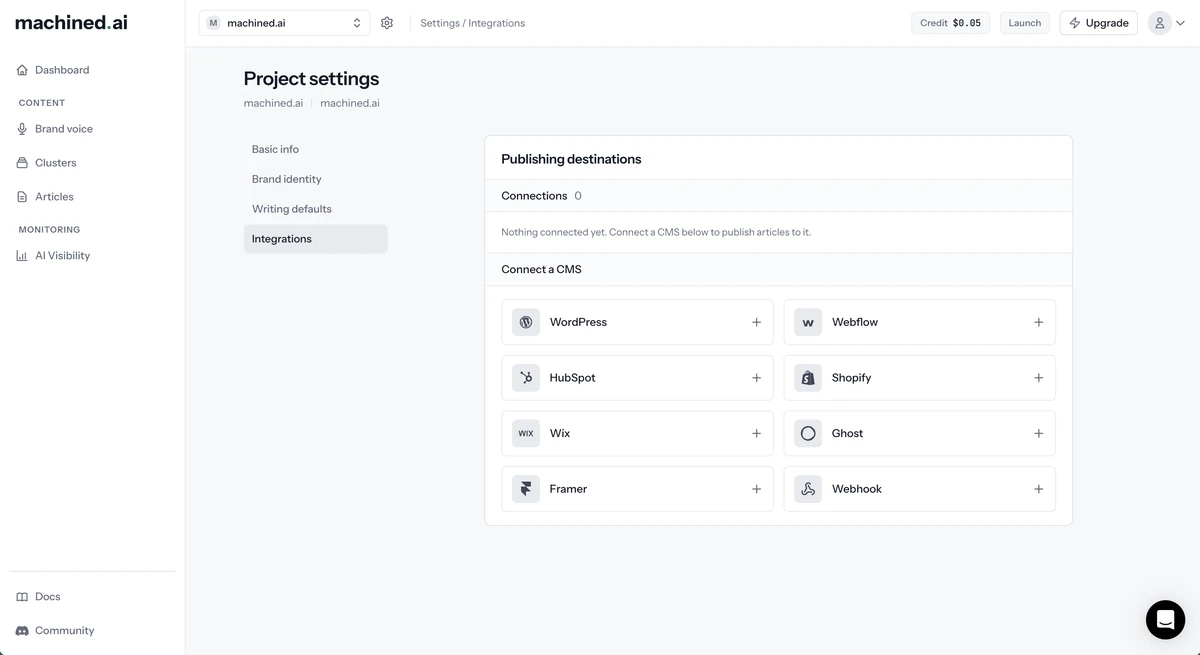
Only workspace owners and admins can add, edit or remove integrations. Other members see the connections but can't change them.
Step 1: Create a Framer API key
Framer API keys belong to a single project, so create the key in the Framer project you want to publish to.
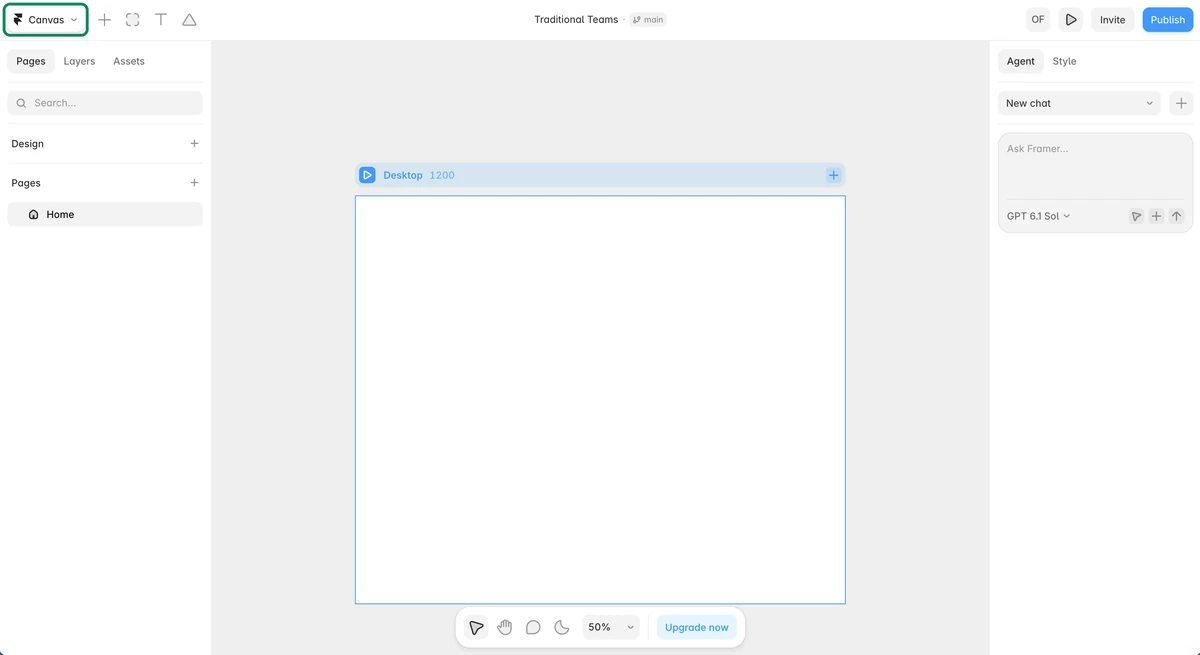
- Open your project in Framer and click the menu at the top left. It's labeled with the view you're in, such as Canvas
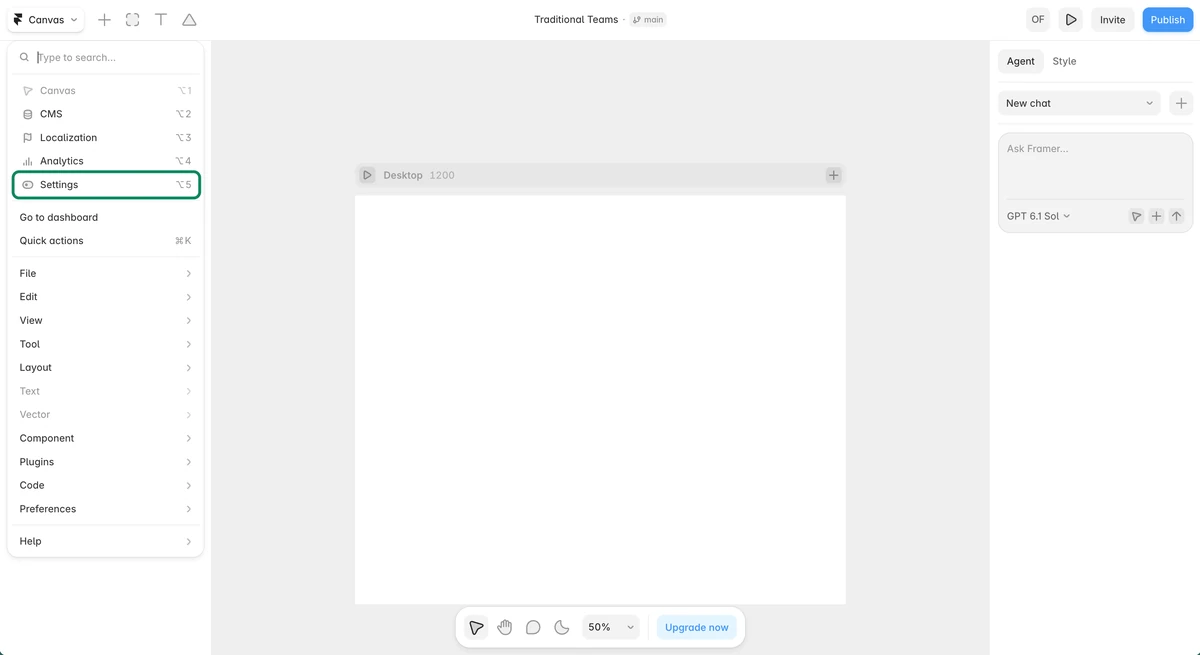
- Choose Settings
- Stay on General under Site settings
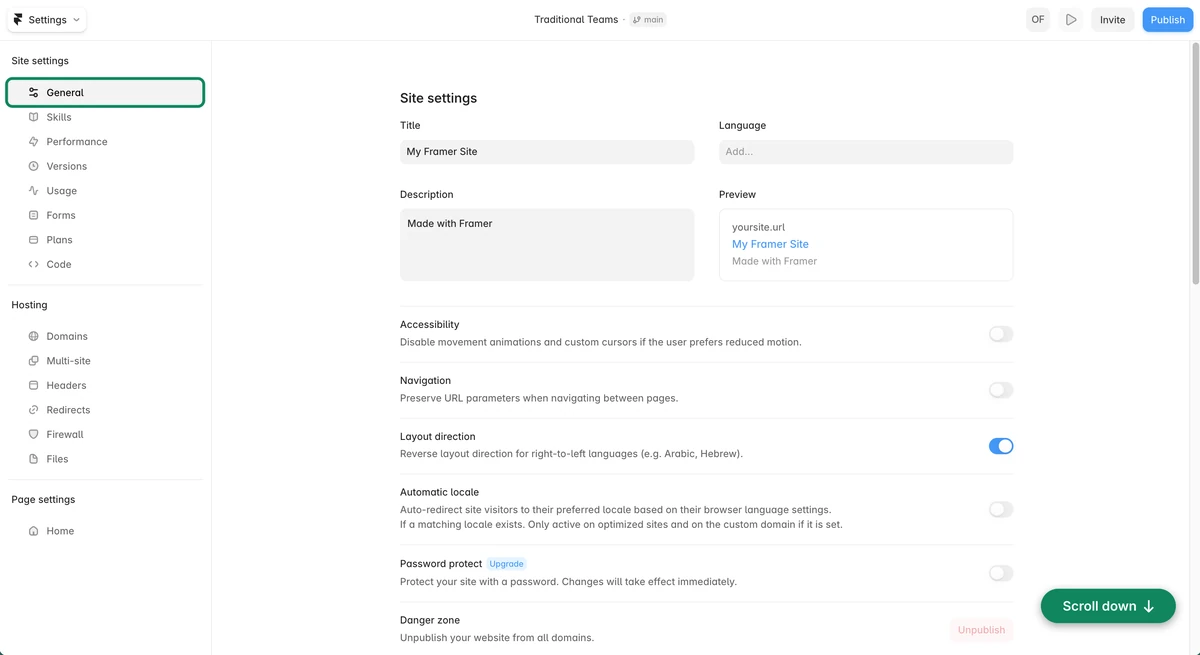
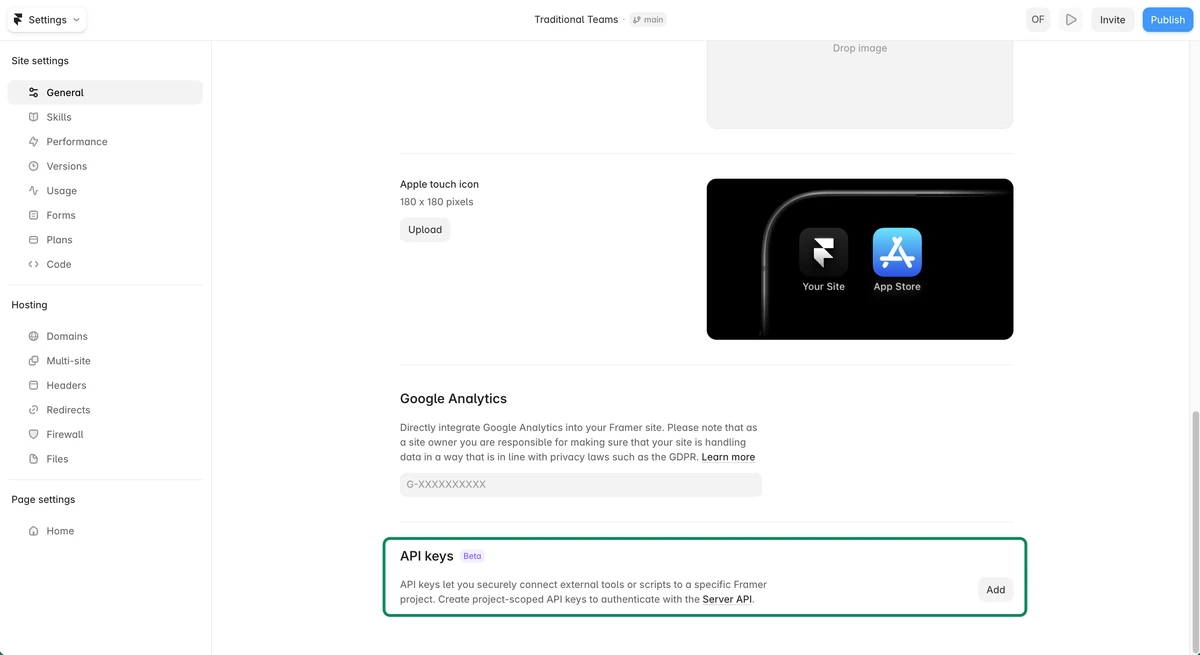
- Scroll down to API keys and click Add
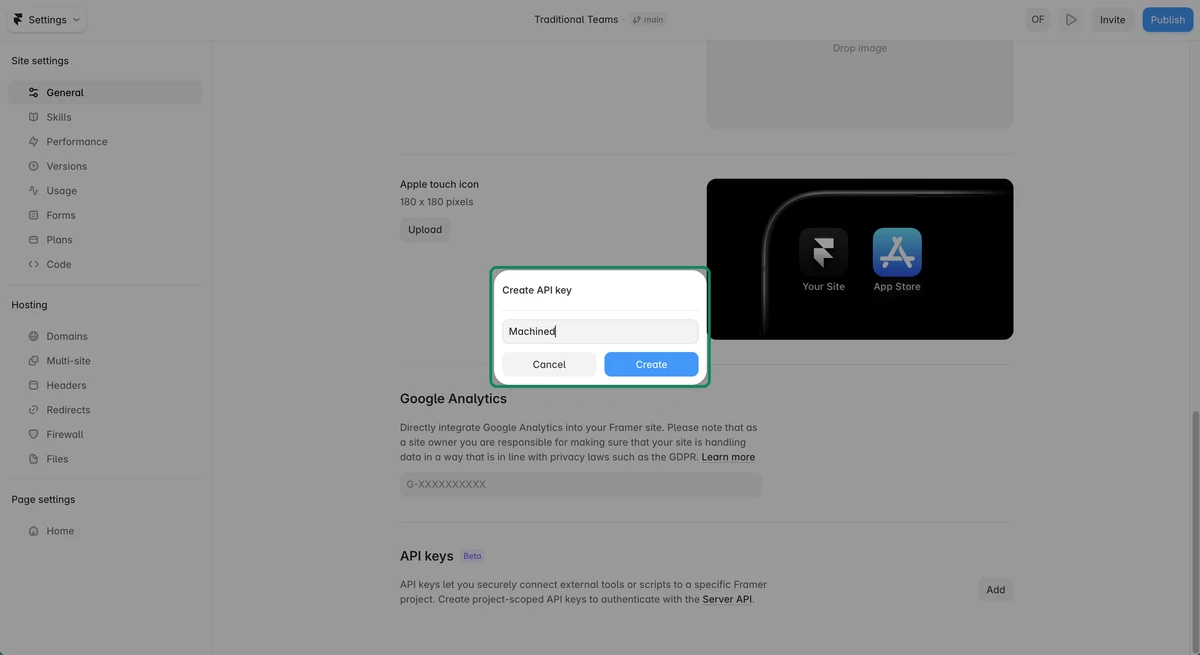
- Give it a name like "Machined" and click Create
- Copy the API key
Step 2: Connect in Machined
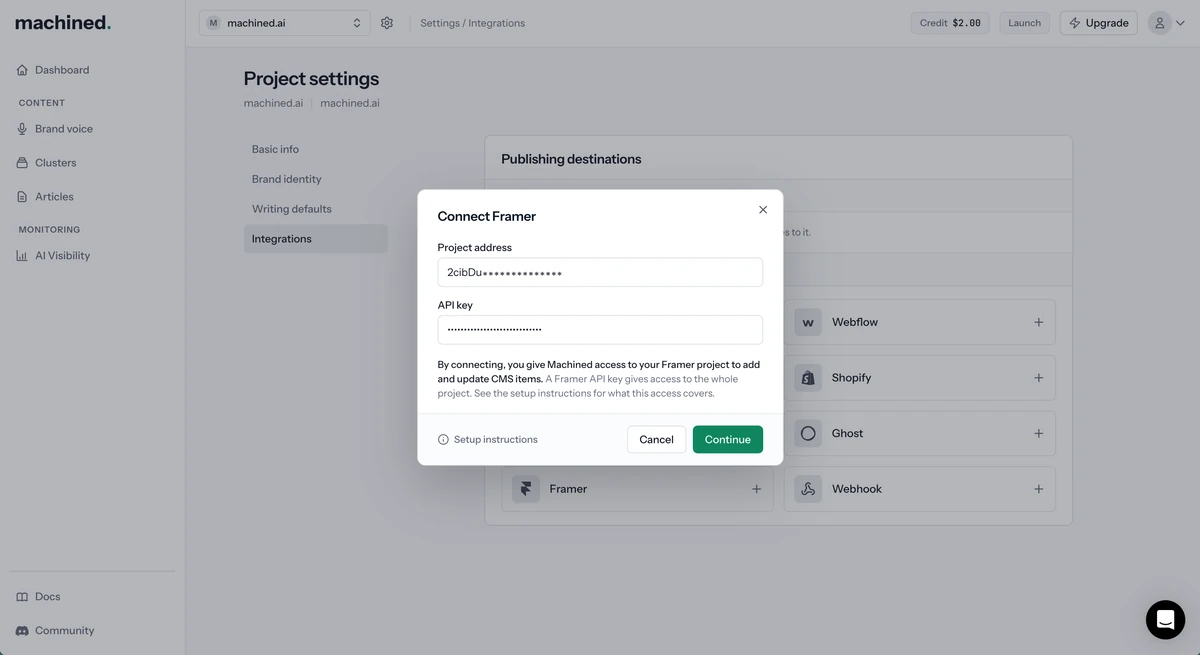
First, find your project address. Open your project in Framer and look at the URL in your browser. The project address is the 20-character code straight after the two hyphens (--), highlighted here:
framer.com/projects/My-Site--aBcD1234eFgH5678iJkL-x7Yz2?node=…
Then, in the Connect Framer dialog in Machined, enter:
- Project address: the code you just found
- API key: the key from Step 1
Click Continue.
Step 3: Choose your collection and map your fields
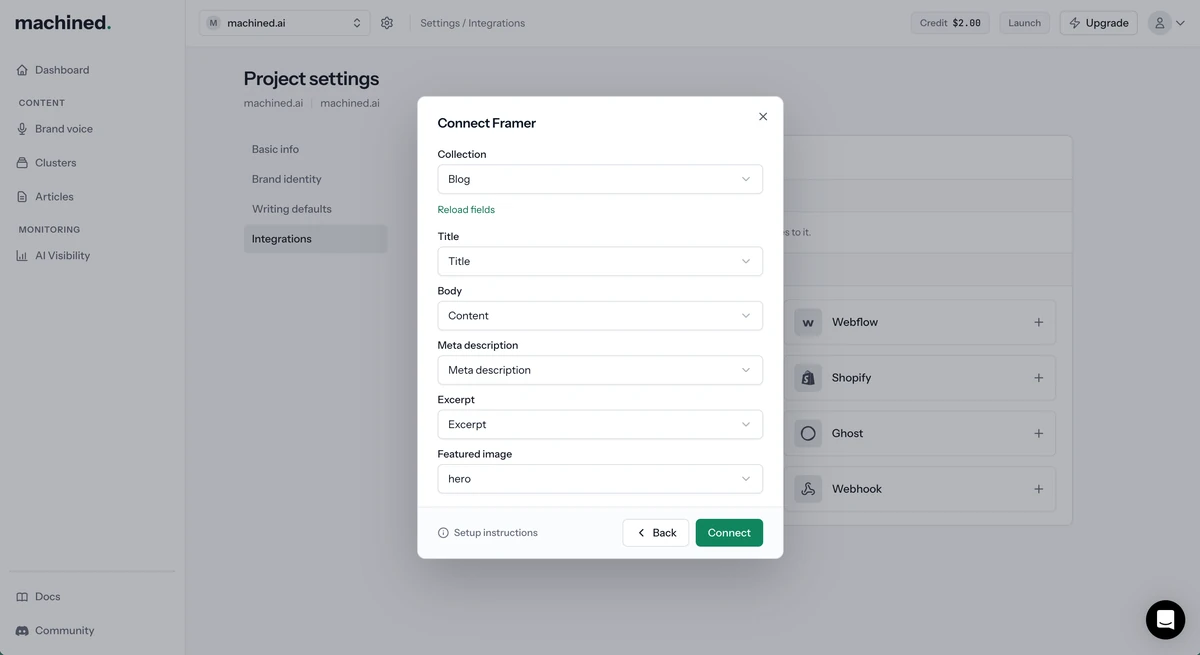
- Choose the Framer CMS collection you want to publish to from Collection. If you've just added fields to it in Framer, click Reload fields.
- Match each of Machined's fields to a field in your collection: Title, Body, Meta description, Excerpt and Featured image.
- Click Connect.
Once connected, the connection appears under Publishing destinations with a Connected status.
What Machined can access
When you connect, Machined gets access to your Framer project to add and update CMS items.
What you give Machined
An API key for one Framer project.
What it can do
Everything in that project, as the person who created the key, including publishing the site. Framer has no narrower kind of key, and collaborators with content-only access can't create one.
What Machined uses it for
- Reading your project's details, CMS collections, fields, items, page paths and published address
- Adding and updating items in the collection you chose
- Uploading images
Machined never publishes your Framer site.
How to limit it
Create a key just for Machined, and revoke it when you no longer need it.
Across every connection
- The connection belongs to this project only. Other projects in your workspace can't publish through it.
- Machined stores your API key encrypted, uses it only on its own servers when connecting and publishing, and never shows it in the app again.
- Machined never deletes anything in Framer. Unpublishing an article in Machined doesn't remove the post from Framer.
- Removing the connection in Machined deletes the stored API key. To cut off access straight away, also revoke the key in Framer under Site settings → General → API keys.
Managing a connection
Each connection row has two actions:
- Move to another project: moves the connection to a different project in your workspace
- Remove connection: deletes the connection after you confirm
Troubleshooting
Still stuck?
Reach out via the in-app chat.