Connecting to Ghost
Machined.ai has a native Ghost integration that lets you publish posts directly to your Ghost site, whether it's hosted on Ghost(Pro) or self-hosted.
Connections are set up per project. Open Project settings (the gear icon next to the project name at the top of the page), go to the Integrations tab, and click the Ghost tile under Connect a CMS.
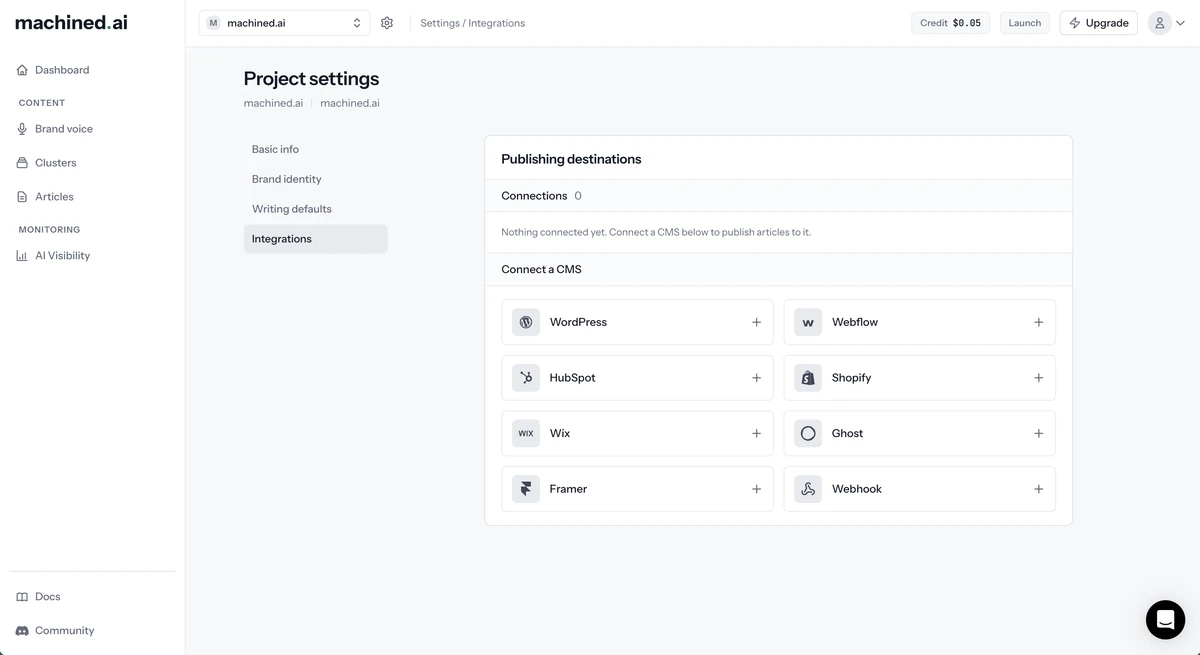
Only workspace owners and admins can add, edit or remove integrations. Other members see the connections but can't change them.
Step 1: Get a key from Ghost
There are two ways to connect. Both use the same field in Machined:
- A staff access token (recommended): the token of a Ghost staff user. Machined can then only do what that user's role allows, so a user with the Author role limits Machined to their own posts
- An Admin API key: the key of a Ghost custom integration. It reaches much more of your site (see What Machined can access)
Option A: Use a staff access token (recommended)
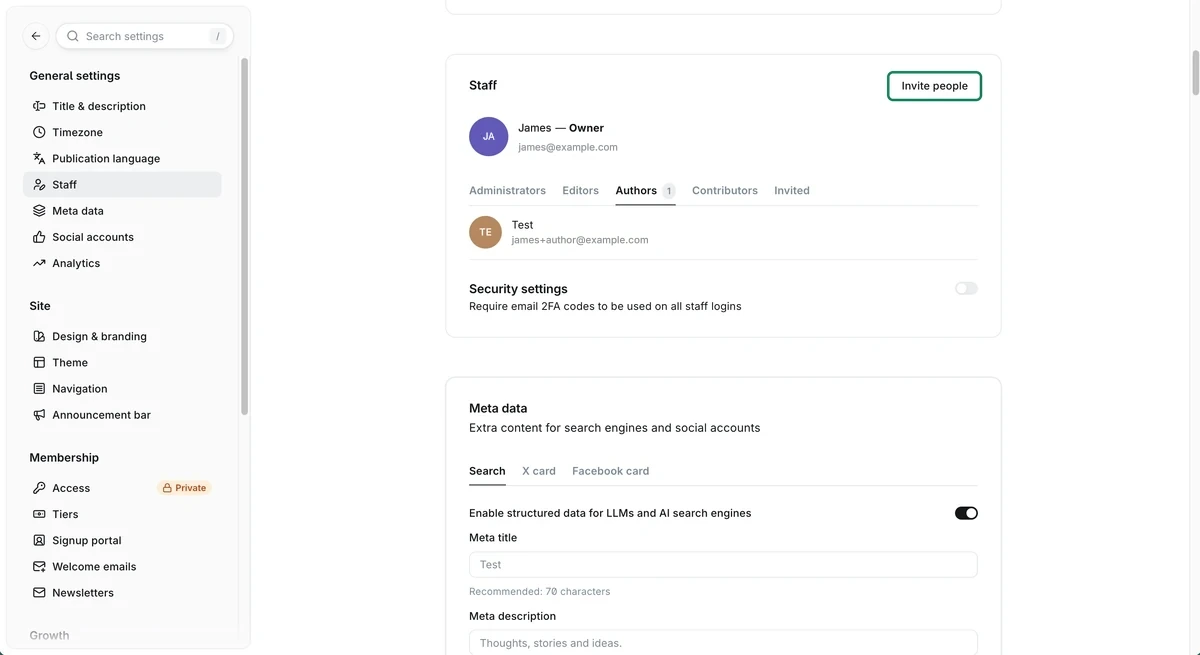
- In Ghost Admin, go to Settings → Staff, click Invite people, and invite a new staff user for Machined with the Author role
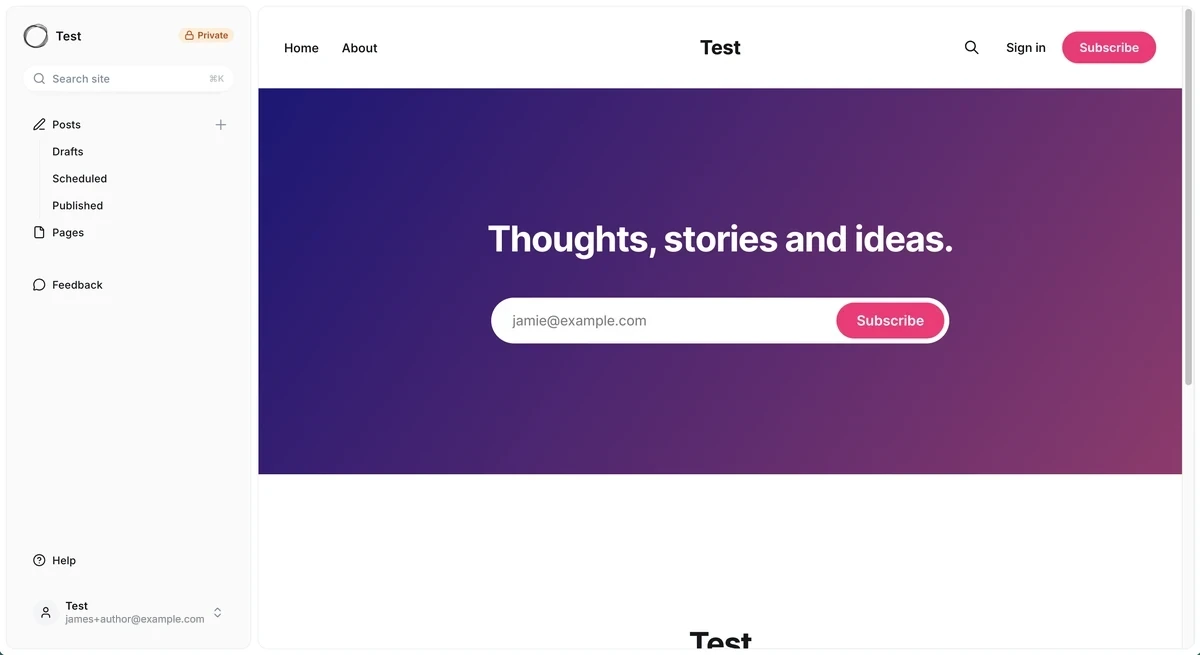
- Accept the invitation and sign in to Ghost Admin as that user. Authors don't have a Settings menu, so the next steps happen from the user's own profile
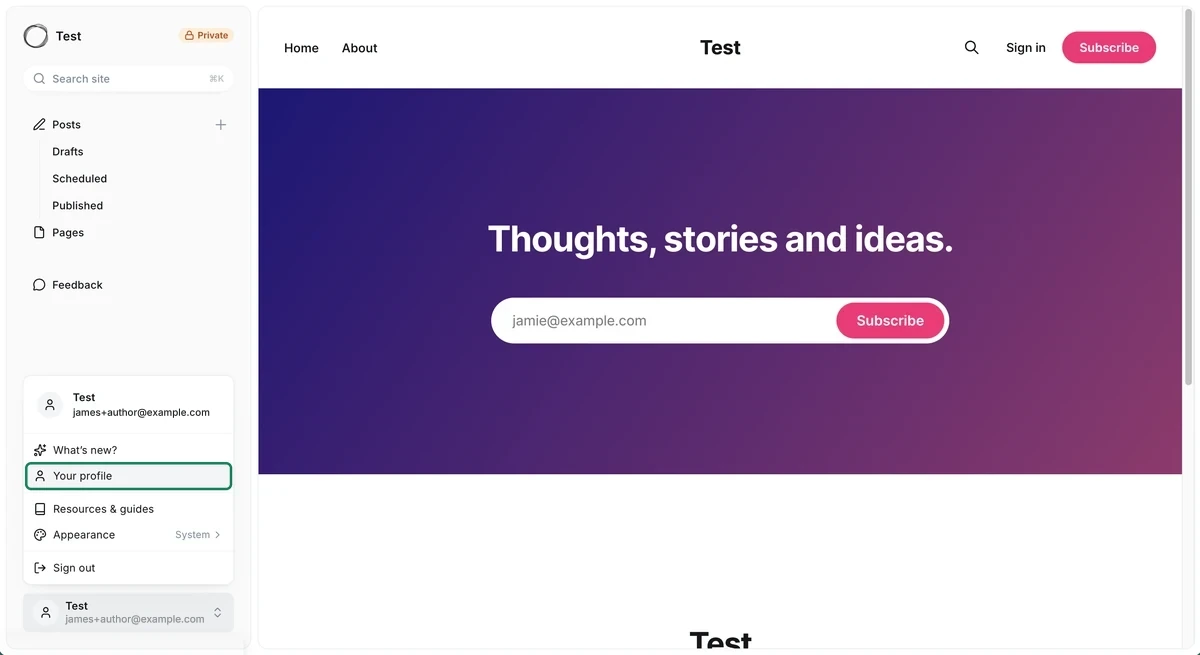
- Click the user's name at the bottom of the left-hand menu, then click Your profile
- Scroll to the bottom of the profile and copy the Staff access token
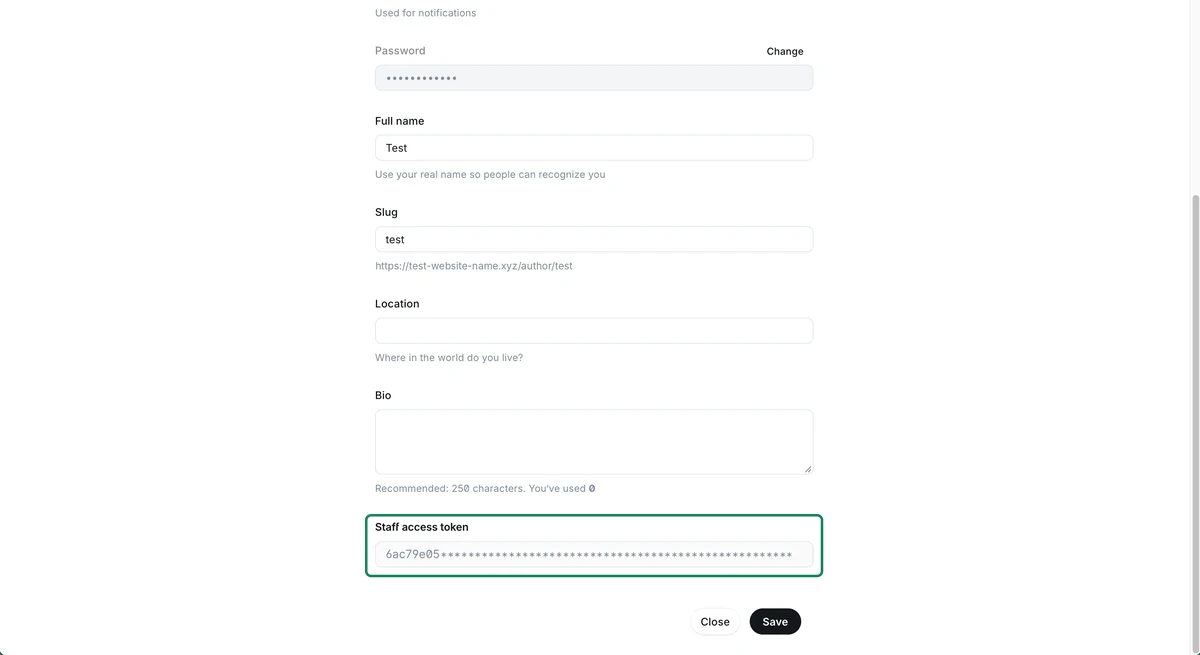
Each Ghost user can only see their own token, so you have to sign in as the Machined user to copy it.
You'll also need your API URL. It's your Ghost Admin address without /ghost/ at the end. For example, if Ghost Admin opens at https://yoursite.ghost.io/ghost/, your API URL is https://yoursite.ghost.io.
Option B: Create a custom integration
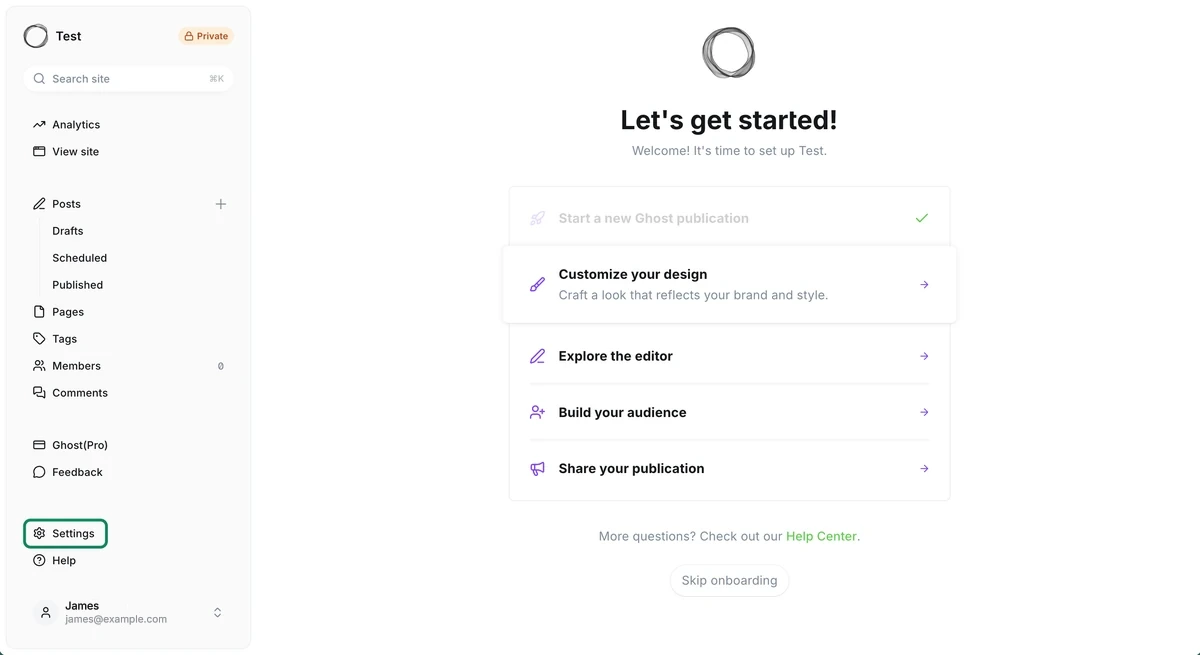
- Log into Ghost Admin and click Settings at the bottom of the left-hand menu
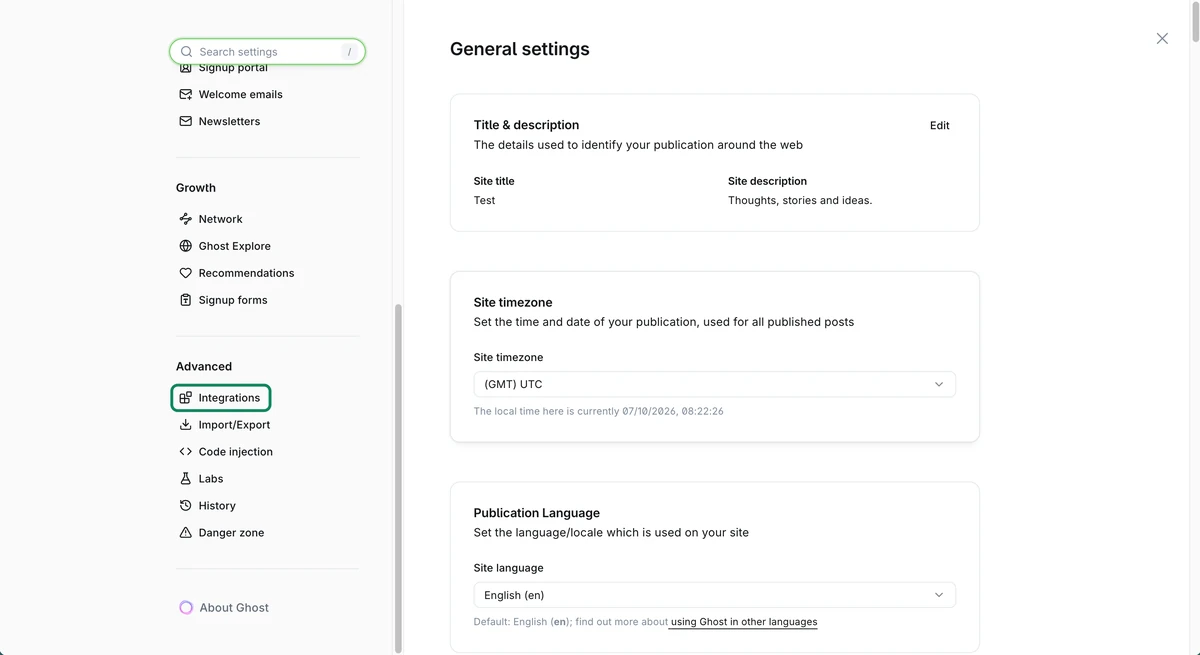
- Under Advanced, click Integrations
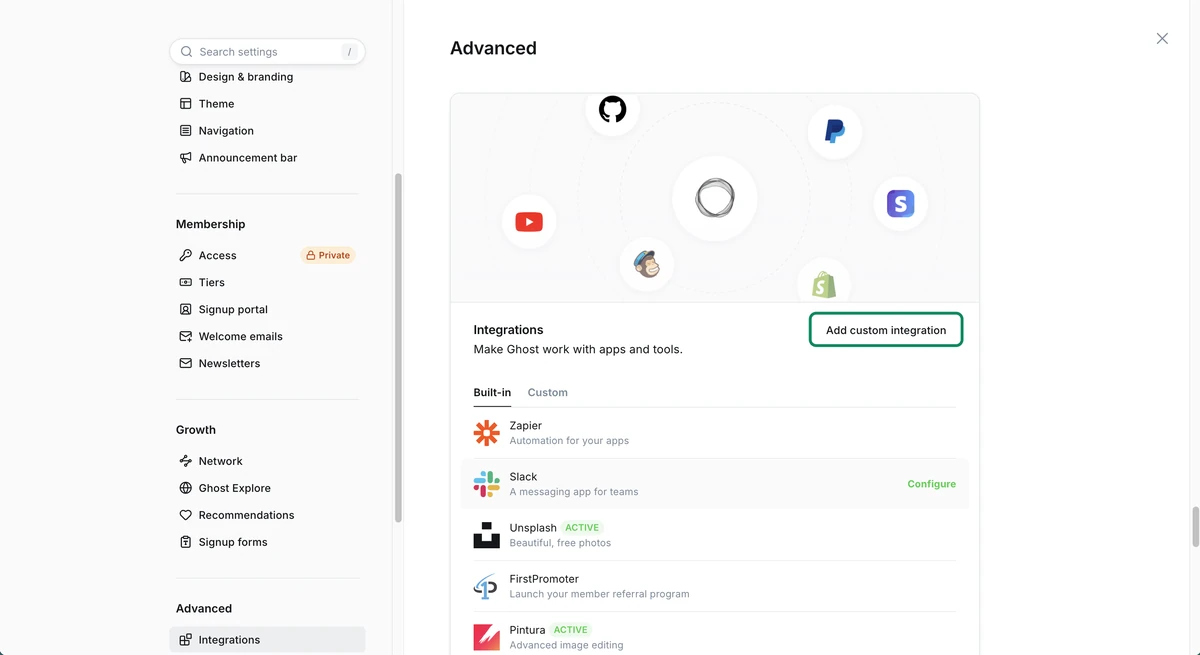
- Click Add custom integration
- Give it a name like "Machined" and click Add
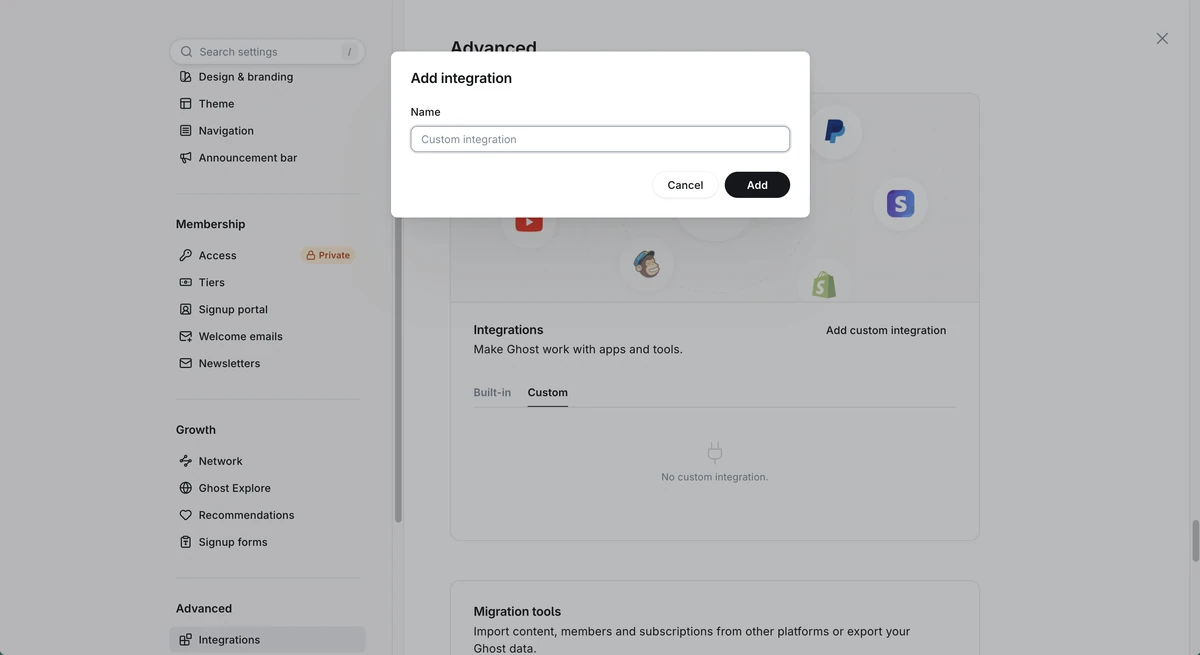
- Ghost shows the integration's keys. You need two of them: the Admin API key and the API URL
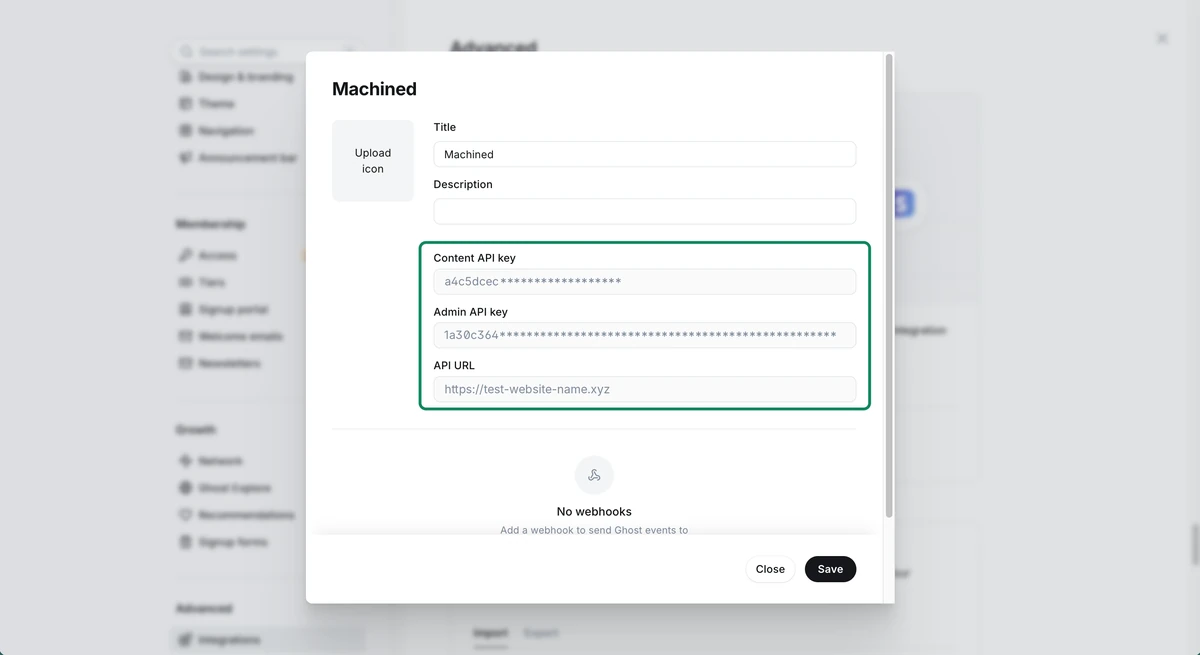
Use the Admin API key, not the Content API key. The Content API key is read-only and can't publish, so Machined won't accept it.
Custom integrations aren't available on every Ghost(Pro) plan. If your plan doesn't include them, you'll need to upgrade before you can connect this way.
Step 2: Enter your API URL and key
In the Connect Ghost dialog, fill in:
- API URL: your Ghost Admin address (Option A) or the API URL shown on your custom integration (Option B), for example
https://yoursite.ghost.io - Admin API key or staff access token: the staff access token (Option A) or the Admin API key (Option B)
Then click Connect.
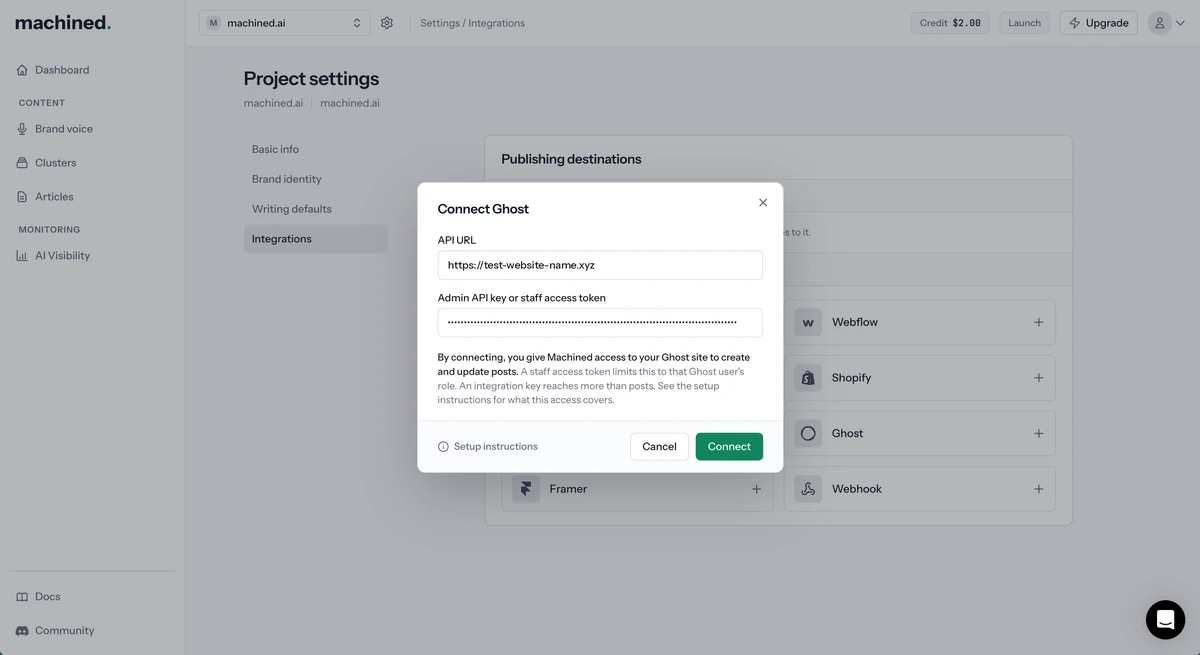
Don't use your blog's public address unless it's also where Ghost Admin lives. If your blog uses a custom domain (such as blog.example.com), Ghost Admin often lives at a different address (such as yoursite.ghost.io), and only that address will work.
Your site must use https. Machined adds https:// if you leave it off, but won't connect to a plain http address, because your key is sent with every request.
Machined checks the key against your site, and the connection then appears under Publishing destinations, named after your Ghost site's title, with a Connected status.
What Machined can access
When you connect, Machined gets access to your Ghost site to create and update posts.
What you give Machined
A staff access token for a Ghost staff user, or the Admin API key of a custom integration.
What it can do
- A staff access token can do whatever that user's role allows. For an Author, that's only their own posts.
- An Admin API key can use Ghost's Admin API across your whole site, including posts, pages, tags, members, images and theme uploads.
What Machined uses it for
- Reading your site's details
- Creating, updating and reading posts
- Uploading images
How to limit it
Connect with the staff access token of a user with the Author role (Option A).
Across every connection
- The connection belongs to this project only. Other projects in your workspace can't publish through it.
- Machined stores your token or key encrypted, uses it only on its own servers when connecting and publishing, and never shows it in the app again.
- Machined never deletes anything in Ghost. Unpublishing an article in Machined doesn't remove the post from Ghost.
- Removing the connection in Machined deletes the stored token or key. To cut off access straight away, also suspend or delete the Machined staff user (Option A), or delete the custom integration (Option B), in Ghost Admin.
Managing a connection
Each connection row has two actions:
- Move to another project: moves the connection to a different project in your workspace
- Remove connection: deletes the connection after you confirm
You can connect as many Ghost sites as you need. Each one is its own connection. To change the key or address, remove the connection and connect again.
Troubleshooting
If connecting or publishing fails, you'll see a message explaining what went wrong. The most common ones:
"That doesn't look like a Ghost Admin API key"
You've probably pasted the Content API key. Copy the Admin API key from your custom integration instead. It's the longer key, with a colon in the middle. If you're using a staff access token, copy it again from the user's profile.
"That looks like your site's public address"
You've entered your blog's public address, and your Ghost Admin lives somewhere else. Use your Ghost Admin address without /ghost/ at the end, or the API URL shown on your custom integration (Settings → Integrations).
"Your Ghost site must use https"
Enter your site's https address. If your self-hosted site doesn't have an SSL certificate yet, set one up first.
"We couldn't find a Ghost site at that address"
Check you've entered your Ghost Admin address or the API URL from your custom integration, like https://yoursite.ghost.io, and not another page or site.
"Ghost didn't accept this Admin API key"
The key may have been copied incompletely, or the integration may have been deleted or its key regenerated. Copy the Admin API key again from your custom integration, or create a new one. If you're using a staff access token, the staff user may have been suspended or their token regenerated. Copy the current token from their profile.
"Your Ghost plan doesn't allow custom integrations"
Your Ghost(Pro) plan doesn't include custom integrations, or the site is over a plan limit. Upgrade your Ghost(Pro) plan, then try again.
"Ghost refused this request"
Check that the custom integration still exists in Ghost Admin, or, for a staff access token, that the staff user is still active. If either is gone, set up a new one, then remove the connection in Machined and connect again.
"We couldn't reach your Ghost site"
Check the site address and that the site is online. Addresses on private or internal networks can't be used. Your Ghost site must be publicly reachable.
"Your Ghost site now redirects to a different address"
Your site's address has changed since you connected. Remove the connection and connect again with your current Ghost Admin address or the API URL from your custom integration.
Still stuck?
Reach out via the in-app chat.