Connecting to HubSpot Coming soon
Machined.ai has a native HubSpot integration that lets you publish articles directly to your HubSpot blog.
Connections are set up per project. Open Project settings (the gear icon next to the project name at the top of the page), go to the Integrations tab, and click the HubSpot tile under Connect a CMS.
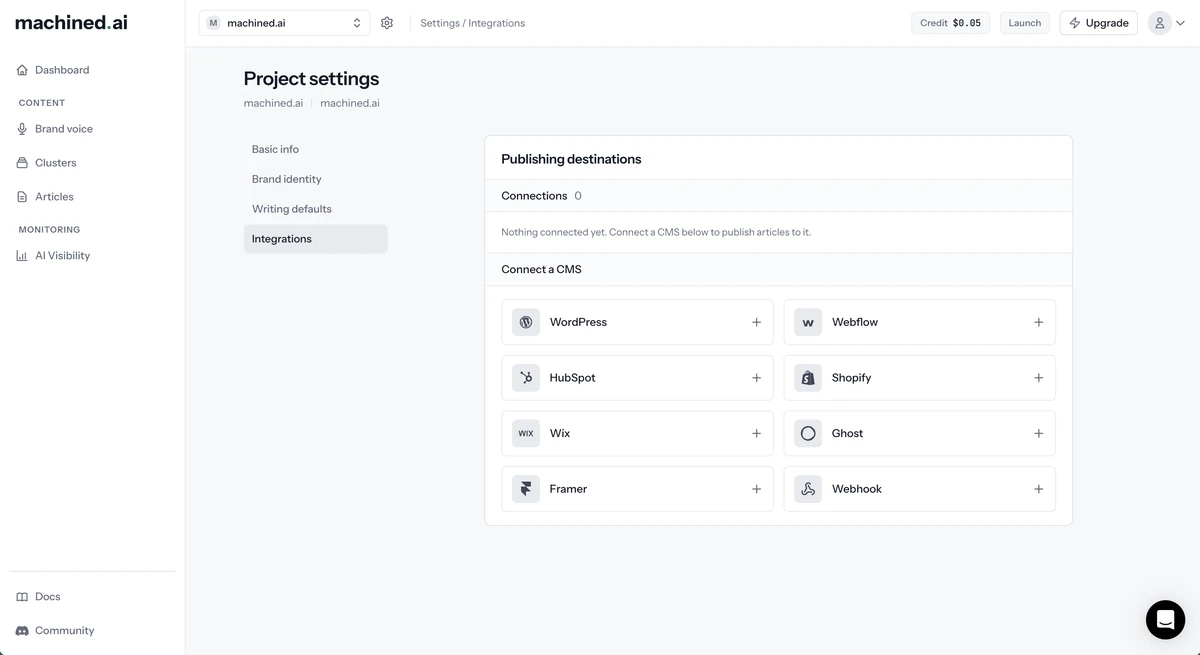
Only workspace owners and admins can add, edit or remove integrations. Other members see the connections but can't change them.
Before you start
- Your HubSpot account needs at least one blog and at least one blog author. HubSpot needs an author before a post can go live.
- To create a service key, you need to be a HubSpot super admin or have Developer tools access.
Step 1: Create a service key in HubSpot
Machined connects using a HubSpot service key.
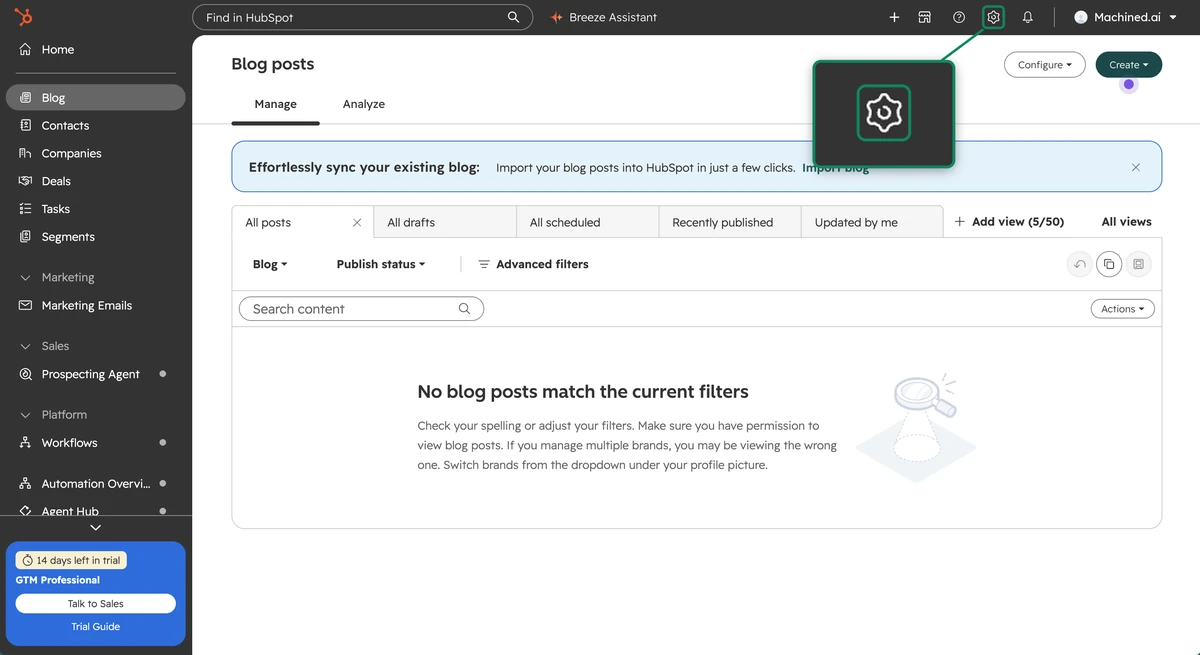
- Log into HubSpot and click the settings icon (the gear) in the top bar
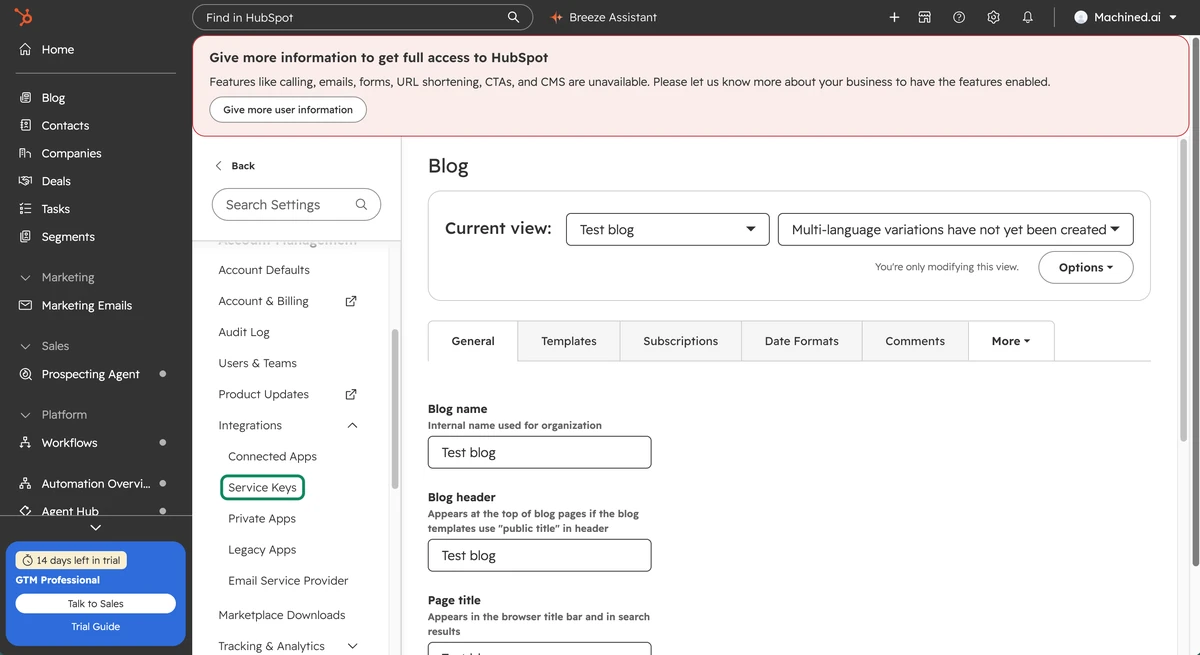
- In the settings menu on the left, under Integrations, click Service Keys
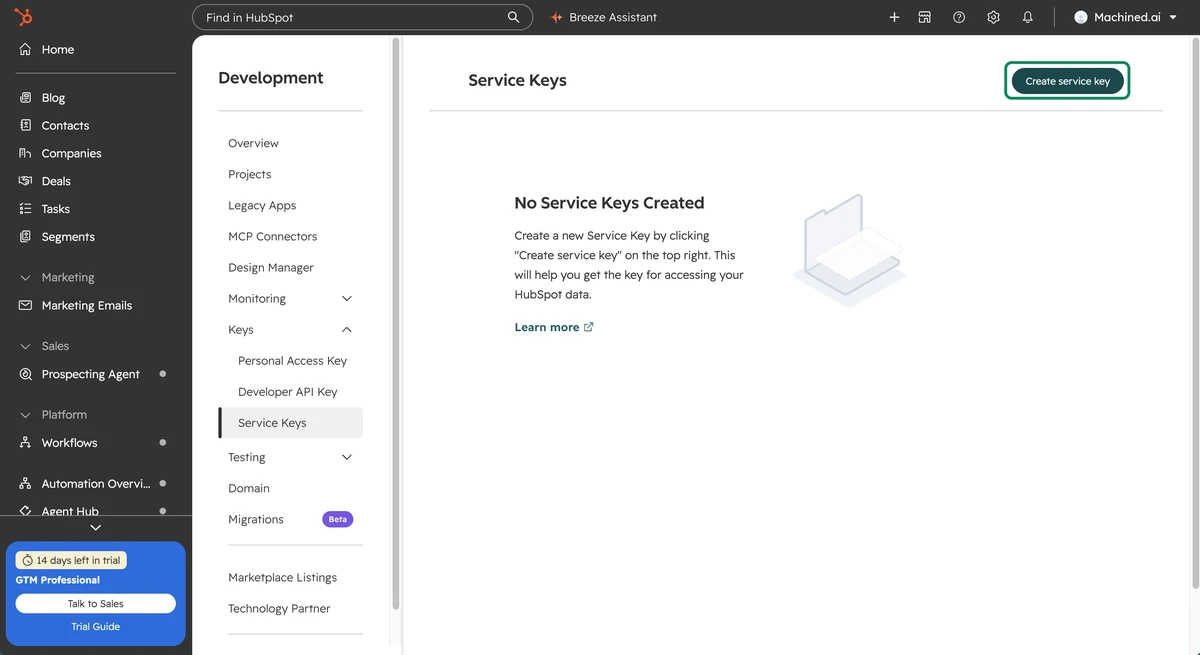
- This opens Development → Keys → Service Keys. Click Create service key
- Give the key a name like "machined-api", then click Add new scope
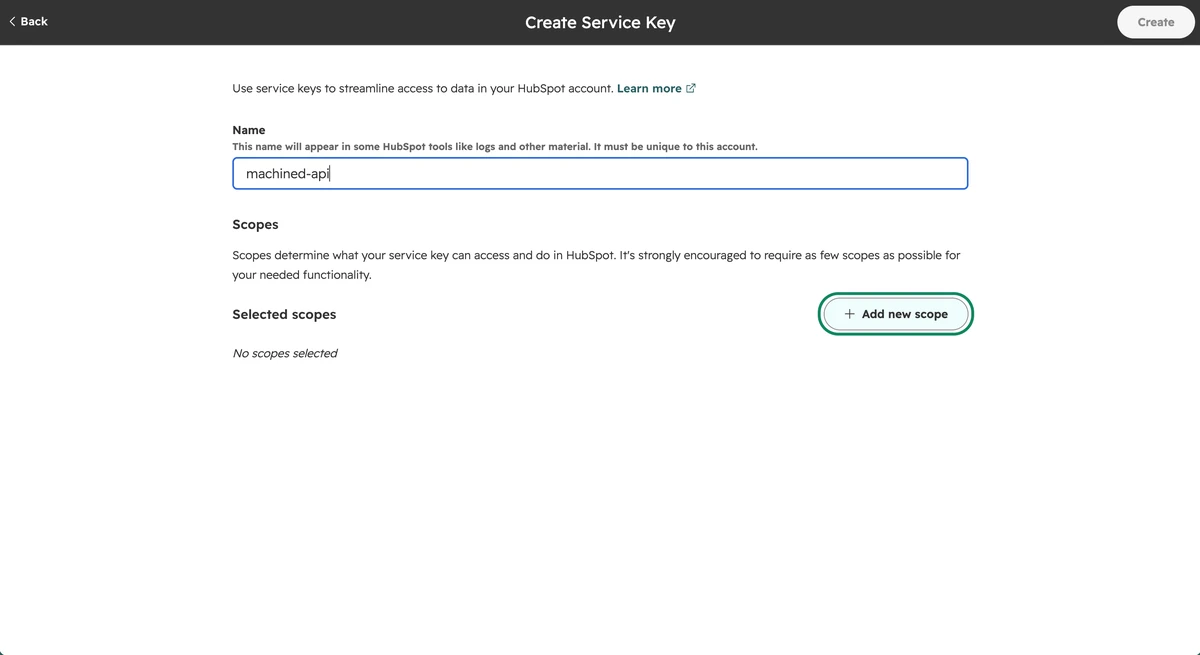
-
Machined needs these scopes:
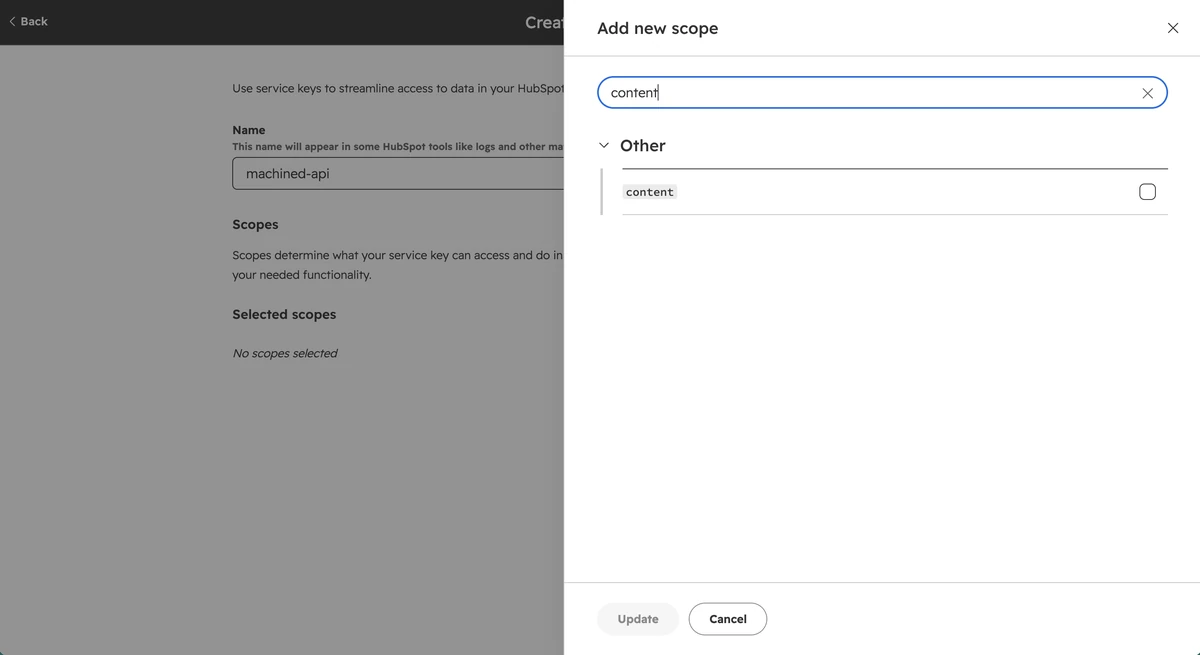
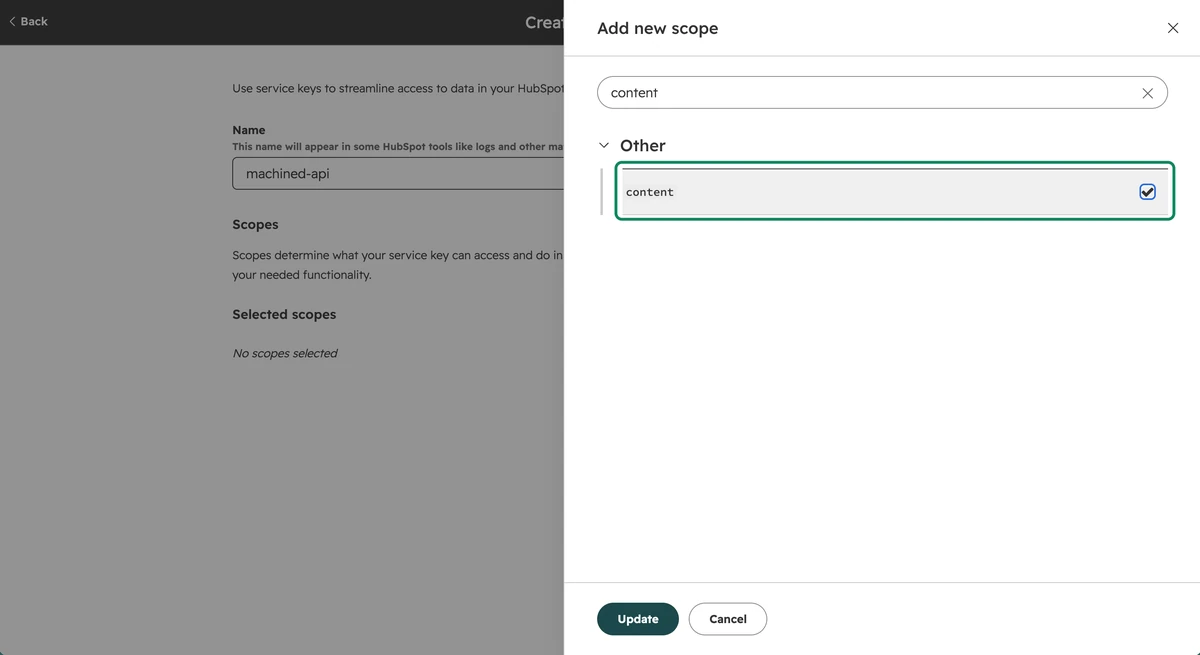
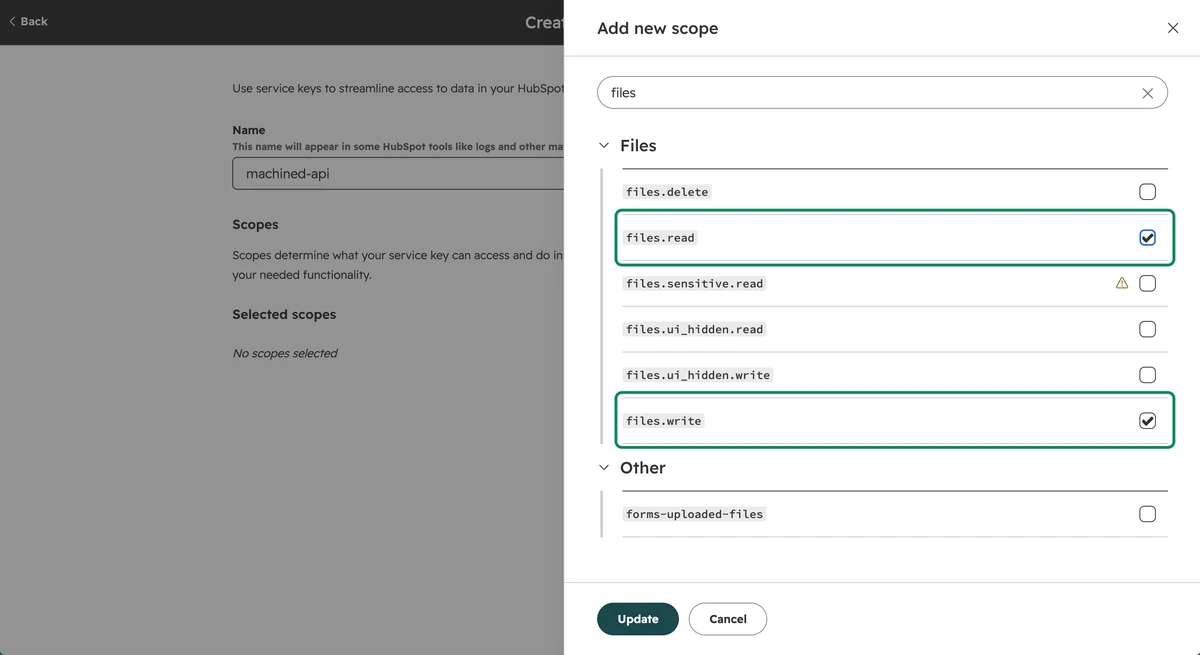
content: lets Machined read your blogs and authors, and create and publish postsfiles.readandfiles.write: let Machined upload your article's images
In Add new scope, search for
content
- Tick
content
- Search for
files, tickfiles.readandfiles.write, then click Update
- Click Create, then copy the key
If your HubSpot plan doesn't offer files.write, you can still connect with just content and files.read, but your posts are published without images.
Step 2: Enter your service key
In the Connect HubSpot dialog, paste the key into the Service key field and click Continue.
Machined checks the key and loads the blogs and authors in your HubSpot account.
Step 3: Choose a blog and an author
Choose the blog you want to publish to from Blog, and the author your posts should be published under from Author. If your account only has one blog or one author, it's selected for you.
Click Connect to save. You'll see "Connected to [blog name]." and the connection then appears under Publishing destinations with the blog's name and a Connected status.
Each connection points at one blog and one author. To publish to a different blog, add another connection.
What Machined can access
When you connect, Machined gets access to your HubSpot account to create and update blog posts.
What you give Machined
A service key with the content, files.read and files.write scopes.
What it can do
The content scope covers all the CMS content in your HubSpot account, including website and landing pages, not just your blog. The files scopes cover your file manager. The key can't reach your CRM, contacts or deals.
What Machined uses it for
- Reading your blogs, blog settings and authors
- Creating, updating, reading and publishing blog posts
- Uploading images
How to limit it
Add only the scopes in Step 1.
Across every connection
- The connection belongs to this project only. Other projects in your workspace can't publish through it.
- Machined stores your service key encrypted, uses it only on its own servers when connecting and publishing, and never shows it in the app again.
- Machined never deletes anything in HubSpot. Unpublishing an article in Machined doesn't remove the post from HubSpot.
- Removing the connection in Machined deletes the stored service key. To cut off access straight away, also delete the service key in HubSpot under Development → Keys → Service Keys.
Managing a connection
Each connection row has two actions:
- Move to another project: moves the connection to a different project in your workspace
- Remove connection: deletes the connection after you confirm
To change the blog or author, remove the connection and connect again.
Troubleshooting
If connecting or publishing fails, Machined shows a message explaining what went wrong. The most common ones:
"That doesn't look like a HubSpot service key"
The key contains characters a HubSpot service key wouldn't. Copy it again from HubSpot, making sure you don't pick up any extra text.
"This HubSpot service key is invalid or was deleted"
The key was rejected. Check you copied the whole key, and that it hasn't been deleted in HubSpot. If in doubt, create a new service key and connect again.
Missing the content scope
If you see "This HubSpot service key doesn't have the content scope, which publishing needs", edit the key in HubSpot to add the content scope, then try again.
If you see "HubSpot refused this request", check that the key still has the content scope and that your HubSpot account can publish blog posts.
"This HubSpot account has no blog yet"
Create a blog in HubSpot, then try connecting again.
"This HubSpot account has no blog authors yet"
Add an author in HubSpot under your blog settings, then try connecting again.
"This HubSpot blog is already connected to this project"
You already have a connection for that blog in this project. You don't need to connect it again.
"We couldn't find the HubSpot blog or post"
The blog may have been deleted in HubSpot. Remove the connection and connect again, choosing a blog that exists.
"HubSpot rejected this post"
Check that the blog and author chosen when you connected still exist in HubSpot. If either has been deleted, remove the connection and connect again.
"HubSpot has blocked this account from publishing content"
HubSpot has restricted your account from publishing. This is set by HubSpot, not Machined. Contact HubSpot support to lift the restriction, then try again.
Duplicate slugs
If you see "A HubSpot post already uses this URL slug", there's already a post in HubSpot with the same slug as your article. You can't change an article's slug in Machined, so in HubSpot, change the existing post's URL slug, or delete the post if you no longer need it. Then try again.
Images missing from published posts
If your service key doesn't have the files.write scope, or your HubSpot plan doesn't offer it, images can't be uploaded and the article is published without them. The success screen tells you when the featured image or any body images couldn't be uploaded.
Still stuck?
Reach out via the in-app chat.