Connecting to Shopify
Machined.ai has a native Shopify integration that lets you publish articles directly to a blog on your Shopify store.
To connect, you create a small app for your store in Shopify's Dev Dashboard, then give Machined the app's client ID and client secret. The app only needs permission to write blog content and upload files.
Connections are set up per project. Open Project settings (the gear icon next to the project name at the top of the page), go to the Integrations tab, and click the Shopify tile under Connect a CMS.
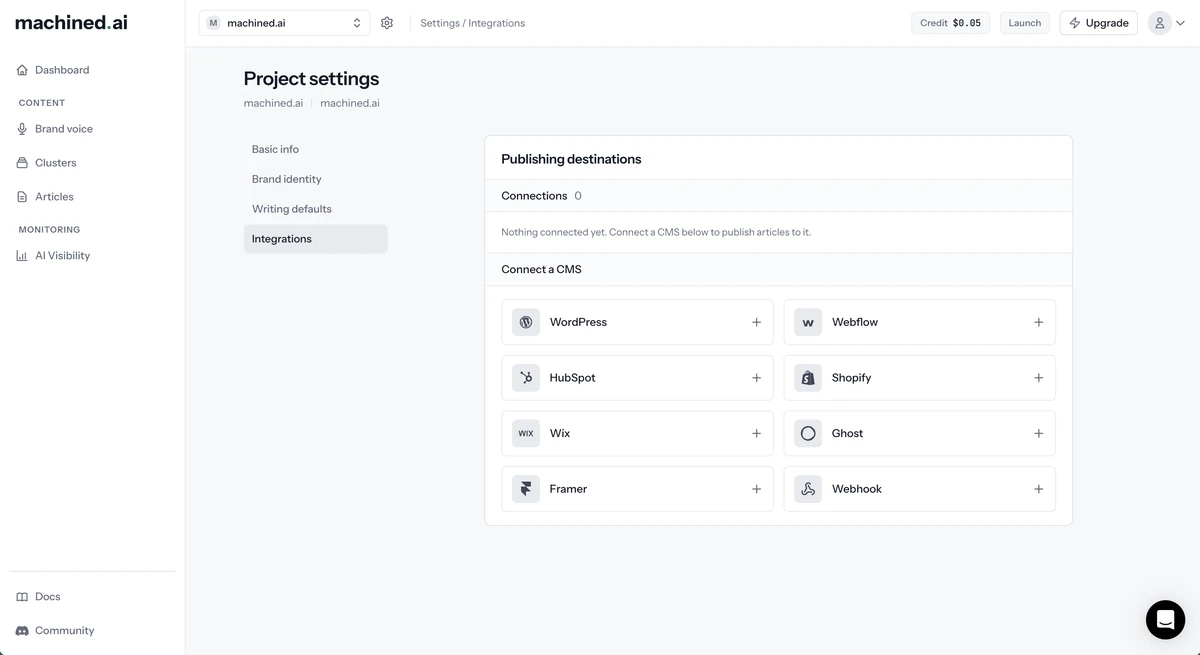
Only workspace owners and admins can add, edit or remove integrations. Other members see the connections but can't change them.
Before you start
- Your store needs at least one blog. If it doesn't have one yet, create it in Shopify first.
- Create the app from the same Shopify account that owns the store. Shopify won't let an app created by another account connect.
- Have your store's
myshopify.comaddress to hand, for exampleyour-store.myshopify.com. You'll find it in your Shopify admin under Settings → Domains. A custom domain won't work here.
Step 1: Open the Dev Dashboard
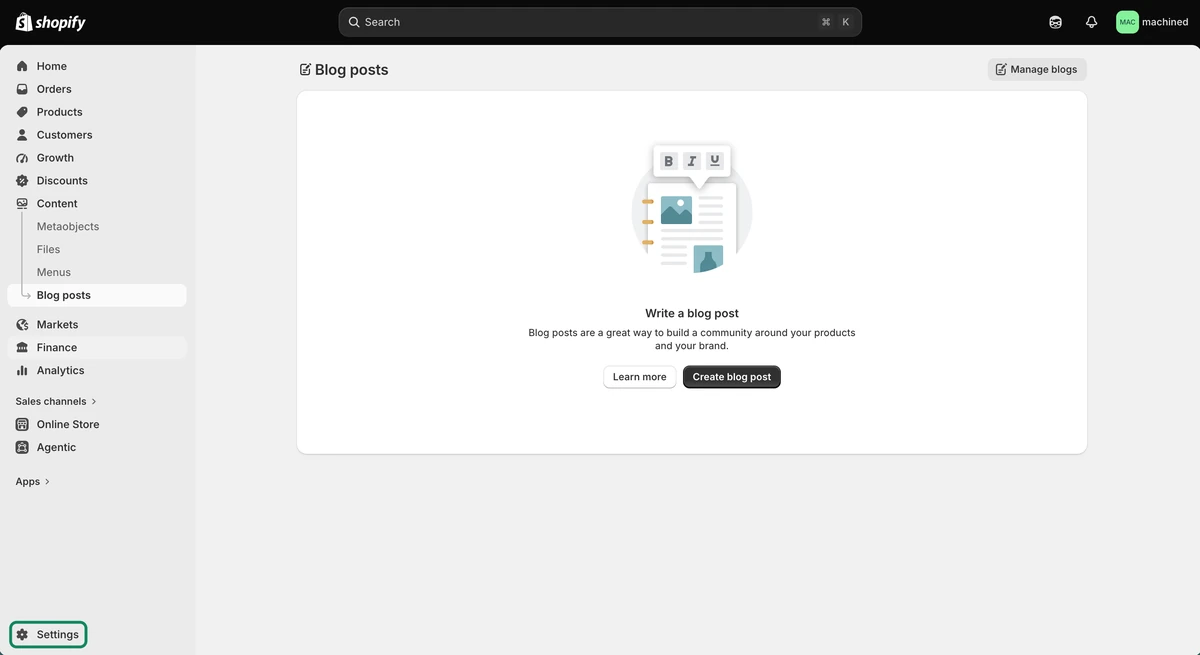
- In your Shopify admin, click Settings at the bottom of the sidebar
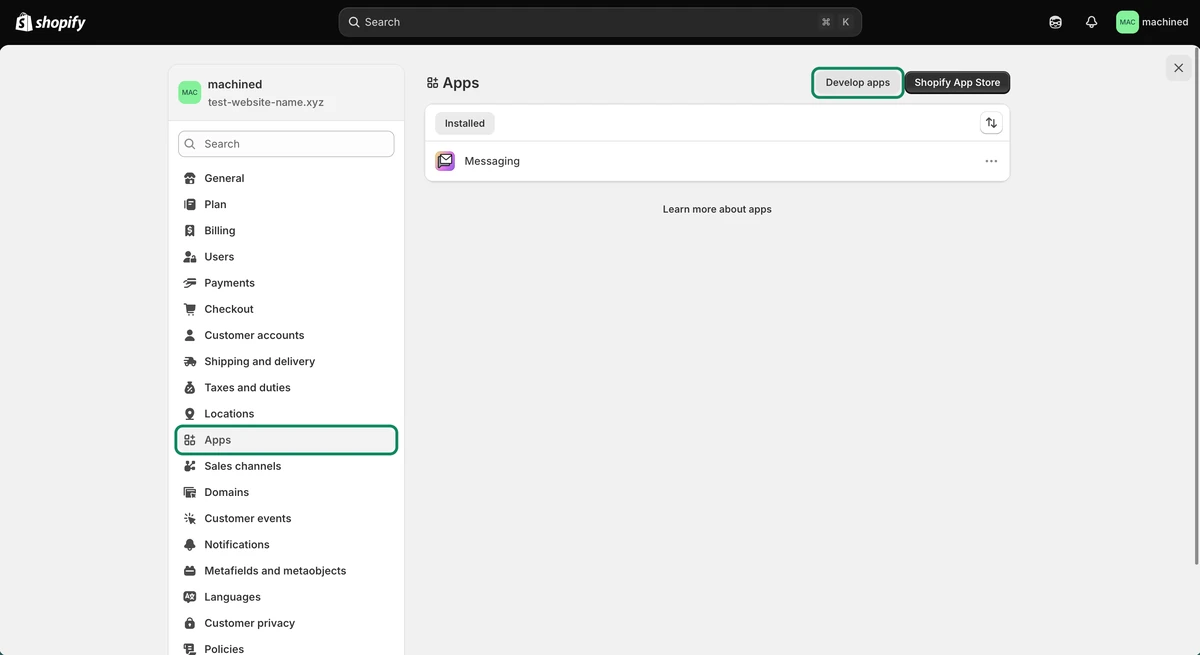
- Click Apps, then click Develop apps
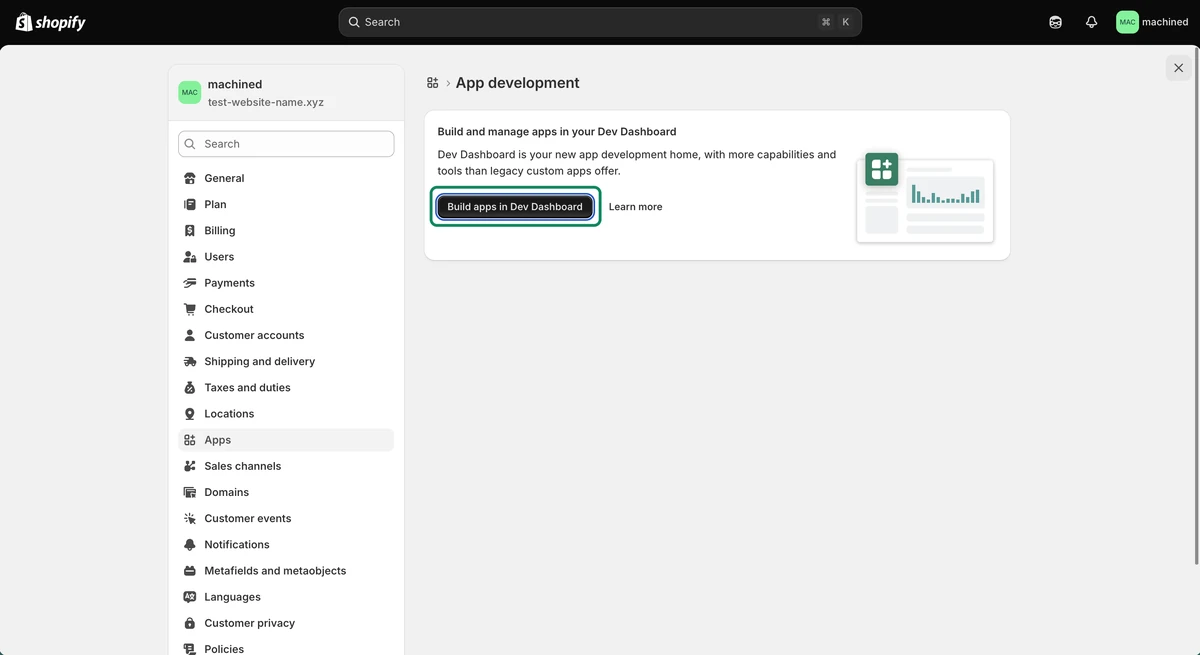
- Click Build apps in Dev Dashboard. The Dev Dashboard opens.
Step 2: Create the app
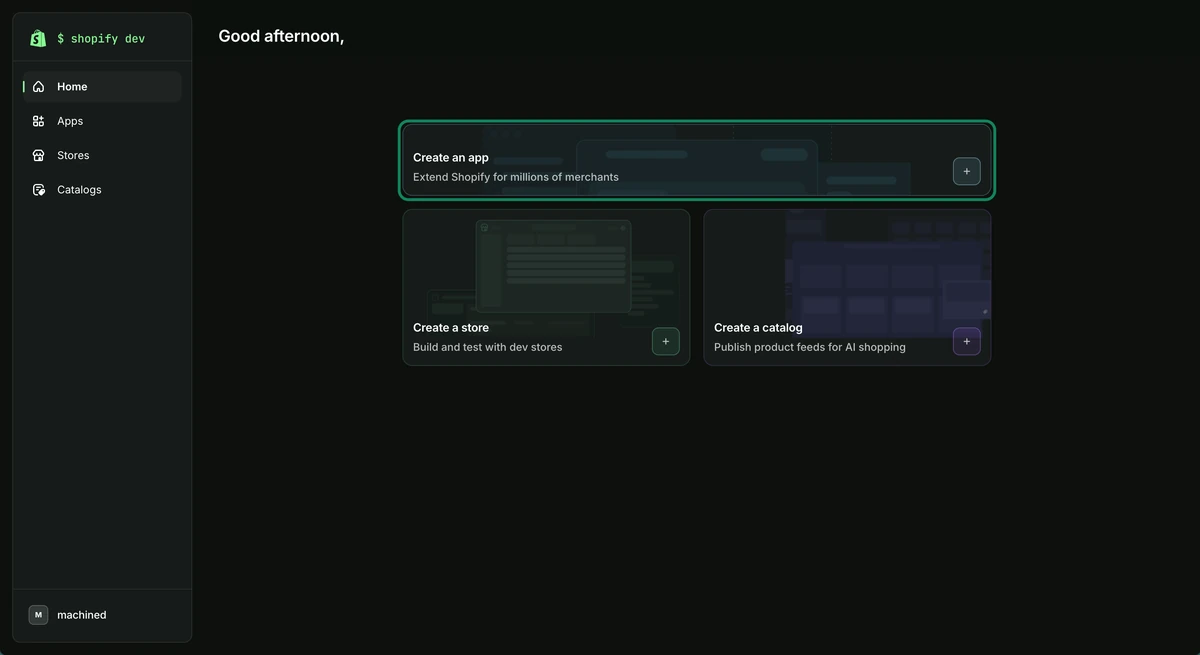
- Click Create an app
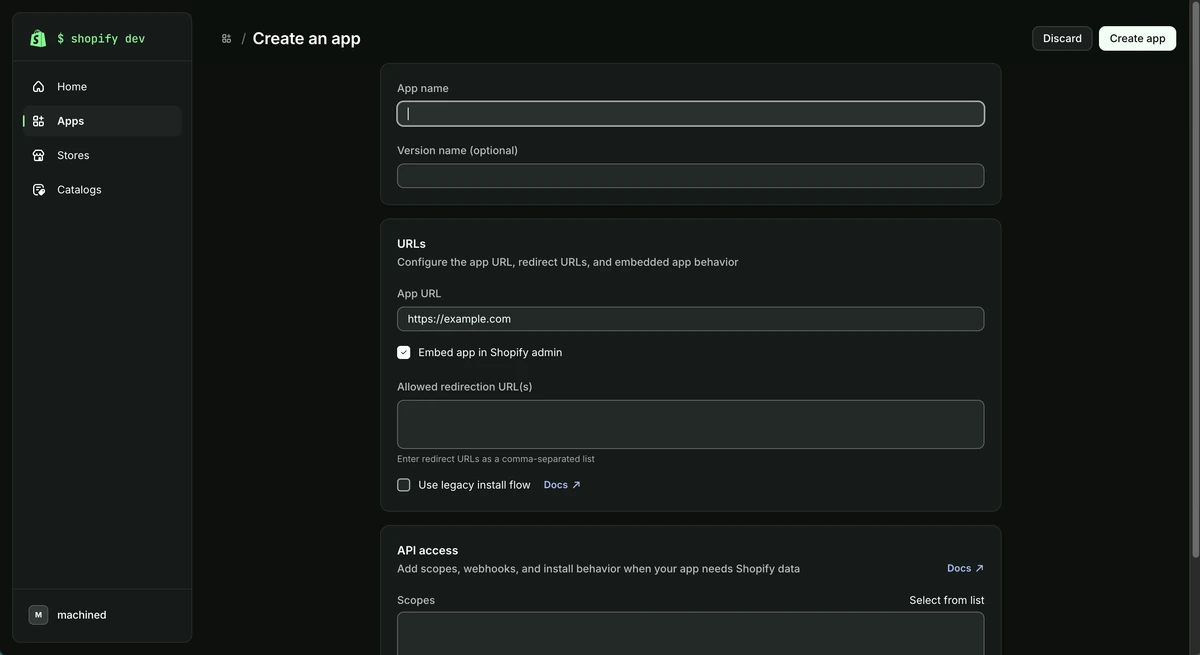
- Give the app a name, such as "Machined", in App name
-
Under URLs:
- Untick Embed app in Shopify admin. Machined doesn't add a screen inside Shopify.
- Leave App URL as it is. It's required but Machined doesn't use it, so
https://example.comis fine. - Leave Allowed redirection URL(s) empty and Use legacy install flow unticked.
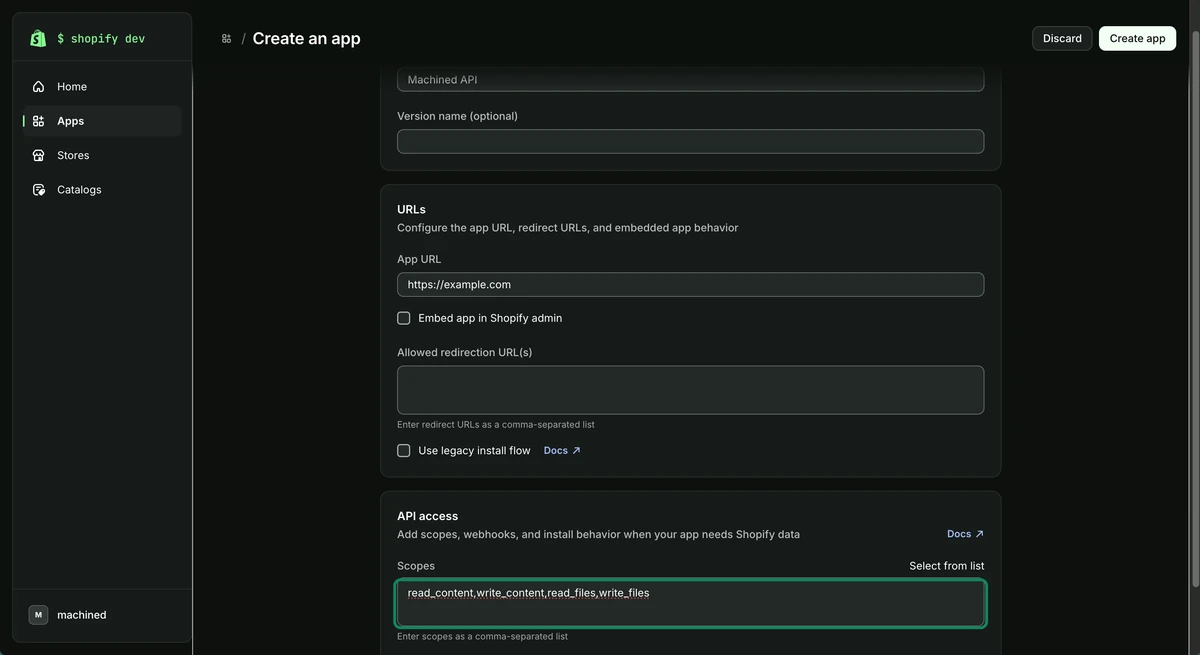
Then, under API access, paste these four scopes into Scopes:
read_content,write_content,read_files,write_files
- Leave Webhooks API version as it is, then click Create app at the top of the page
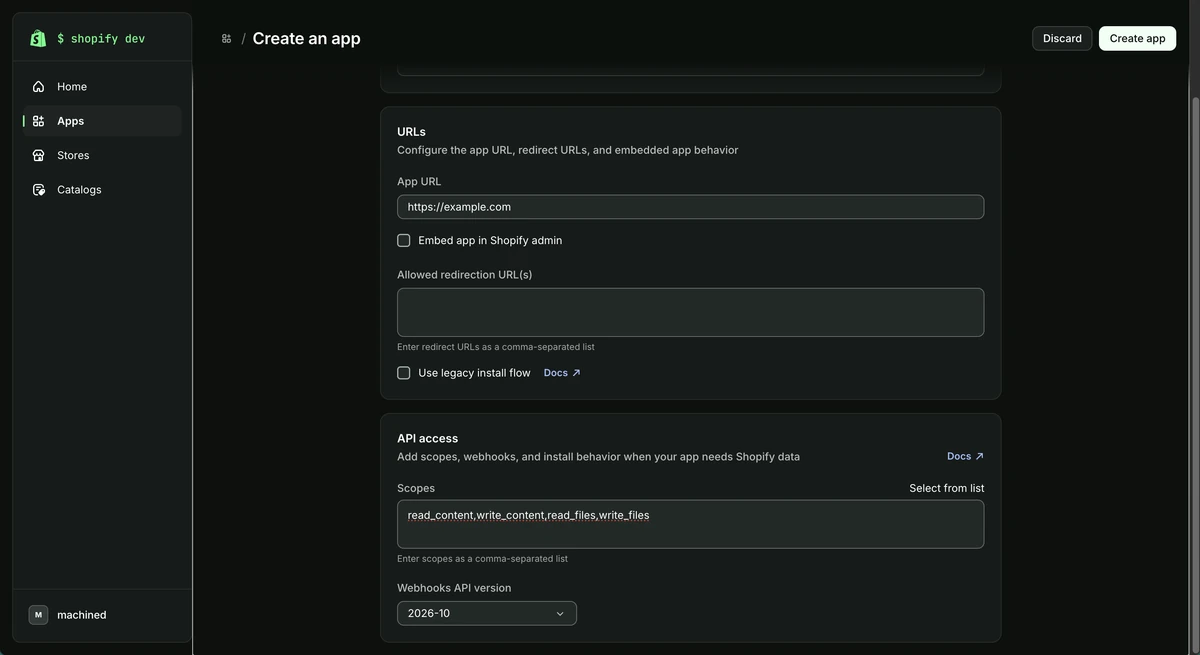
write_content is required: Machined won't connect without it. write_files lets Machined upload your article images. Without it, articles are published without images.
Step 3: Release the version
Click Release in the Release version dialog.
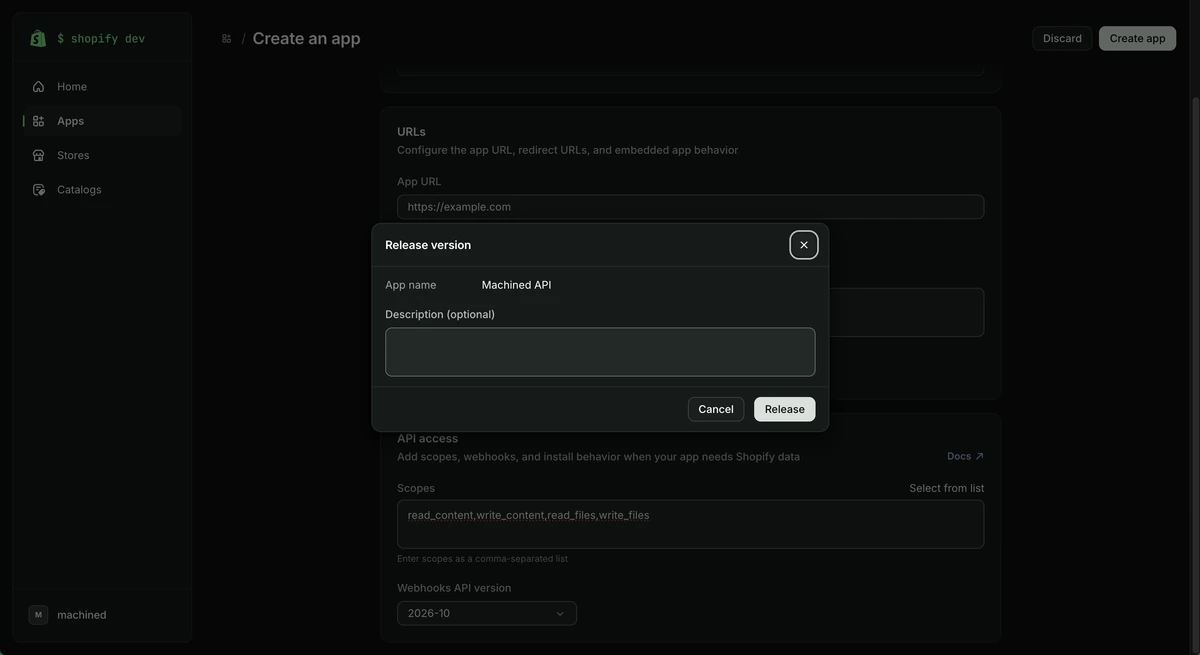
Step 4: Copy your client ID and secret
- Your app's Versions page opens, with the version showing as Active. Click App settings

- Under Credentials, copy the Client ID and Client secret
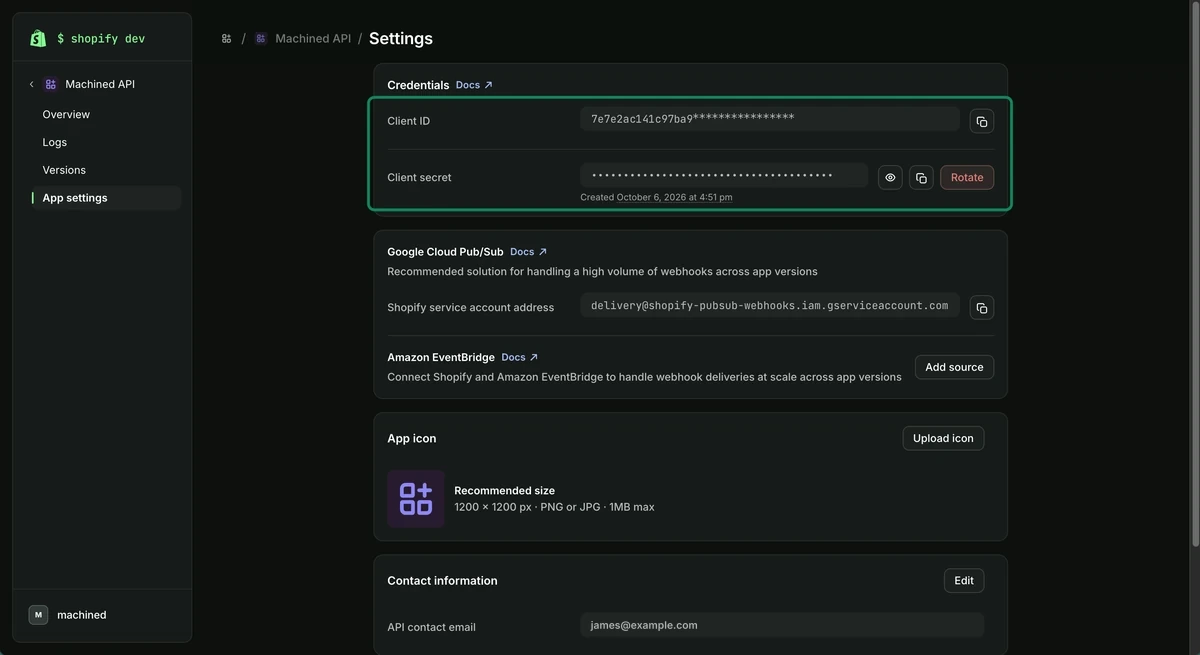
Treat the client secret like a password.
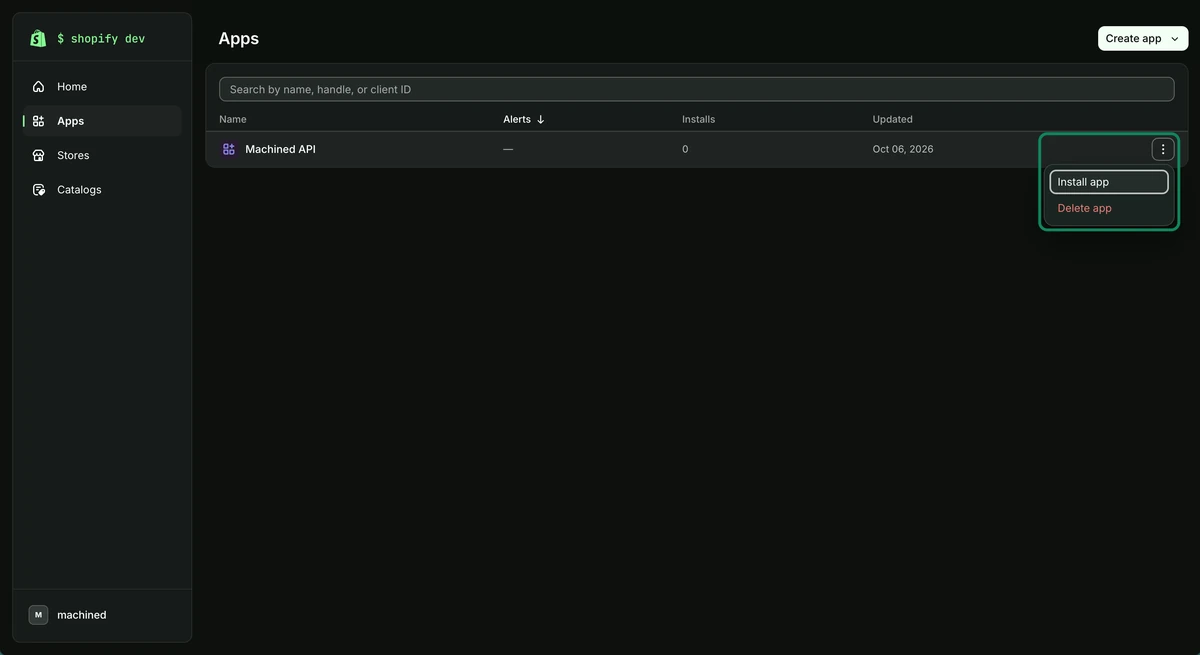
Step 5: Install the app on your store
- In the Dev Dashboard, go to Apps, open the menu (⋮) on your app's row and click Install app
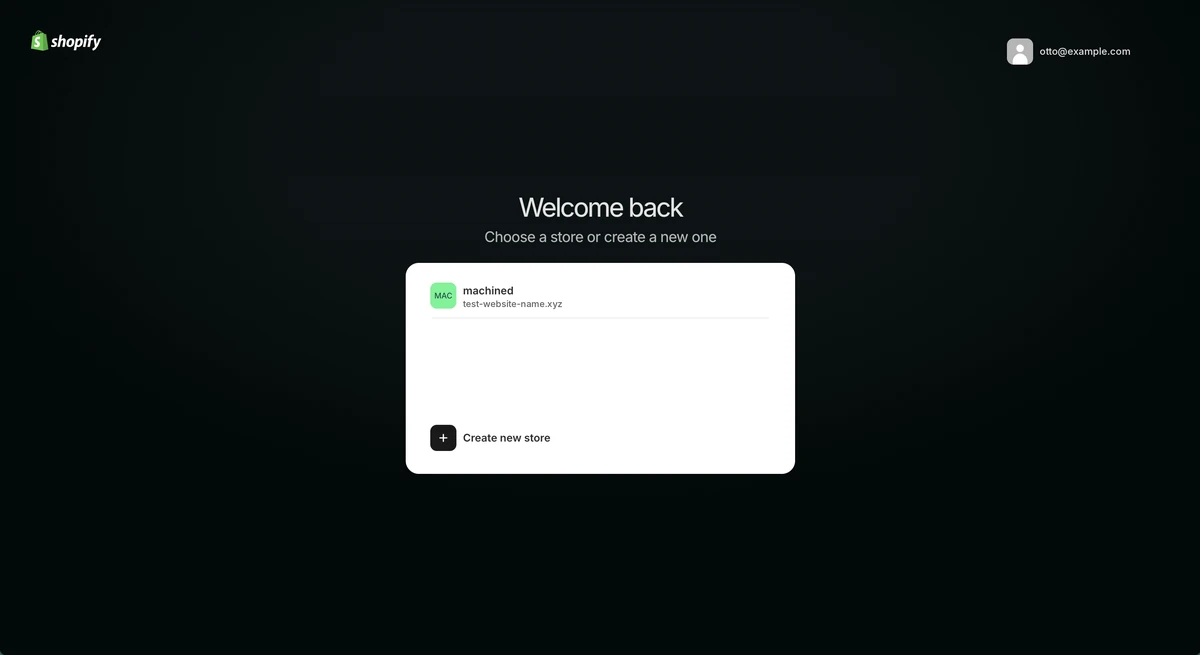
- If you're asked to, choose your store
- Review the access the app needs and click Install
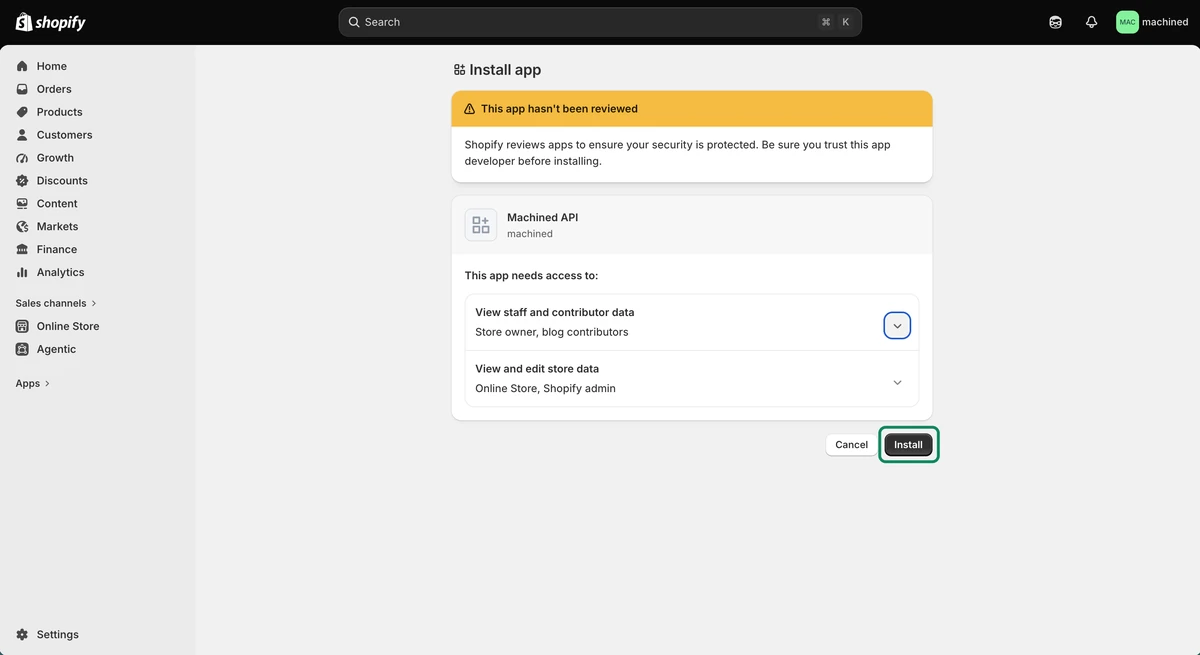
Shopify shows a "This app hasn't been reviewed" warning on the install screen. That's expected: the app is your own, created by you for your store.
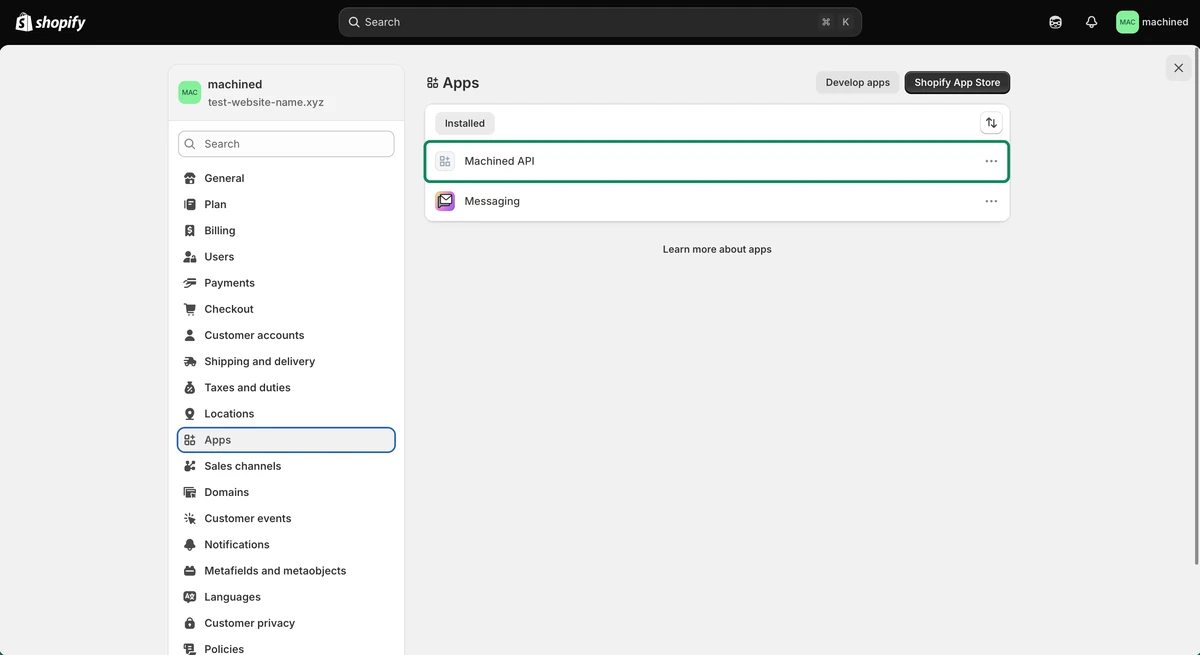
- The app now appears in your Shopify admin under Settings → Apps
Step 6: Enter your details in Machined
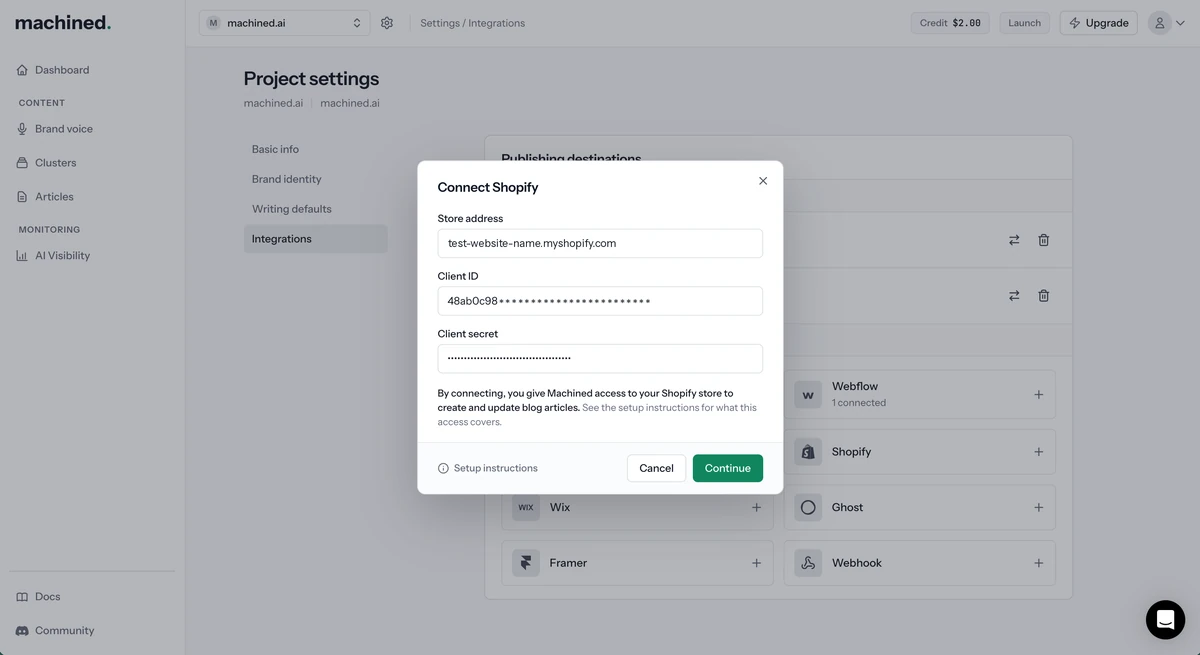
In the Connect Shopify dialog, enter:
- Store address: your store's
myshopify.comaddress, for exampleyour-store.myshopify.com - Client ID: from Step 4
- Client secret: from Step 4
Click Continue. Machined checks the app is installed, has the permissions it needs, and that your store has a blog.
Step 7: Choose your blog
- Choose the blog you want to publish to from Blog. If your store has only one blog, it's already selected.
- Optionally, enter an Author name. It's shown on each article. Leave it empty to use your store name.
- Click Connect
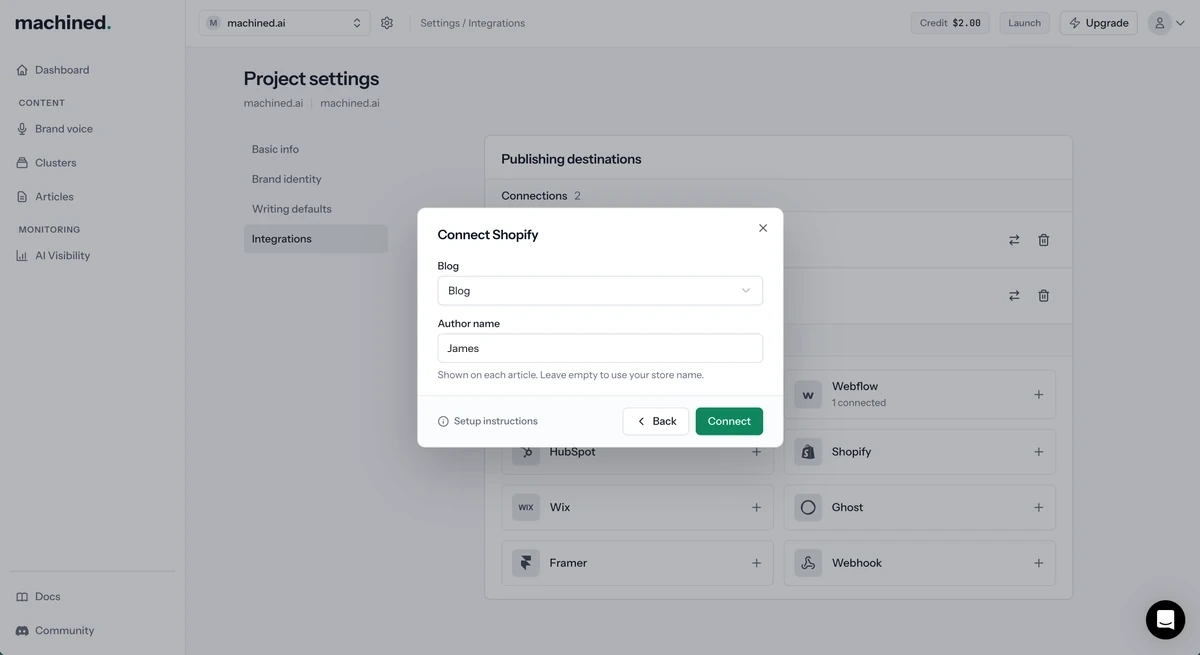
Each connection points at one blog. To publish to another blog on the same store, add a separate connection for it.
If your app doesn't have write_files, you'll see Articles will be published without images. You can still connect. To include images later, add write_files to the app in the Dev Dashboard and release a new version.
Once connected, the connection appears under Publishing destinations as Store name: Blog name with a Connected status.
What Machined can access
When you connect, Machined gets access to your Shopify store to create and update blog articles.
What you give Machined
The client ID and client secret of the app you created for your store, with the read_content, write_content, read_files and write_files scopes.
What it can do
write_content covers your blogs, articles and pages, and write_files covers your files. The app can't reach your products, orders, customers or store settings.
What Machined uses it for
- Reading your store's name, address and blogs
- Creating and updating articles
- Uploading images
- Removing an article's SEO description from Shopify when you clear it in Machined
How to limit it
Machined only connects an app whose scopes are limited to read_content, write_content, read_files and write_files. If your app has any others, Machined names them and asks you to remove them first.
Across every connection
- The connection belongs to this project only. Other projects in your workspace can't publish through it.
- Machined stores your client secret encrypted, uses it only on its own servers when connecting and publishing, and never shows it in the app again.
- Machined never deletes articles or anything else in your store. The one exception is an article's SEO description, which Machined removes when you clear it. Unpublishing an article in Machined doesn't remove it from Shopify.
- Removing the connection in Machined deletes the stored client secret. To cut off access straight away, also uninstall the app in your Shopify admin under Settings → Apps.
Managing a connection
Each connection row has two actions:
- Move to another project: moves the connection to a different project in your workspace
- Remove connection: deletes the connection after you confirm
To change the blog or author name, remove the connection and connect again.
Troubleshooting
If connecting or publishing fails, you'll see a message explaining what went wrong. The most common ones:
"Your Shopify app isn't installed on this store"
The app was created but not installed. Install it on your store as in Step 5, then try again.
"Shopify didn't accept this client ID and secret"
Check you copied the whole client ID and secret from the app's App settings in the Dev Dashboard. If you rotated the secret in Shopify, copy the new one. Also make sure the app was created from the same Shopify account that owns the store.
"Your Shopify app doesn't have the write_content permission"
Add the write_content scope to the app in the Dev Dashboard, release a new version, then try again.
"Your Shopify app has permissions Machined doesn't use"
Your app has scopes beyond the ones Machined needs, and the message names them. Remove them from the app in the Dev Dashboard, release a new version, then try again. Only the four scopes in Step 2 are allowed.
"Enter your store's myshopify.com address"
Machined only accepts your store's myshopify.com address, not a custom domain. You can find it in your Shopify admin under Settings → Domains.
"We couldn't find this Shopify store"
Check the myshopify.com address is spelled correctly.
"This Shopify store has no blog yet"
Create a blog in Shopify, then try again.
Articles are published without images
Your app doesn't have the write_files scope. Add it in the Dev Dashboard and release a new version. You don't need to reconnect.
"An article in this Shopify blog already uses this URL handle"
There's already an article with the same handle in the blog. You can't change an article's slug in Machined, so in Shopify, change the existing article's URL handle, or delete the article if you no longer need it. Then try again.
"We couldn't find the Shopify blog or article"
The blog may have been deleted in Shopify. Remove the connection and connect again, choosing the blog.
"This Shopify store is frozen or locked"
Shopify isn't accepting changes to the store. Check the store in Shopify, then try again.
"Shopify's rate limit was hit"
Wait a minute and try again, or publish fewer articles at a time.
Still stuck?
Reach out via the in-app chat.