Publishing to Webflow
Once you've connected your Webflow site, you can publish articles directly from Machined.ai.
Publishing an article
- Open a written article in the editor and click Publish in the bar above the article. From a cluster, you can also open the article's menu and click Publish article.
- If your project has more than one destination, choose your Webflow connection.
- Choose a publish status, then click Publish.
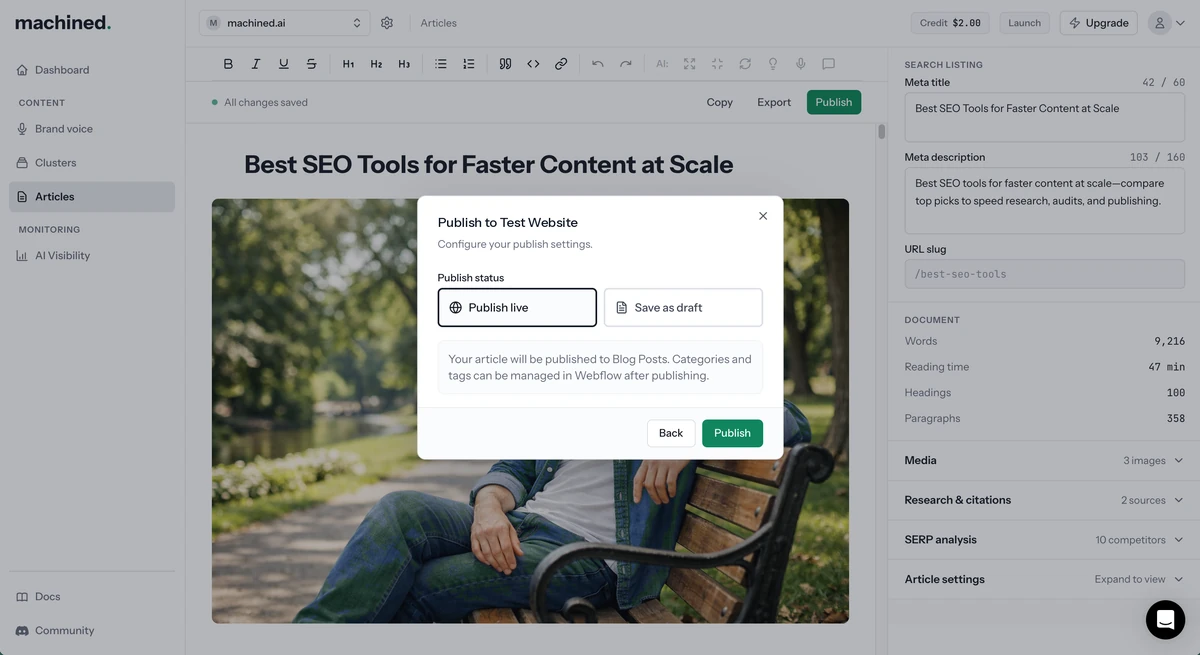
Publish status options
- Publish live: published immediately and publicly visible
- Save as draft: saved to Webflow as a draft, not publicly visible
Categories and tags can be managed in Webflow after publishing.
Publishing in bulk
Open a cluster, select the articles using the checkboxes, and click Publish (n). Choose your Webflow connection and publish status. All selected articles that are ready to publish will be sent.
Updating or re-sending an article
Once published, an article shows Republish and Unpublish. Republish updates the existing Webflow item with your latest changes; Unpublish lets you publish it again as a new item. An article can only be published to one CMS connection at a time. See Republishing and unpublishing.
Notes
Webflow's Rich Text fields don't support tables, so any tables in your article are published to Webflow as lists.
If publishing fails, see troubleshooting for Webflow.